
How to Set Up Zoiper for Mweb VoIP on an Apple device
Follow these easy instructions to configure your Mweb VoIP service using Zoiper on an Apple device.
Follow this guide to retrieve your Mweb VoIP Access Details.
-
Download Zoiper
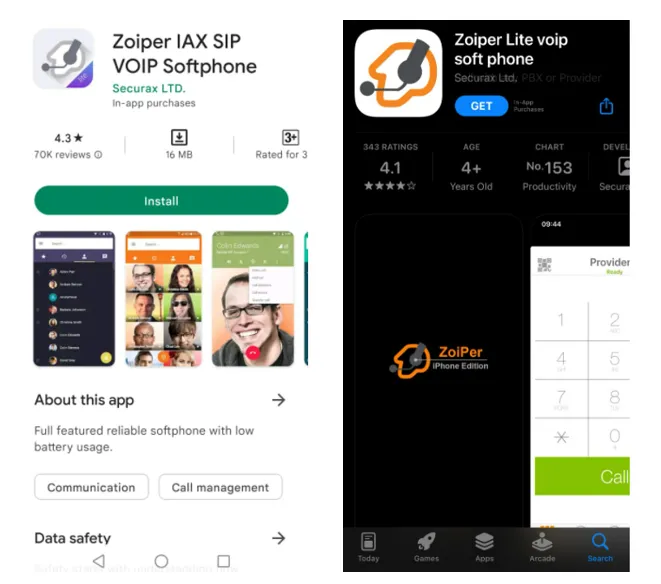
Visit the Zoiper website or go to your device’s app store and search for "Zoiper"
Note: Zoiper offers two versions:
- Zoiper Lite: This free version is ideal for most VoIP users, offering basic call functionality.
- Zoiper Premium: This paid version includes advanced features such as call encryption, push notifications, video calls, and support for additional codecs.
For most Mweb VoIP users, Zoiper Lite should be sufficient.
-
Install Zoiper
Download and install Zoiper on your device.
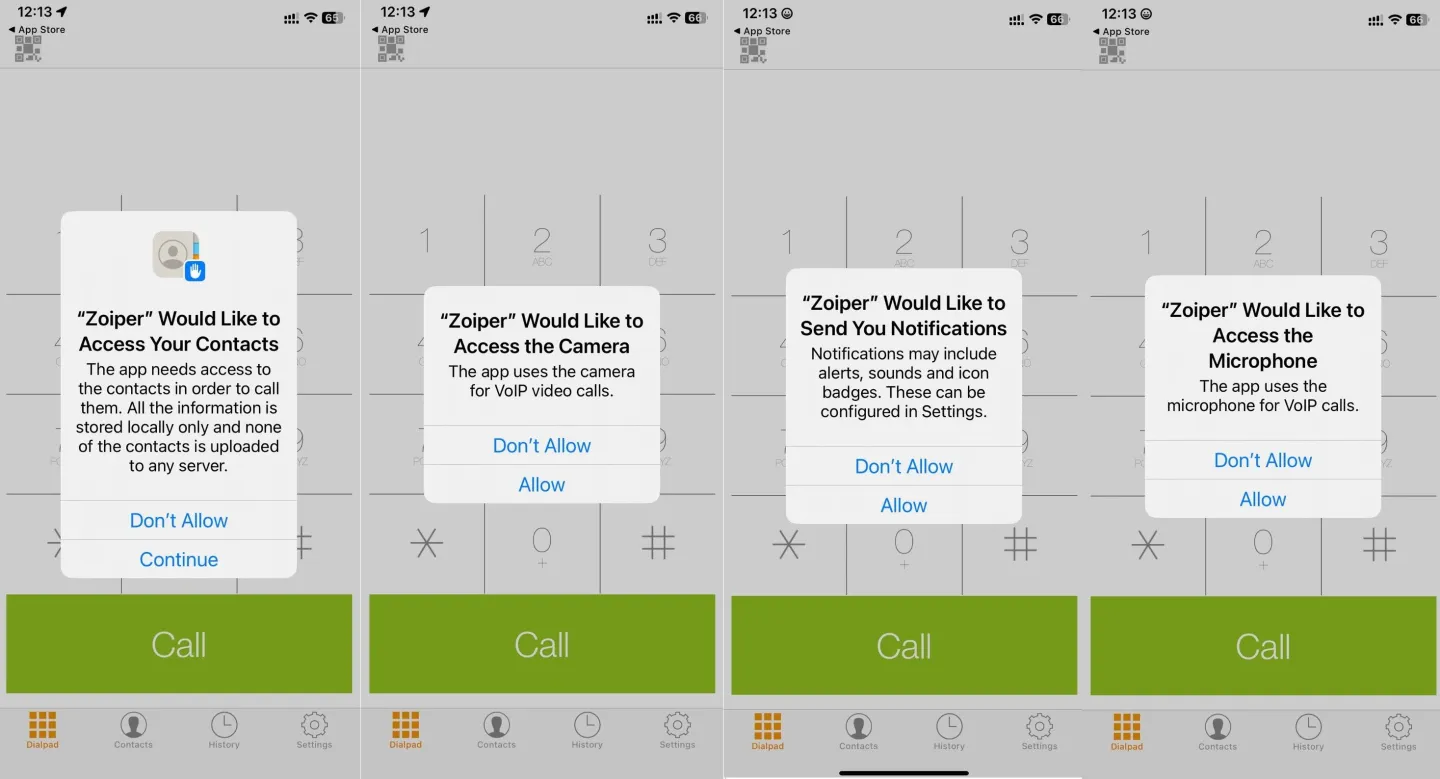
Important: Depending on your device, Zoiper may request access to your contacts, camera, notifications and microphone. Ensure you grant the necessary permissions for the app to function properly.
-
Configure Zoiper With Your Mweb VoIP Account
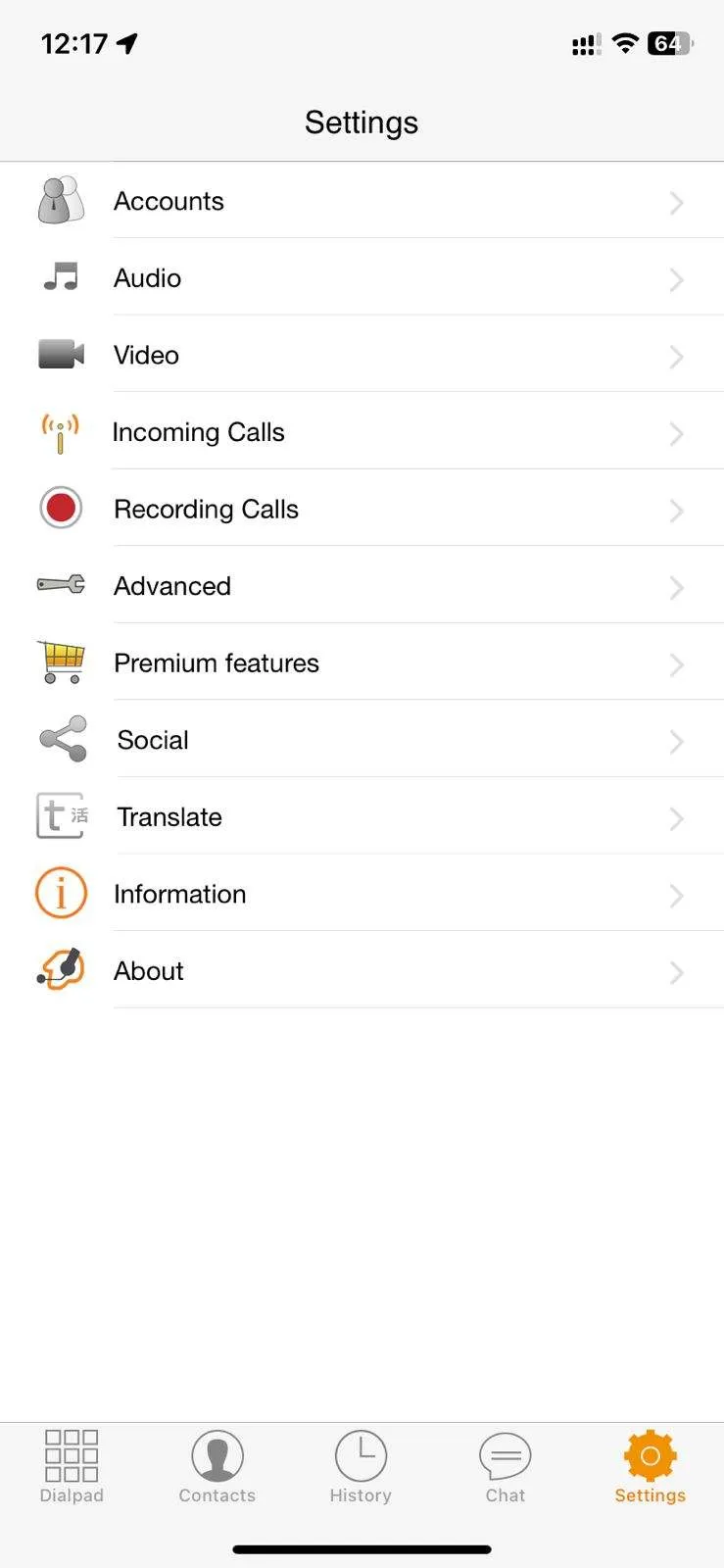
- Once Zoiper is installed, open the app.
- Go to Settings > Accounts, then tap on the + icon to add a new account.
-
Configure Zoiper With Your Mweb VoIP Account
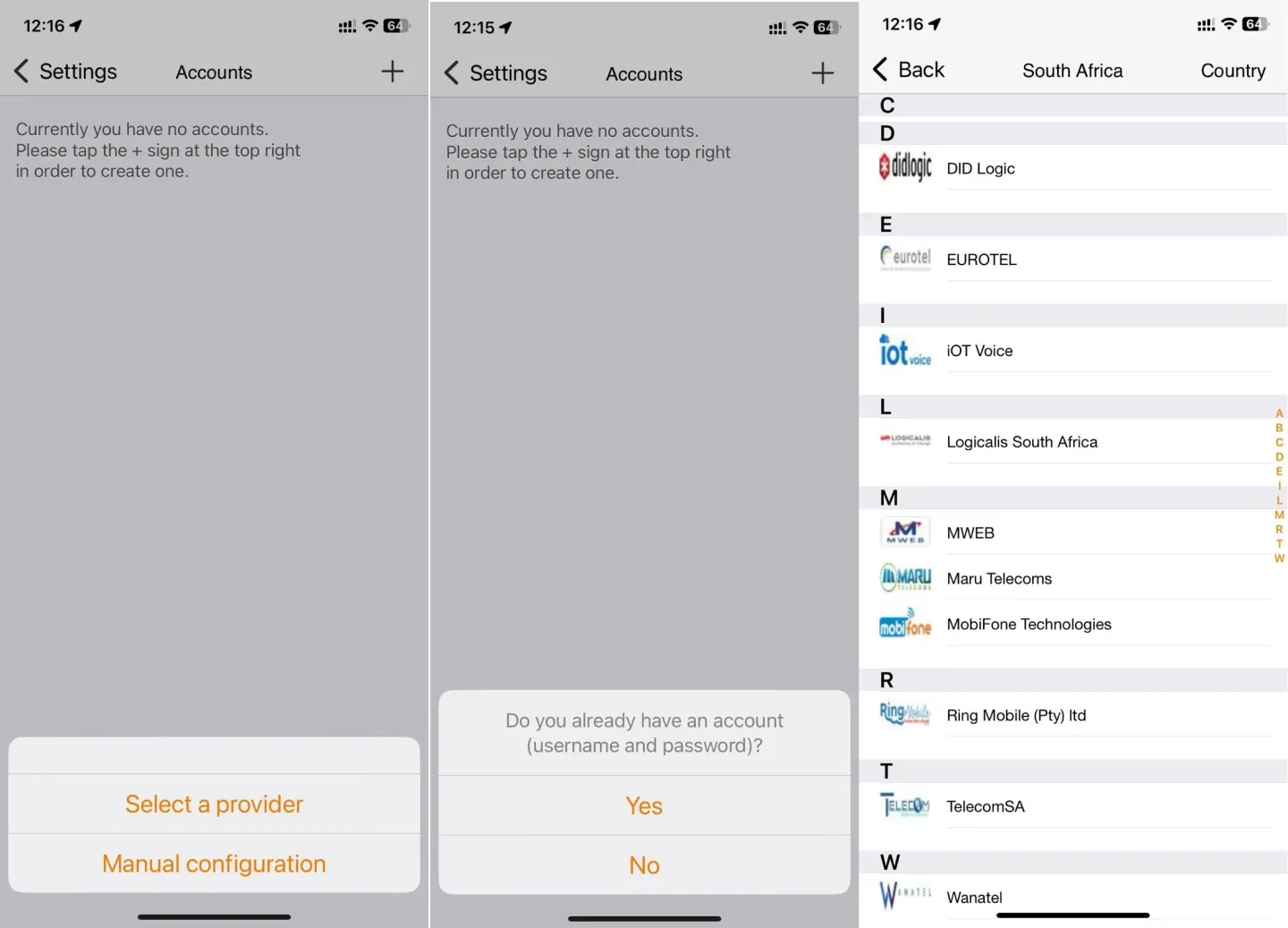
- You will be prompted if you already have an account username and password. Select Yes.
- Choose “Select a provider” and choose Mweb in the list.
-
Configure Zoiper With Your Mweb VoIP Account
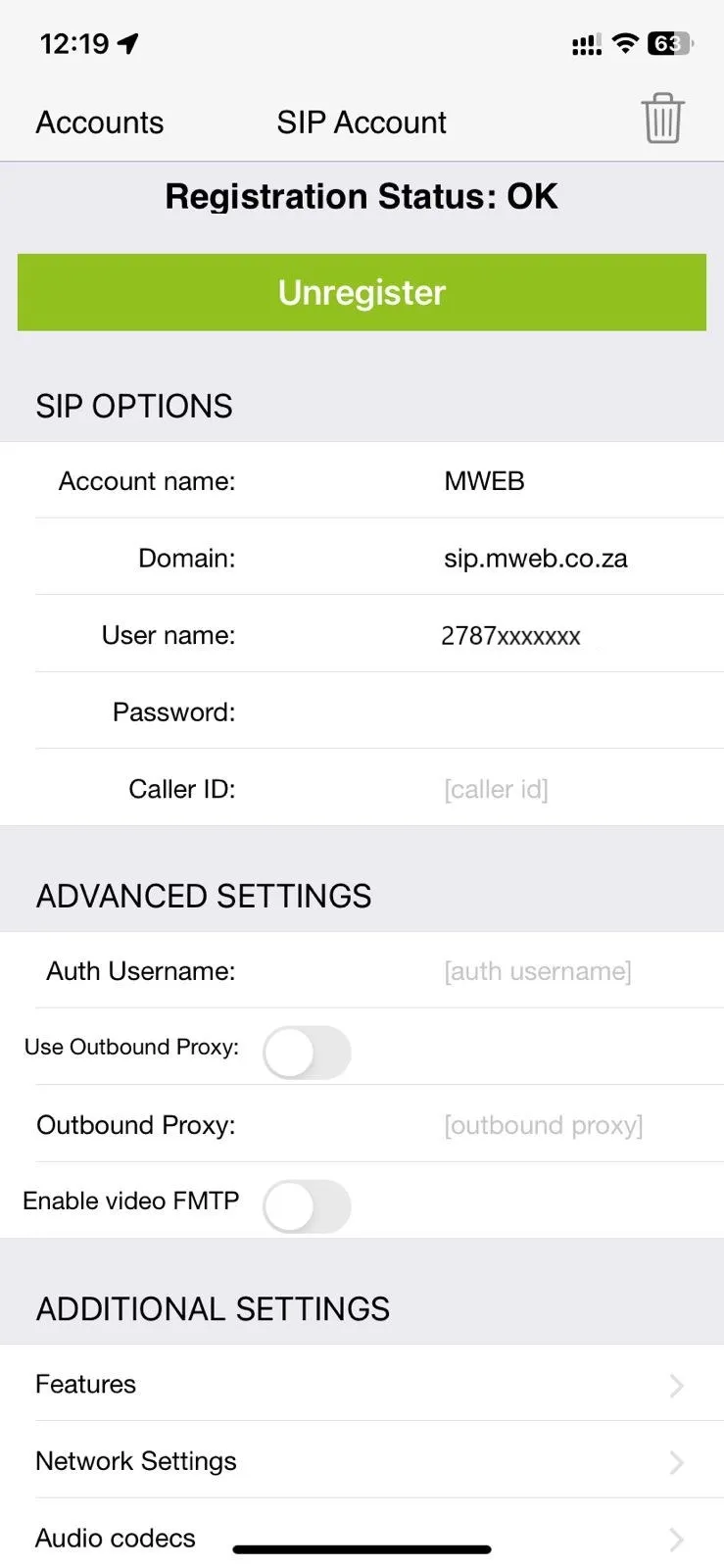
All settings will be pre-configured. You just need to enter your Username and Password:- Username: Your Mweb VoIP username (e.g., 2787xxxxxxx).
- Password: The password provided with your Mweb VoIP account.
- Click Register to complete the setup.
- Once your account is registered, you should see Registration Status: OK
-
Make a Test Call
To make a test call:- Go to Accounts > Settings > Dialpad.
- Dial a number to make a test call.
Note: In some cases, Zoiper may show as registered even if incorrect details have been entered. If this happens, you will encounter an error message, such as “Error Forbidden (403)” when attempting to make a call. This typically indicates that the username or password is incorrect, so double-check your credentials if you see this error.
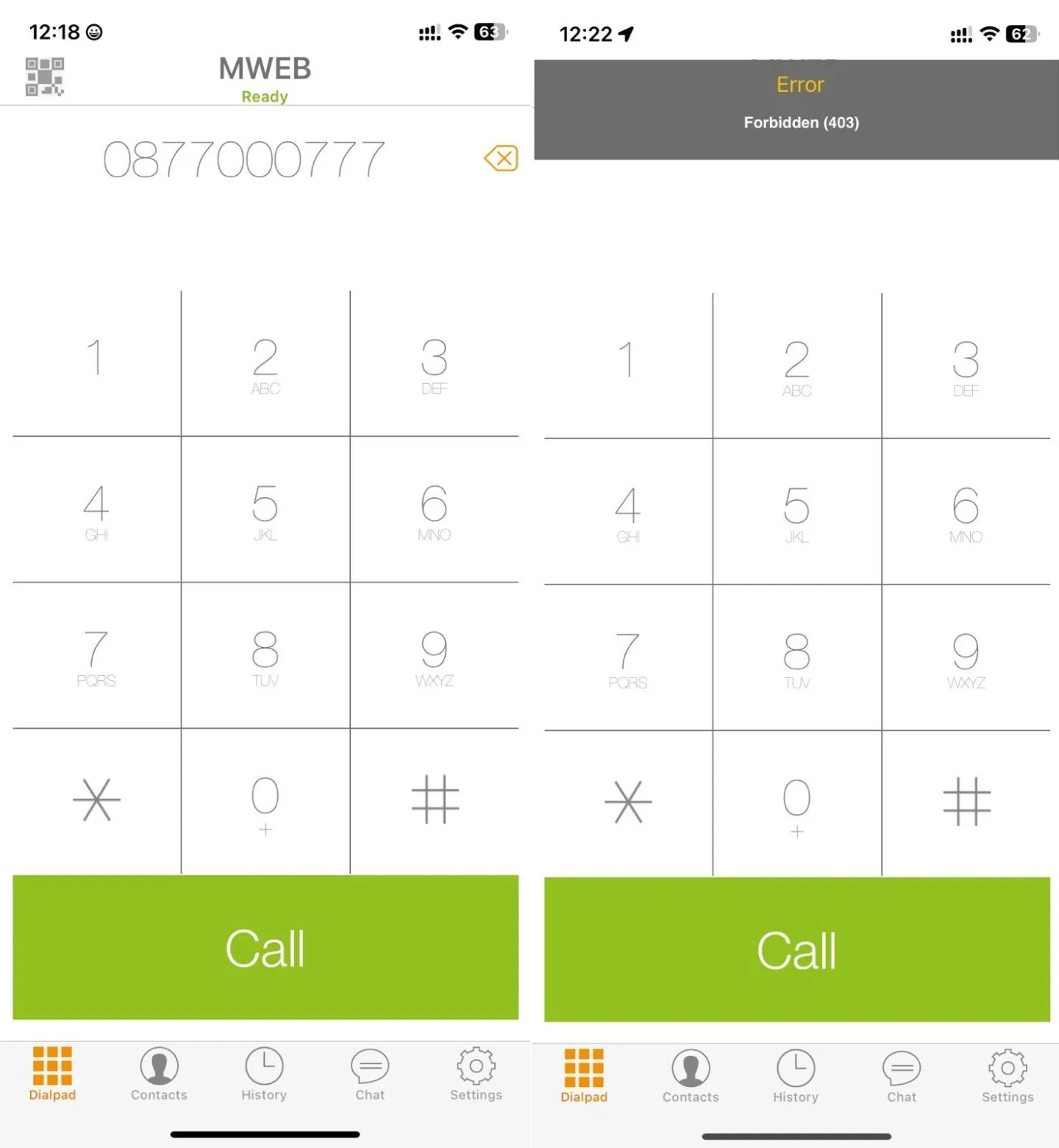
- Go to Accounts > Settings > Dialpad.
-
Enjoy Your Mweb VoIP Service
You are now set up to use Zoiper with your Mweb VoIP account! You can make and receive calls over the internet using your smartphone or computer.
Troubleshooting Tips
Login issues:
Double-check that your username and password are entered correctly.
Not registering:
Ensure your internet connection is stable and your firewall settings allow Zoiper.
Audio issues:
Check that the correct microphone and speaker are selected in Zoiper's settings.
Was this article helpful?