
How to configure VoIP on a Yealink Handset
Follow these easy instructions to configure your Mweb VoIP service on a Yealink handset
Follow this guide to retrieve your Mweb VoIP Access Details.
-
Obtain the IP Address of the Phone
Press the OK key when the phone is idle to obtain the IP address of the phone.
-
Login to the Phone
Open a web browser on your computer, enter the IP address into the address bar (e.g., "http://192.168.0.10" or "192.168.0.10") and then press the Enter.
If you’re browser warns that the address may be unsafe, choose Advanced and Continue Anyway
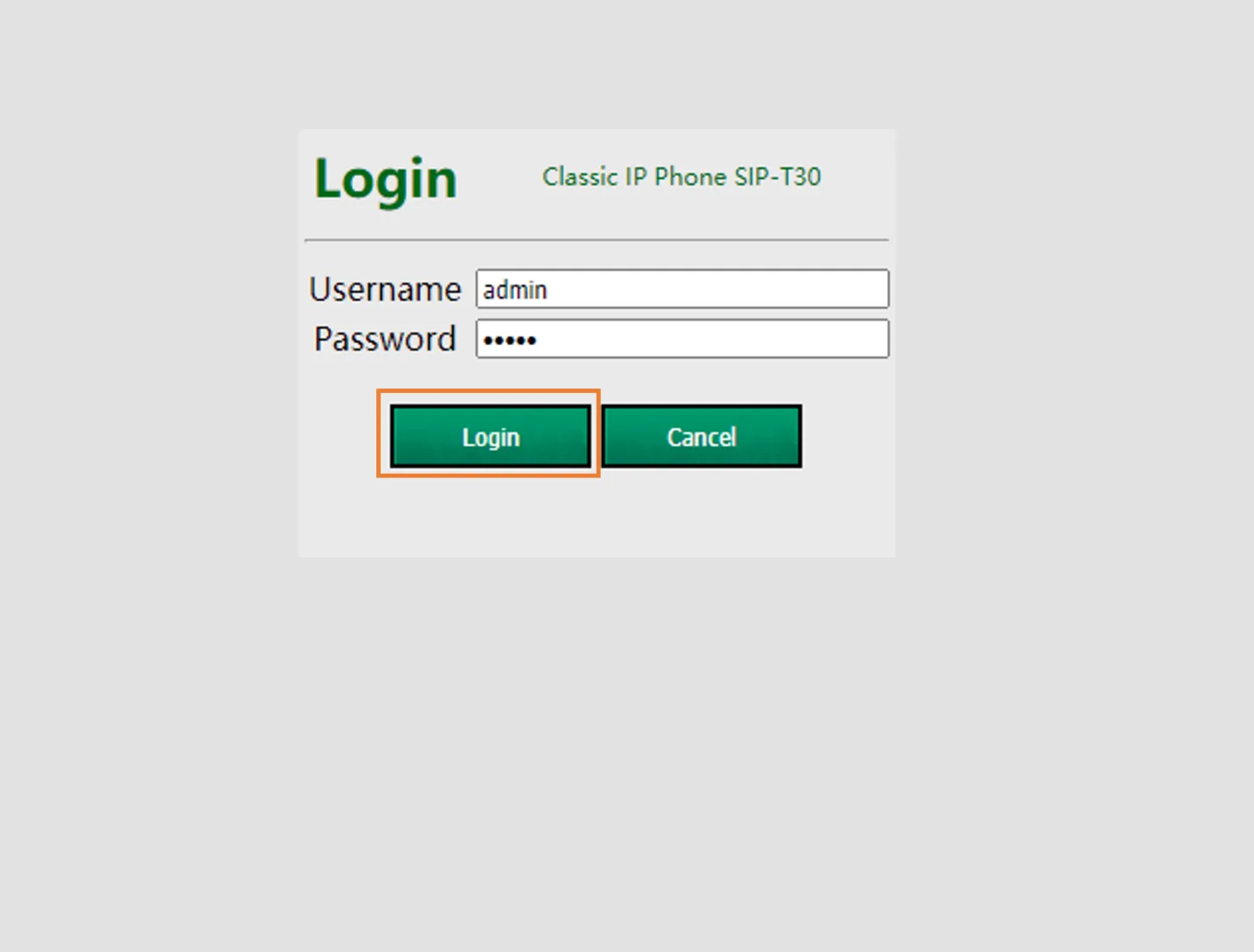
Enter the username (default: admin) and password (default: admin) in the login page and click Login.
-
Check the Status
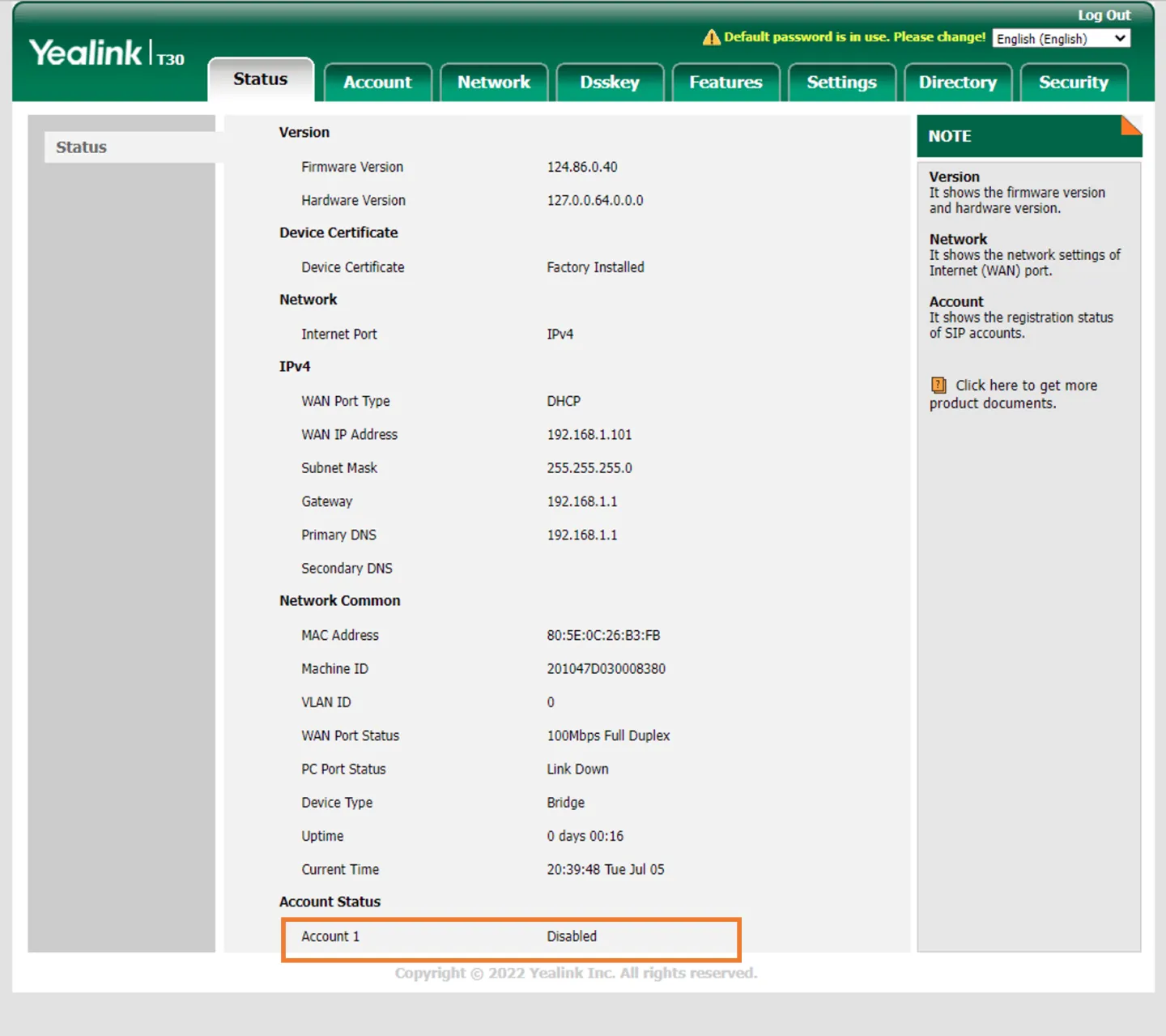
The status screen will show you information about the phone, such as the network configuration and the account status.
The initial Account Status should show
Account 1 - Disabled
-
Register your Account
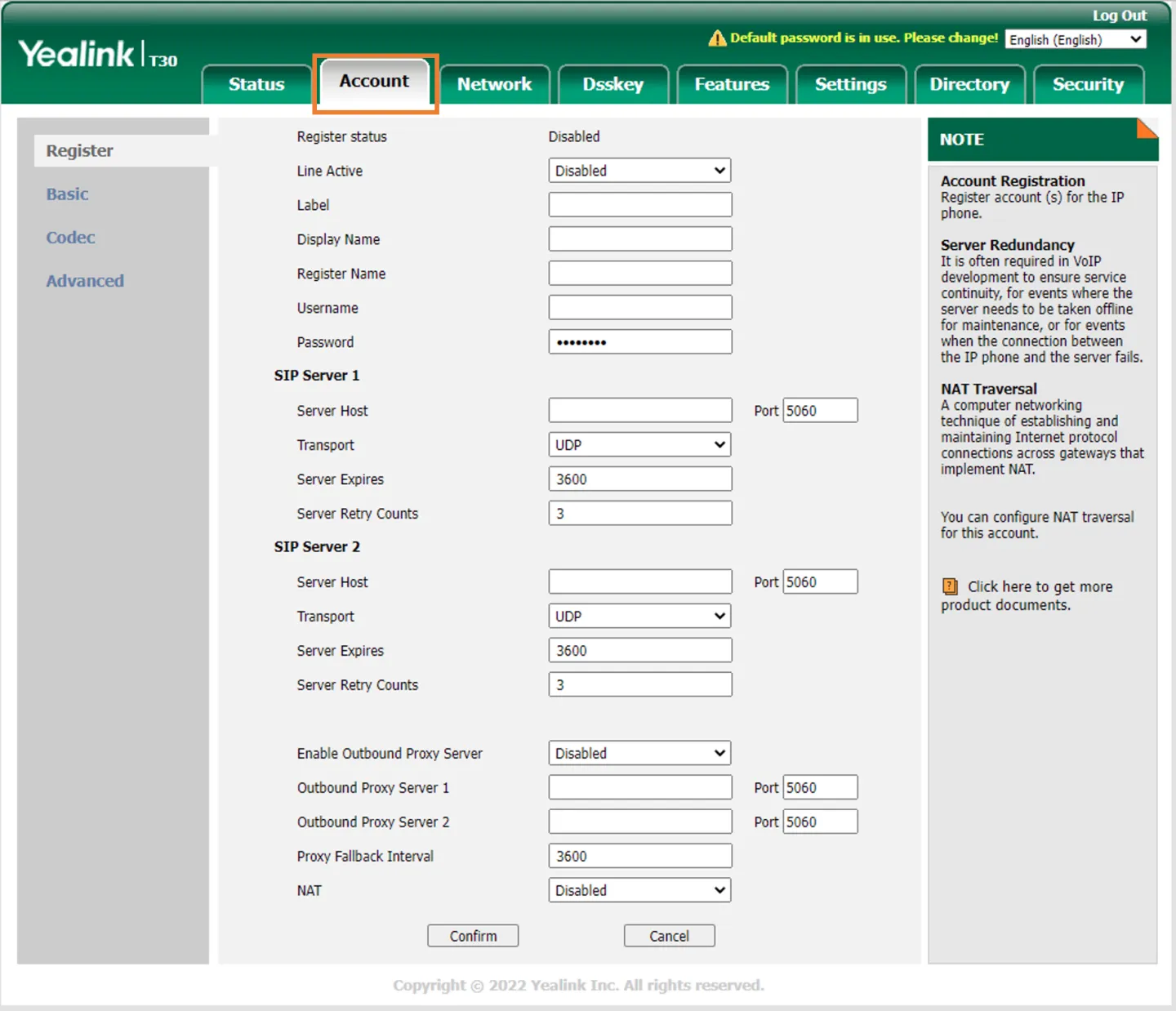
Change to the Account tab to register a new VoIP Account
-
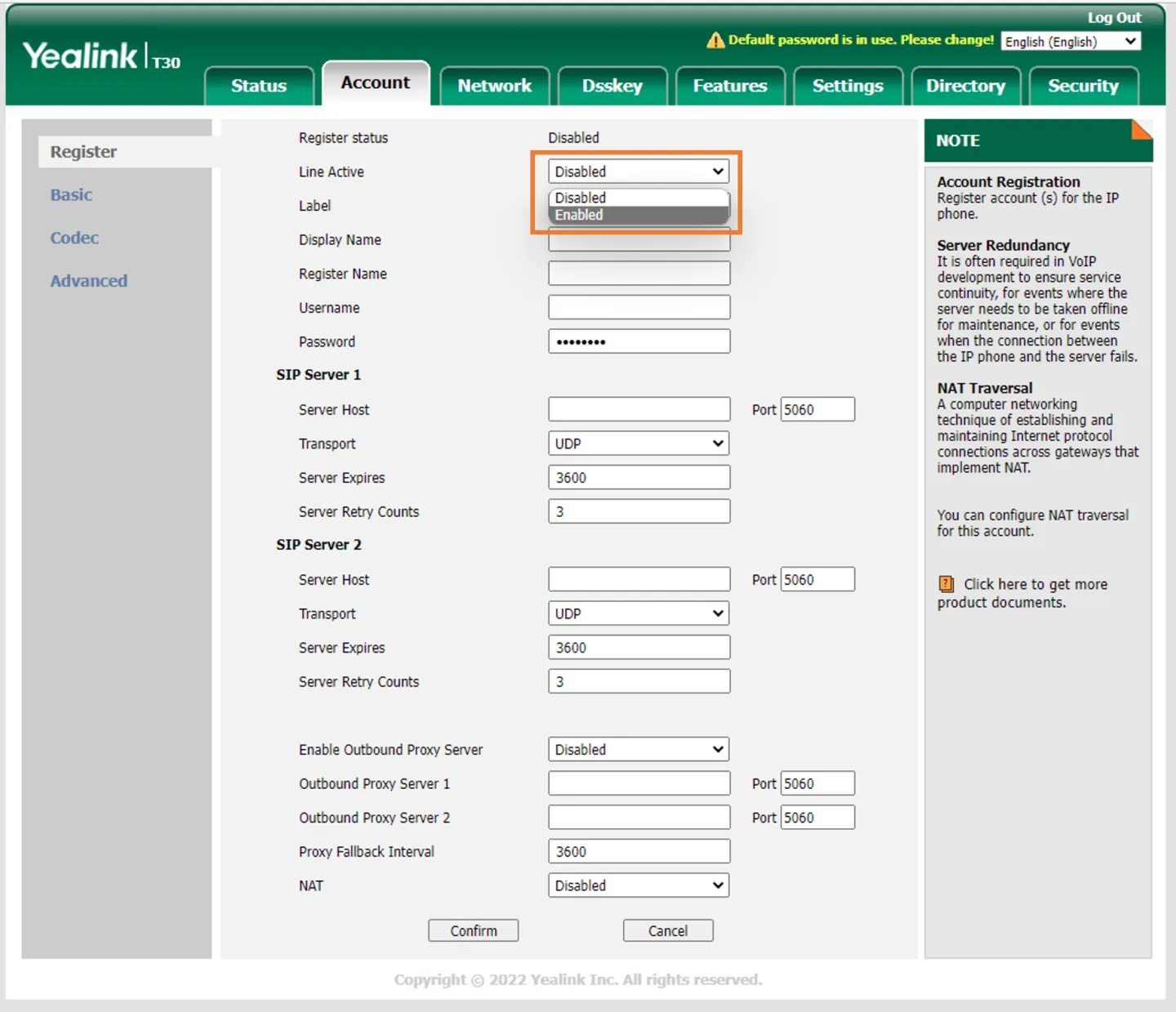
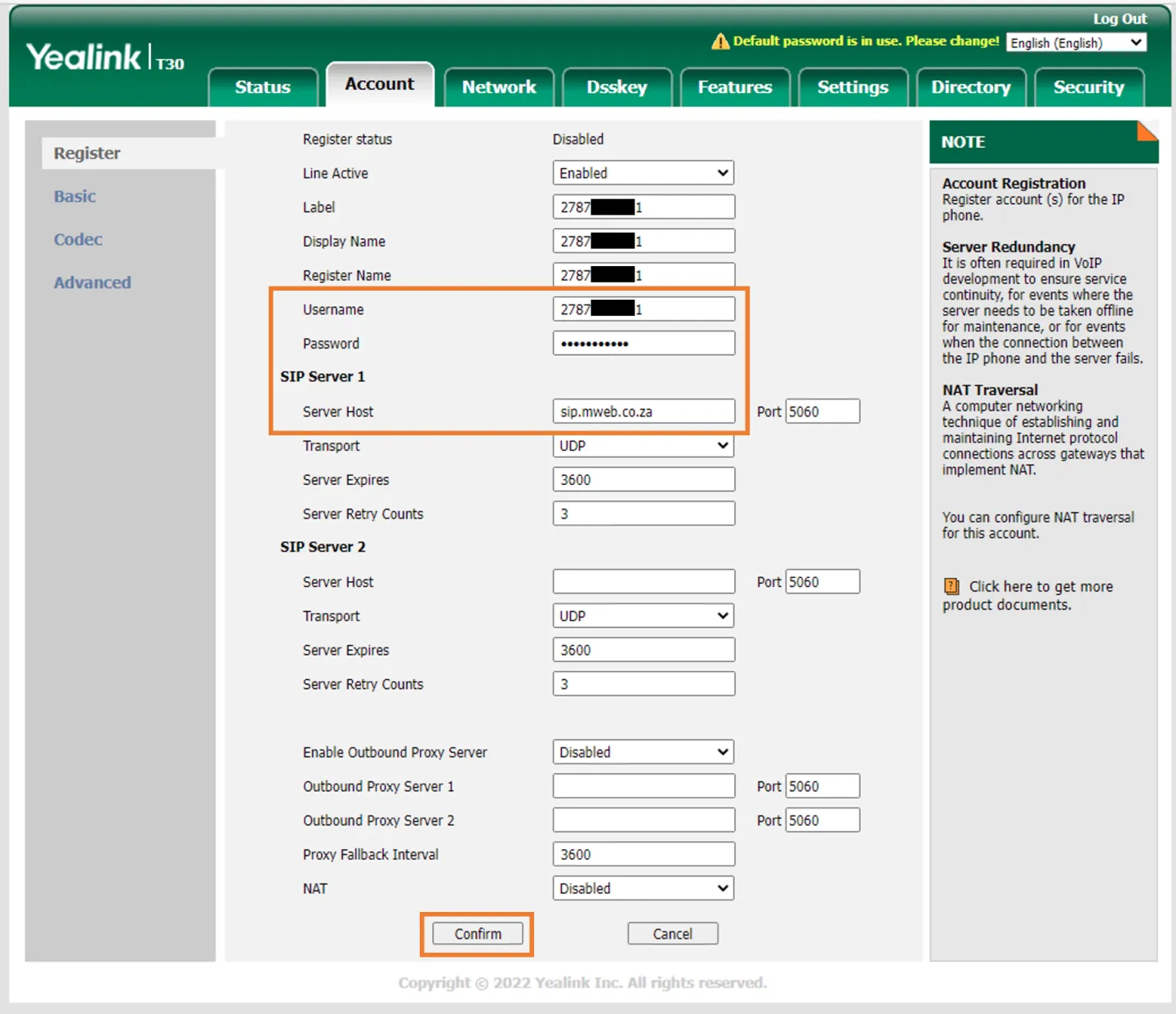
Activate the Line
First change Line Active to Enabled
-
Fill in your Mweb Account Details
Fill in full Mweb VoIP Number as the username and your mweb VoIP password as the password.
Change the Label, Display Name and Register Name to your personal preferences.
Enter sip.mweb.co.za as the Server Host.
Leave all other settings as default and click on Confirm
-
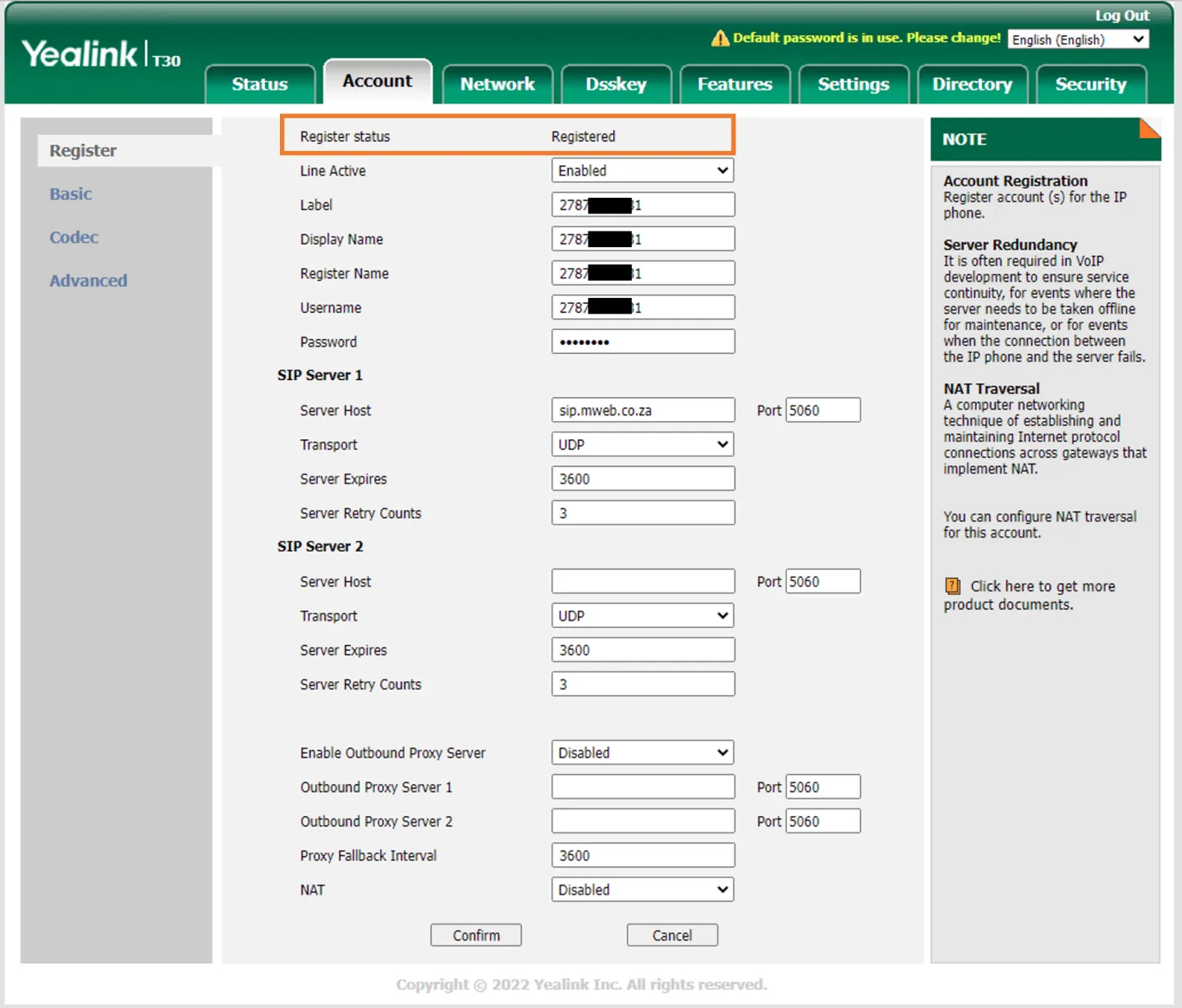
Registration Complete
After the confirmation message flashes briefly the Register Status will change to registered.
-
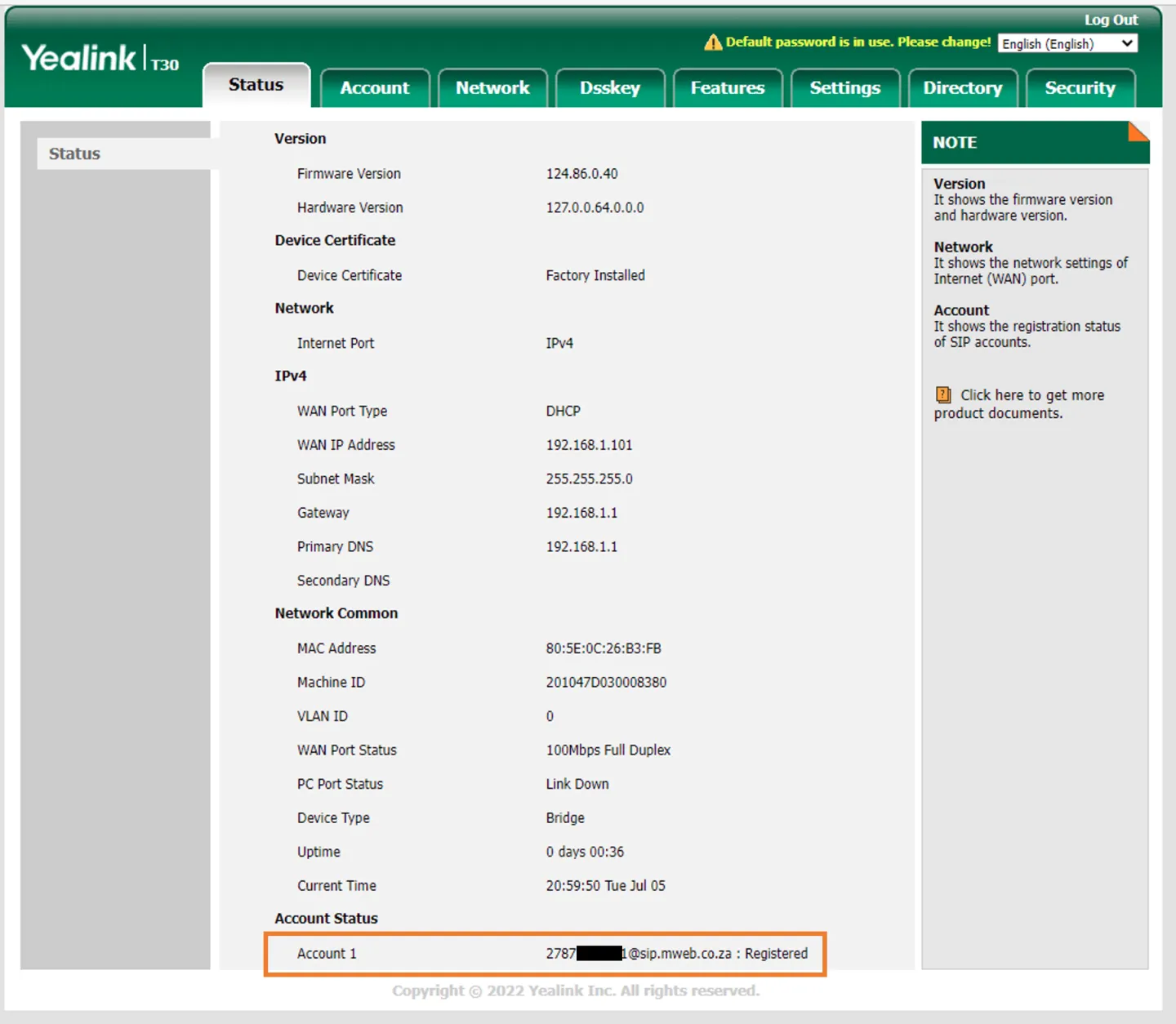
Recheck the Status
Return to the Status screen, you should now see your Mweb VoIP account registered as Account 1.
Was this article helpful?