
How to setup mail on your iPhone
Setting up your Mweb mailbox on your iPhone is as easy as making apple pie.
Follow these easy steps to set up your Mweb mailbox on your Apple iPhone.
You will need to have your username and password for your mailbox ready.
If you’re not sure how to find those you can follow this guide.
-
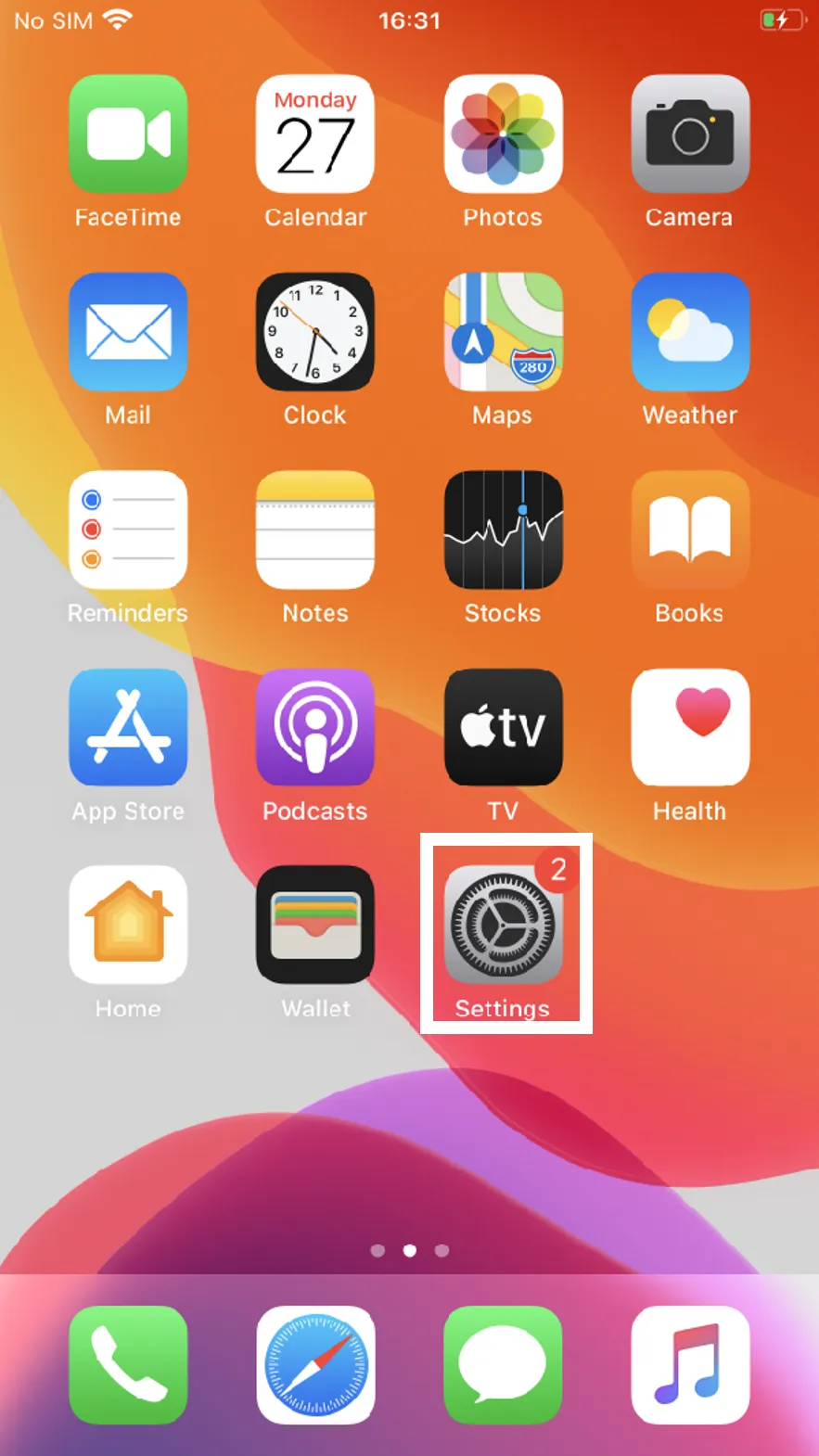
Open Settings
Open the Settings menu.
-
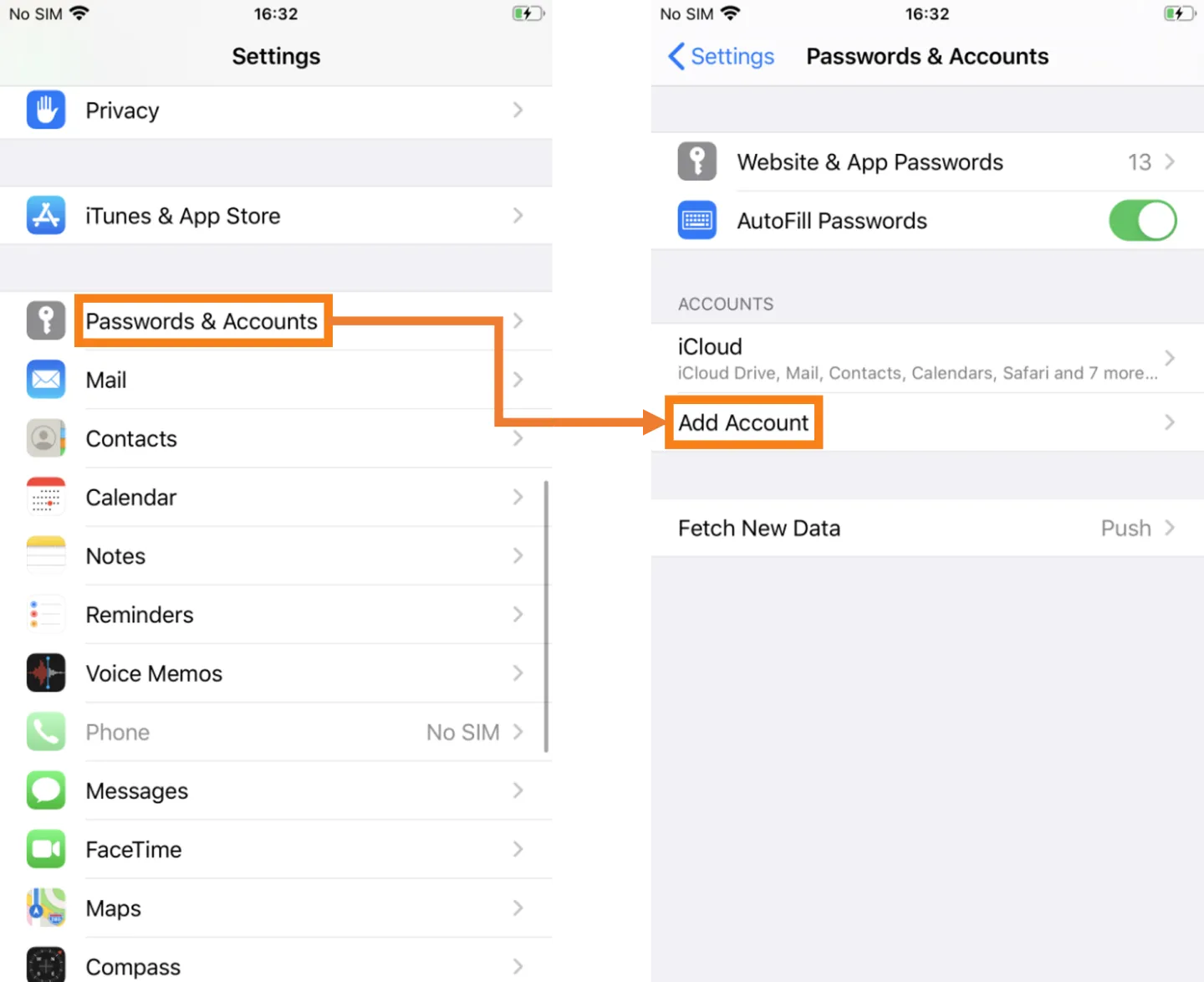
Add Account
Select Passwords and Accounts
In the Passwords and Accounts section, select Add Account.
-
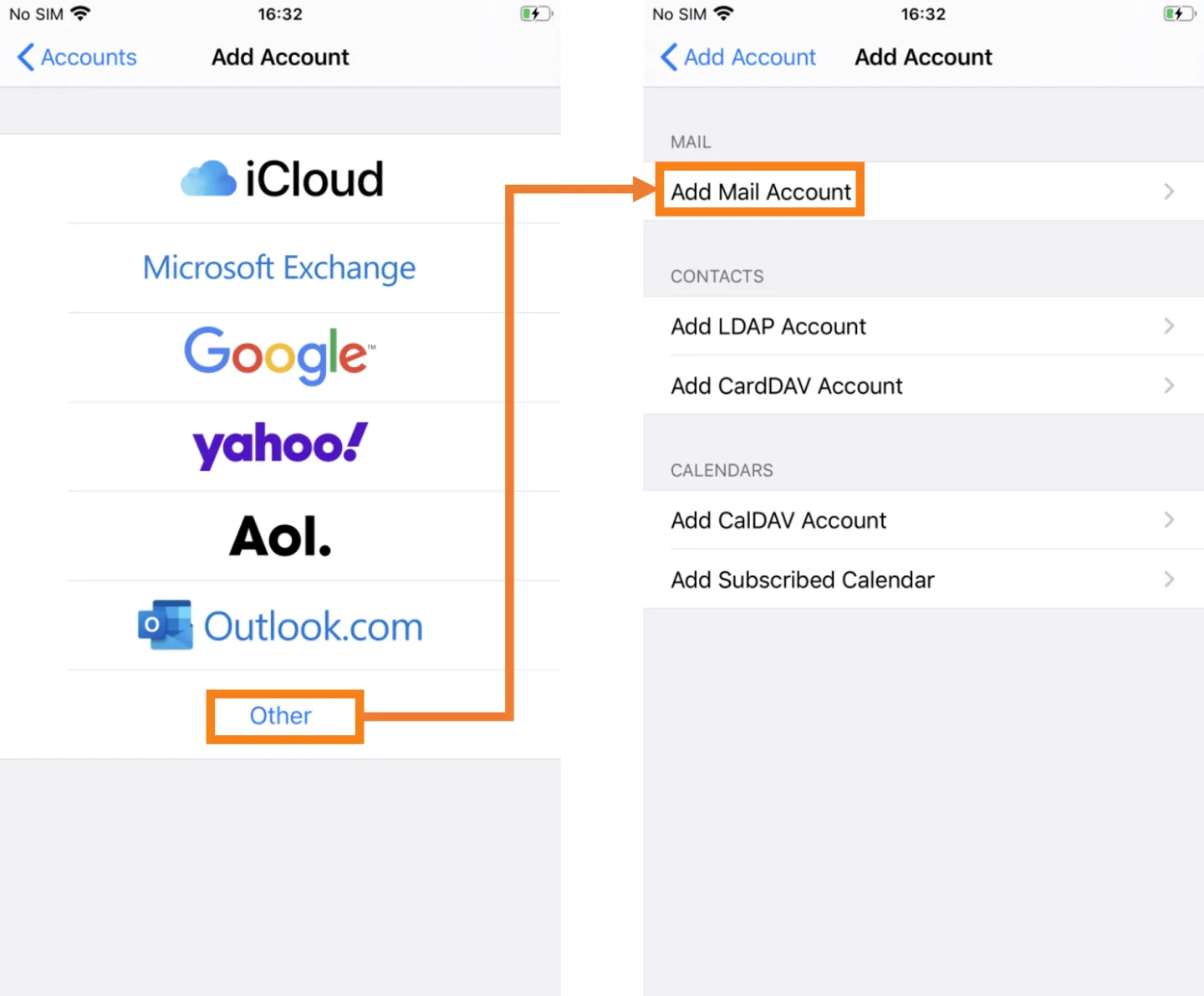
Add Mail Account
When the list of available account types appears, choose Other.
Under the Mail heading, select Add Mail Account.
-
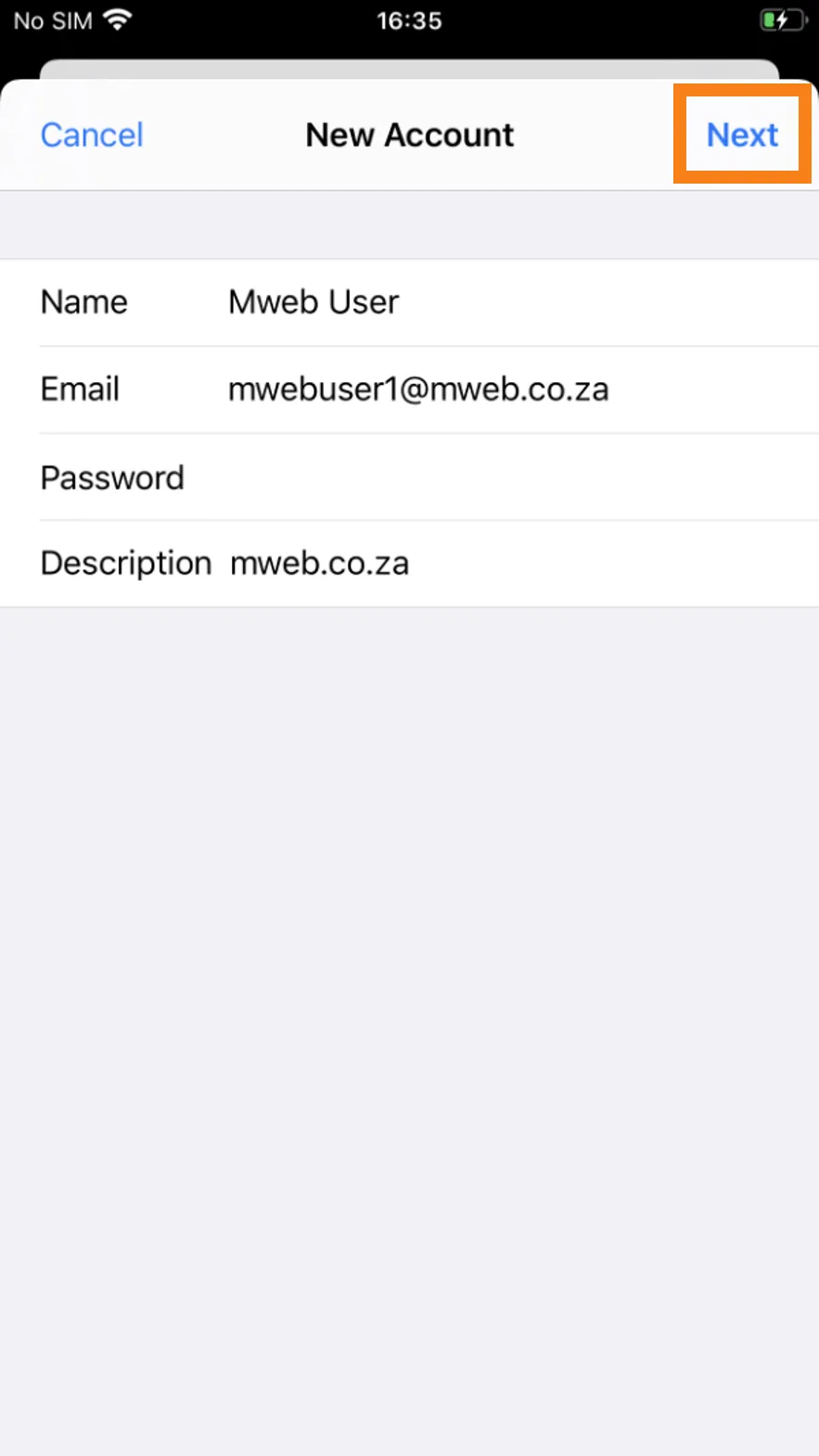
Name your Account
Fill in your name
(the one you want people to see when they receive an email), your Mweb email address and password
and then select Next.
-
Account Settings
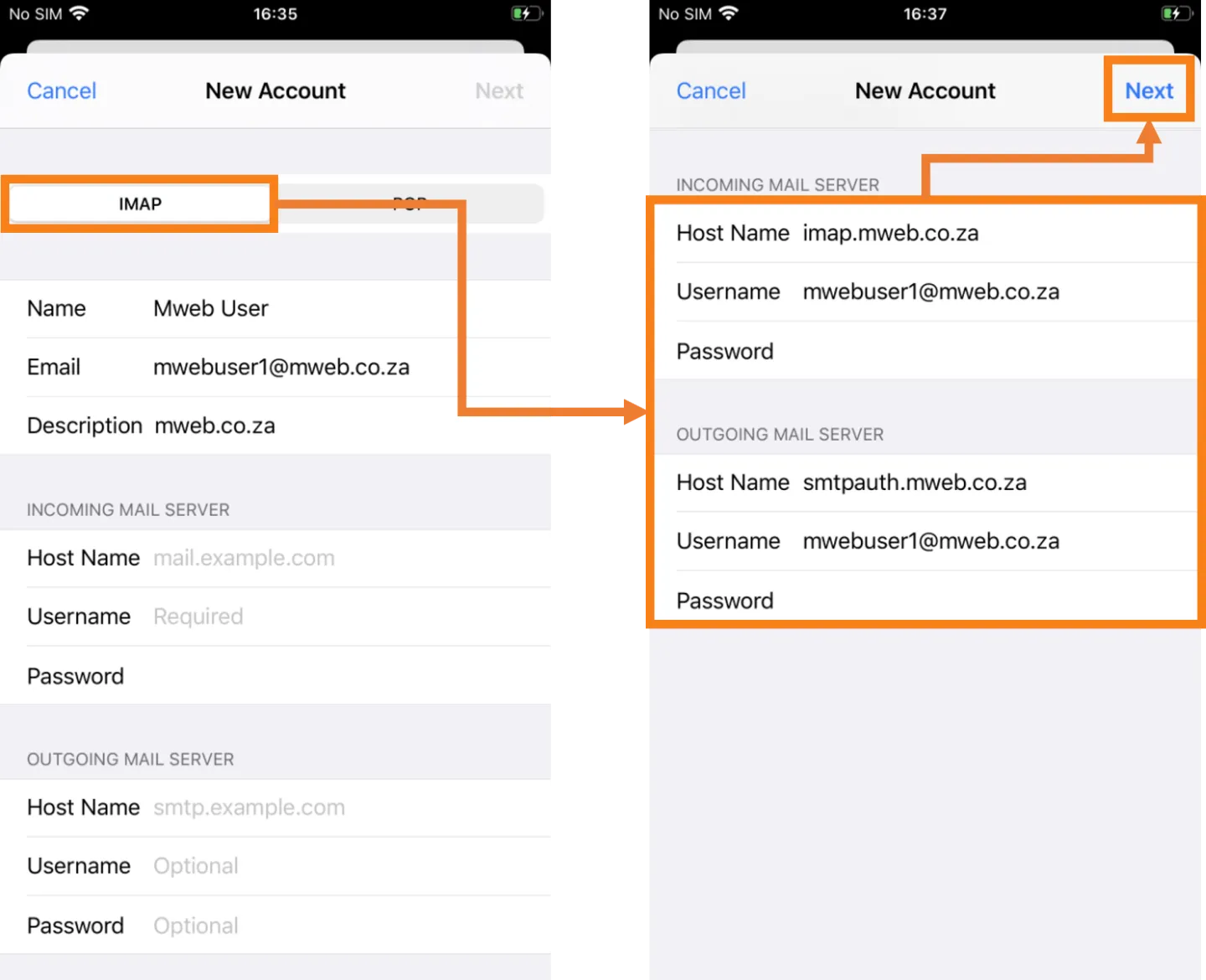
On the setting screen, make sure that IMAP is selected and scroll down to the incoming and outgoing server settings.
Fill in the incoming server name imap.mweb.co.za, the outgoing server address smtpauth.mweb.co.za and your full email address and password in both sections.
Select Next to Continue.
-
Trust Certificate
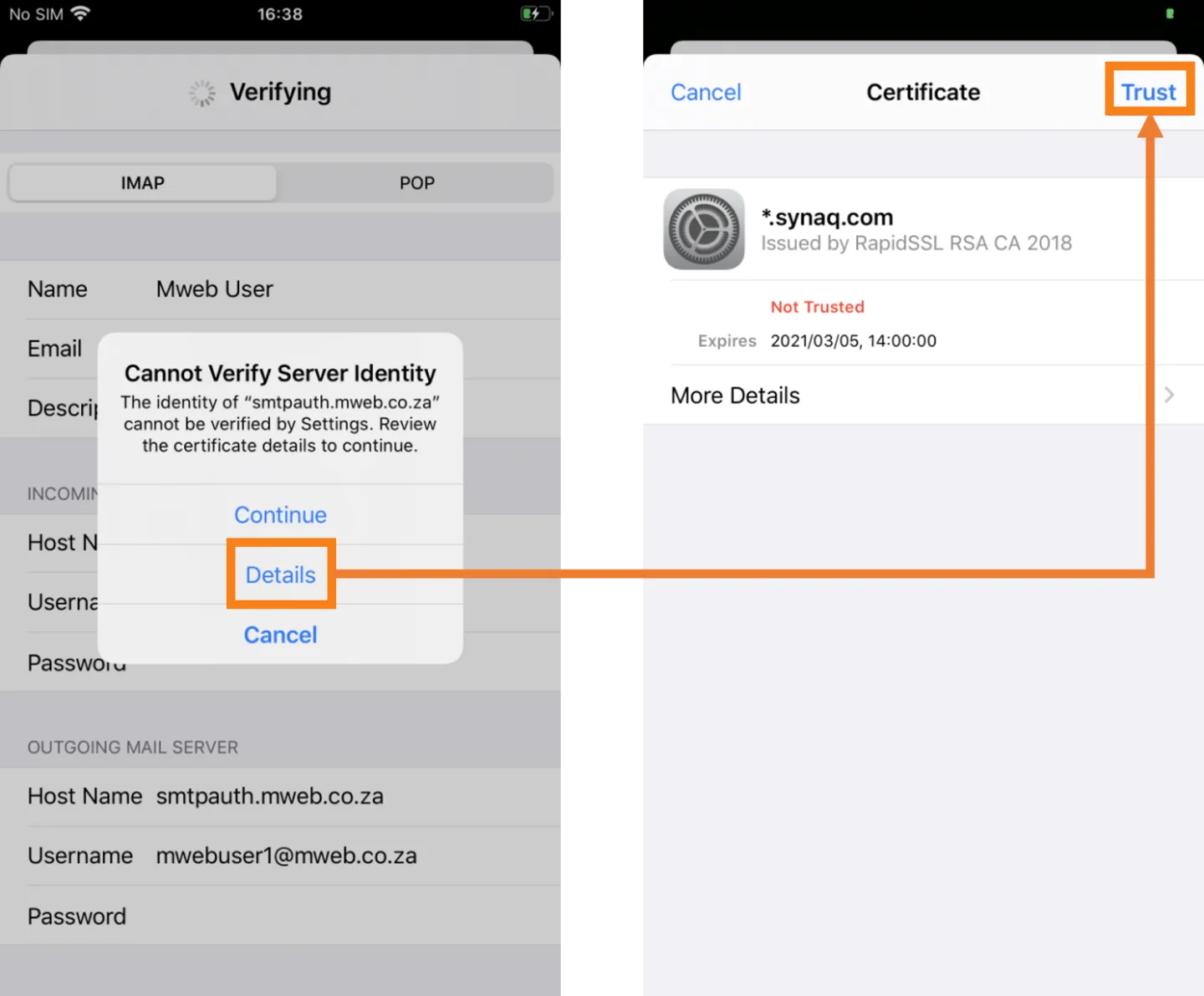
You may receive a prompt asking you to verify the certificate, click on Details to continue.
When the Certificate from *.synaq.com appears click on Trust in the top right-hand corner.
-
Save Account
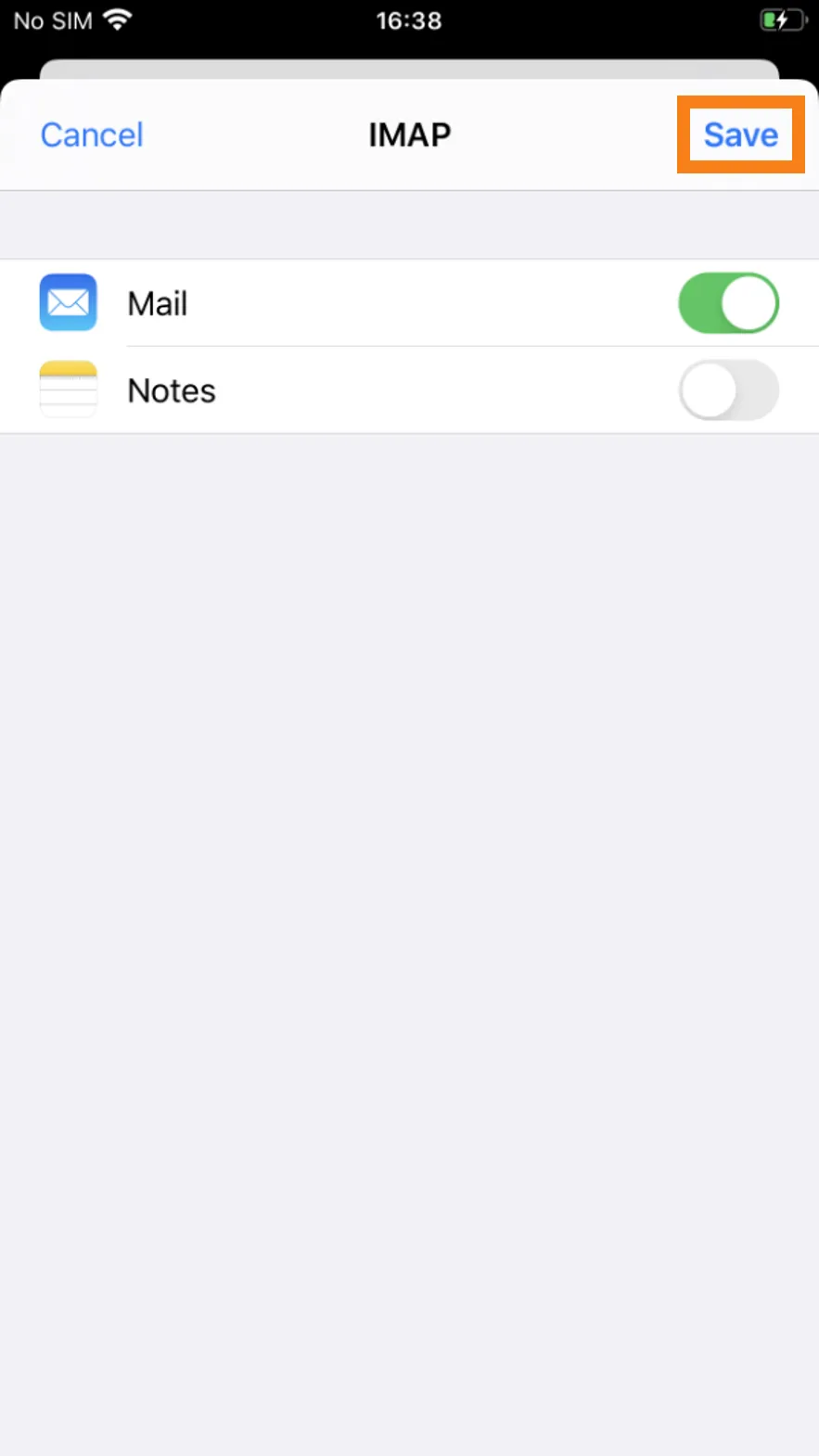
Now all that’s left to do is click on Save.
-
Finishing Up
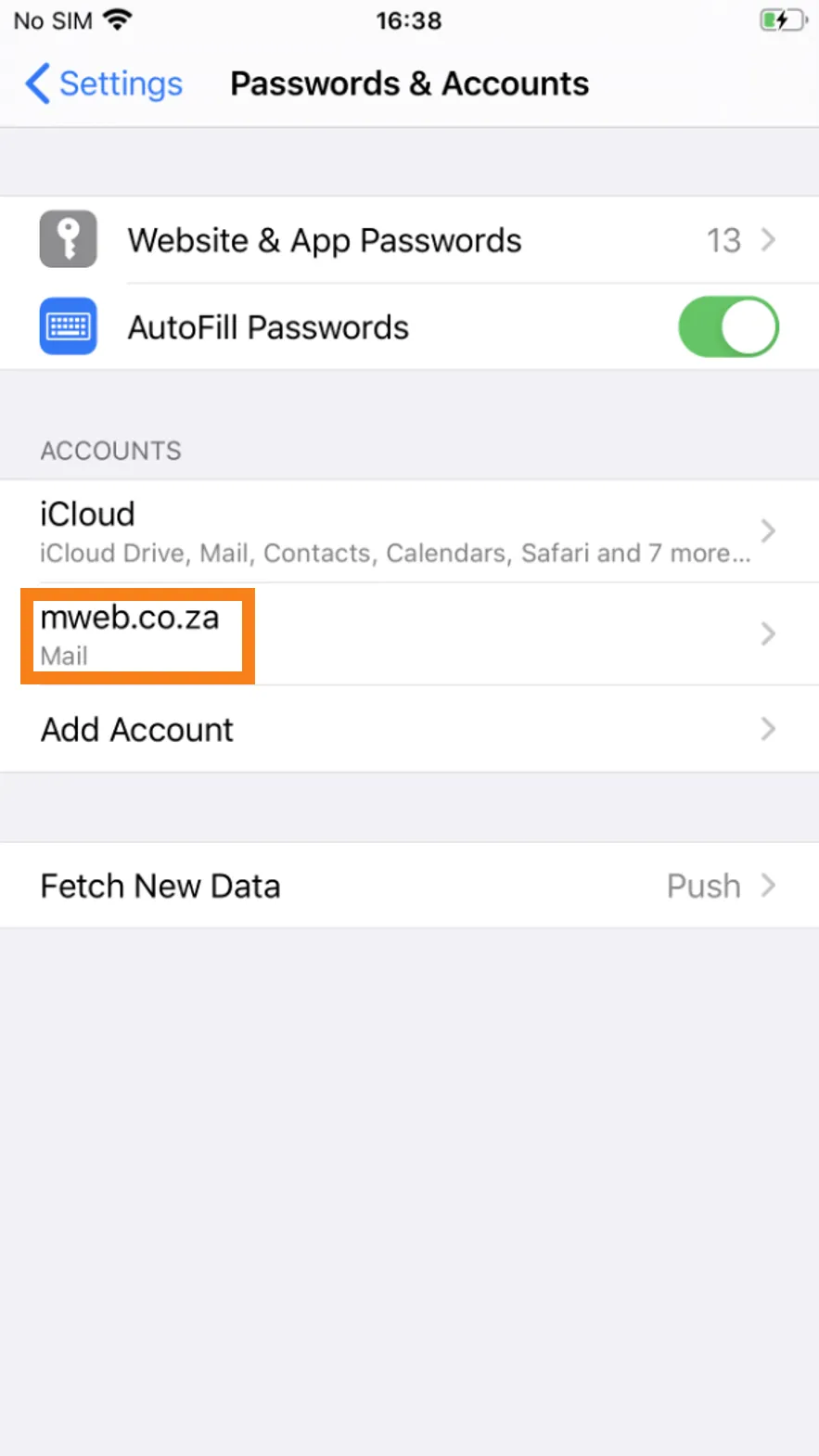
You should now see mweb.co.za as an entry under Accounts.
-
Read you Mail
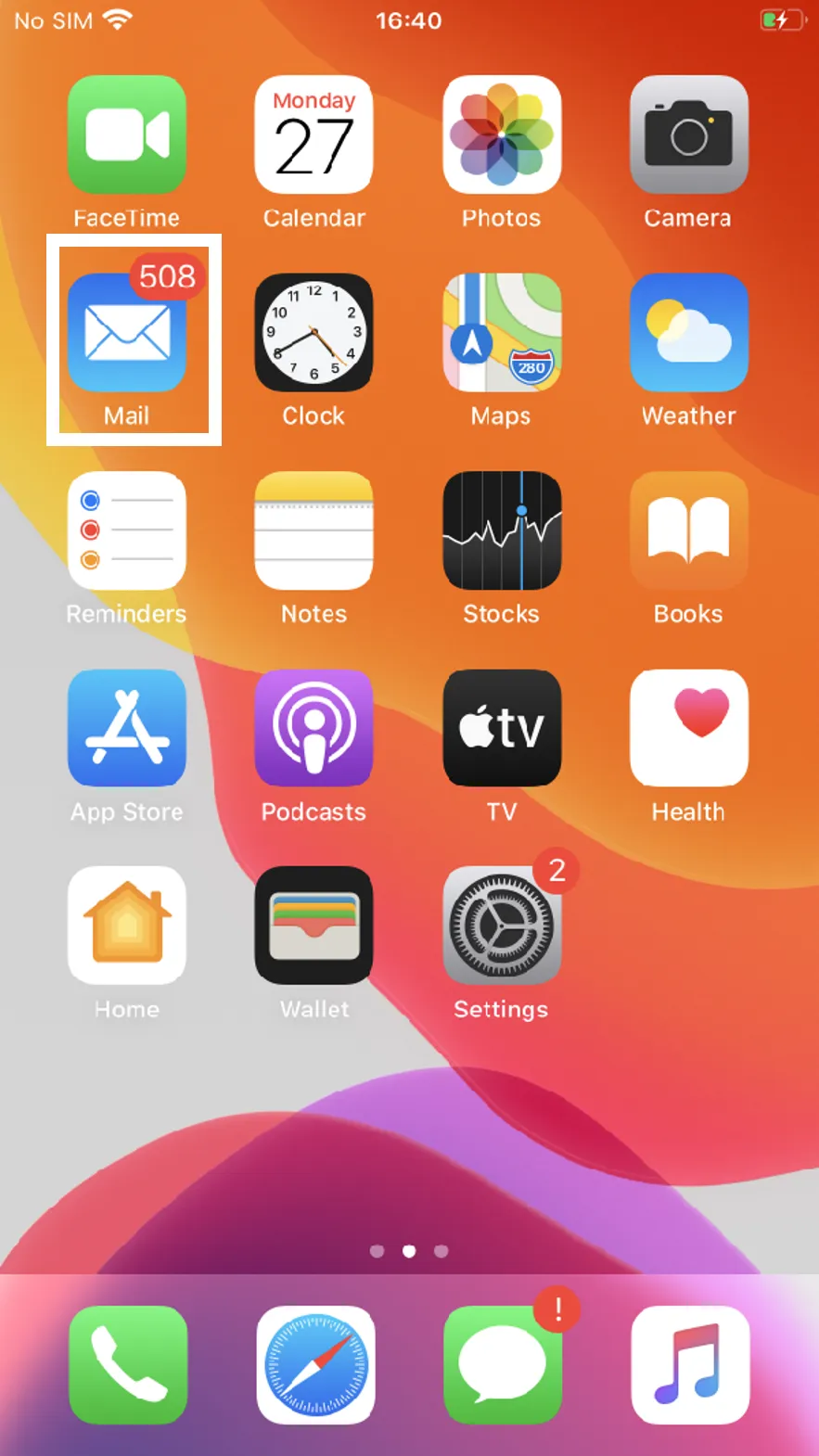
Return to the Home screen and click on the Mail icon to begin sending and receiving emails on your iPhone.
Was this article helpful?