
How to setup mail on your android phone with Gmail
Setting up your Mweb mailbox on your Android is as easy as 123.
Follow these easy steps to set up your Mweb mailbox on your android phone using the Gmail application.
You will need to have your username and password for your mailbox ready.
If you’re not sure how to find those you can follow this guide.
-
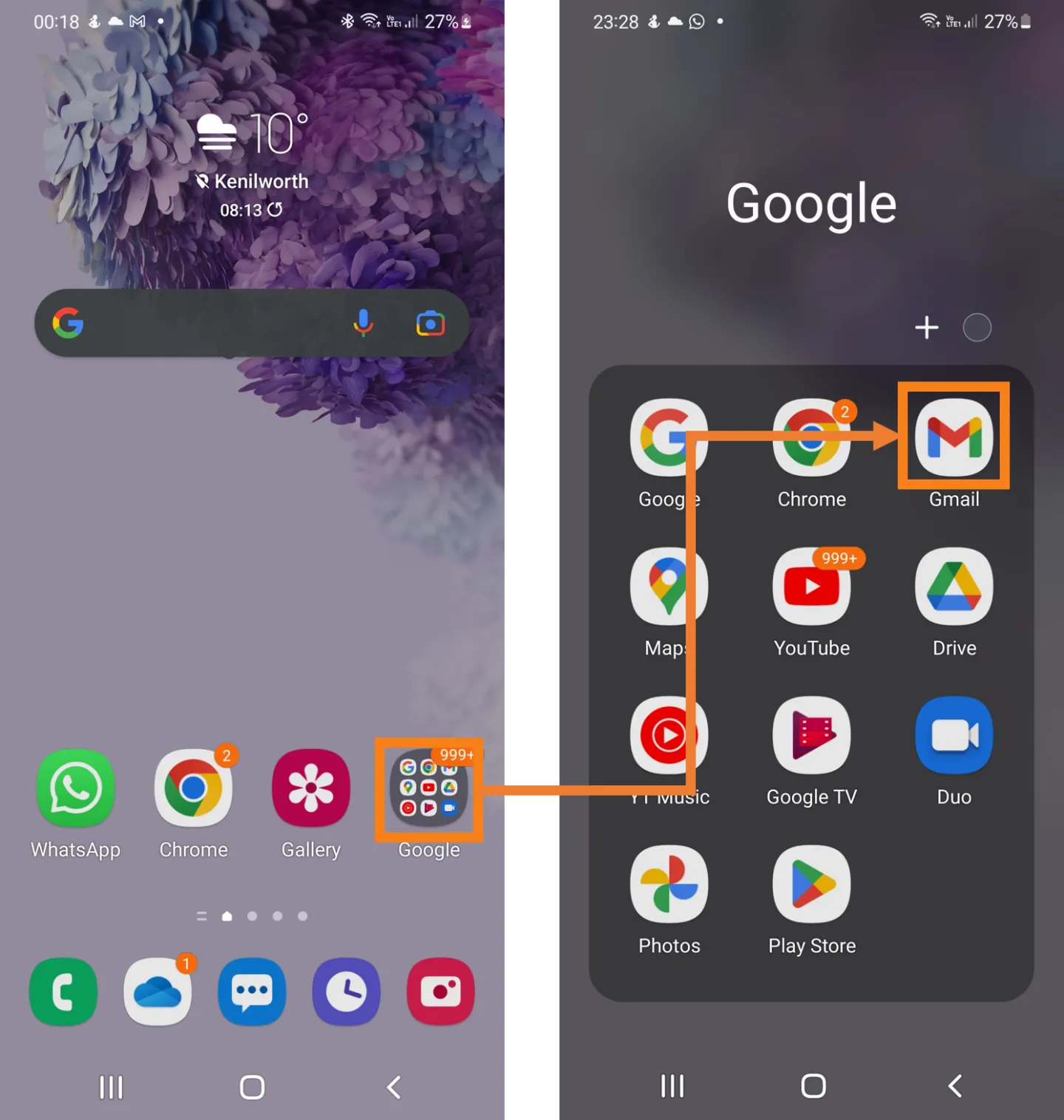
Open Gmail on your Phone
- From the Home screen on your Android Phone locate and open the Gmail Application
-
Add a New Account
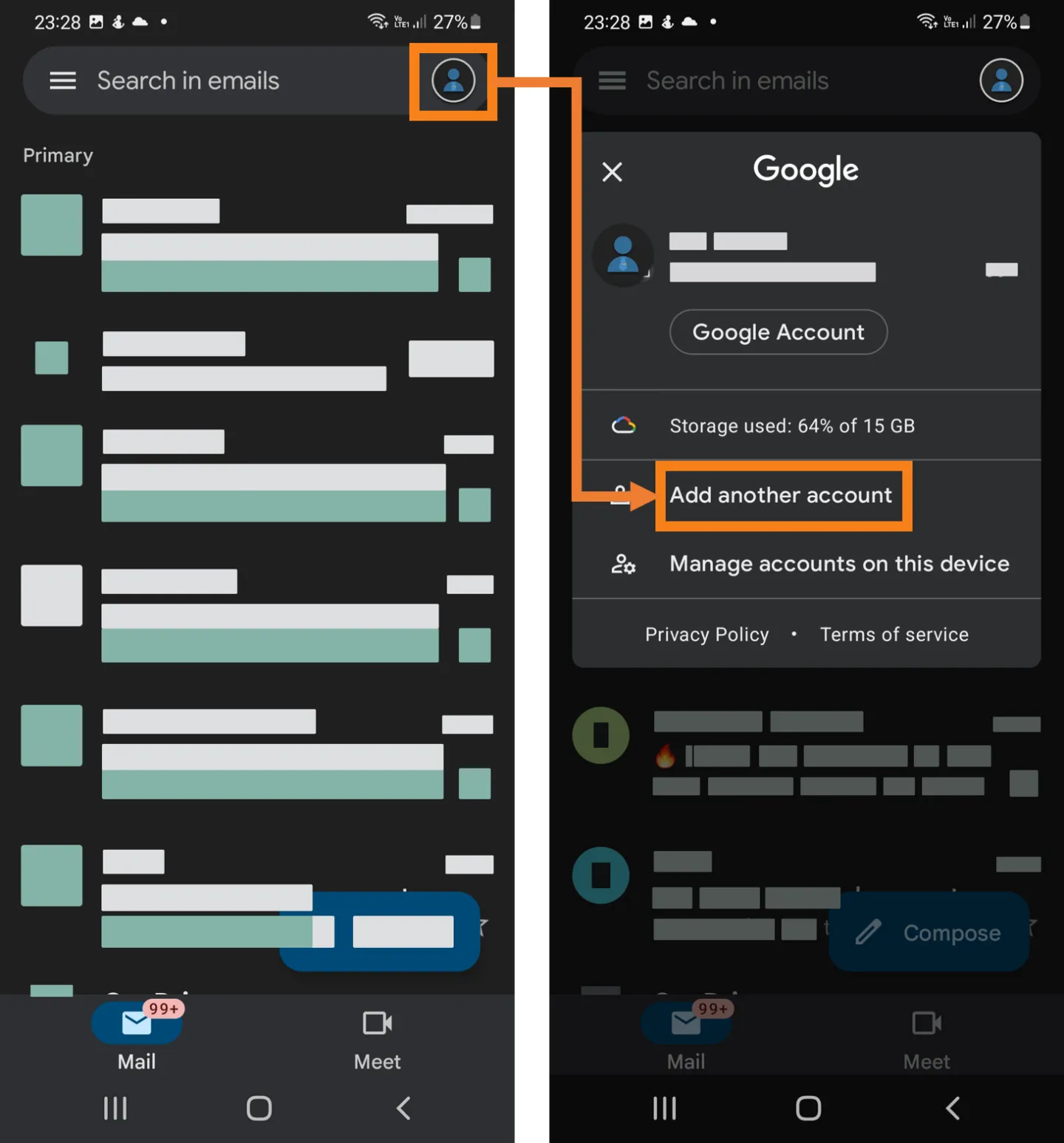
- Gmail will already be setup to use the Google account that you sign in with on your android phone.
- To add your Mweb Mailbox to Gmail select your profile picture in the top right and then select Add another account
-
Start Adding your account
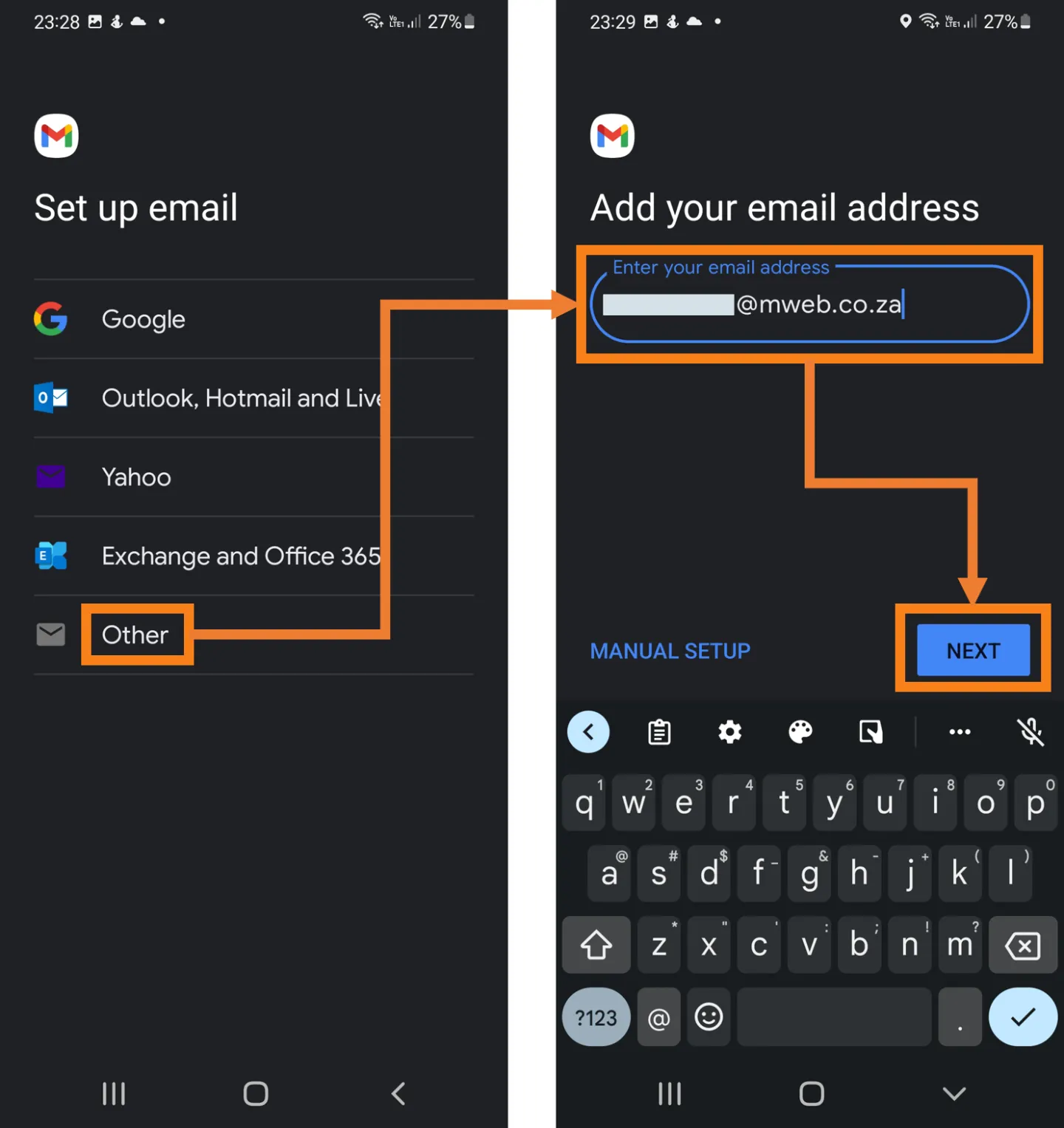
- When the list of available account types appears, select Other.
- At the prompt, fill in your Mweb mailbox username and choose Next
-
Setup the Incoming Server
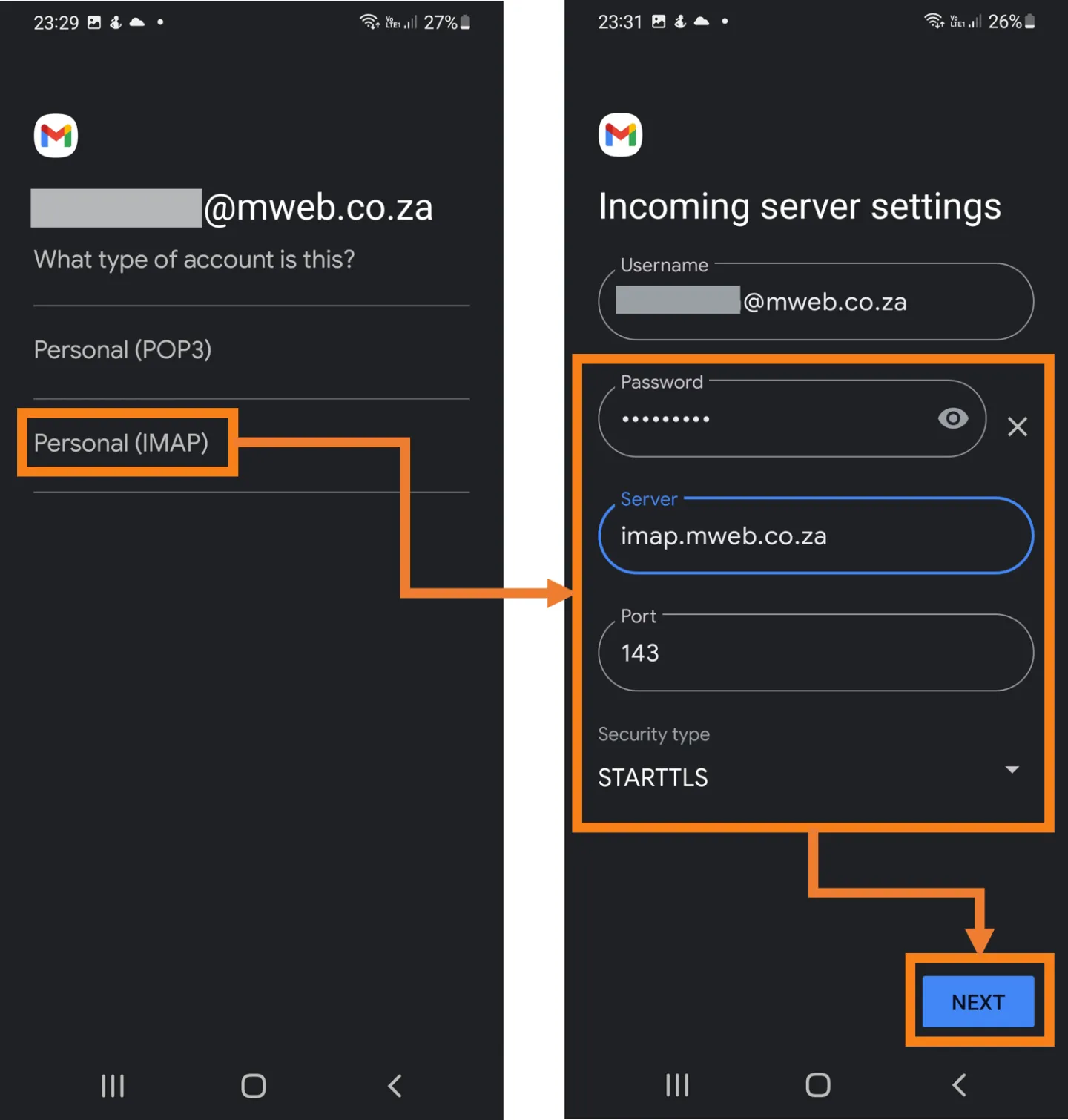
- Select Personal (IMAP) as the type of account
- When prompted fill in your password
- Fill in imap.mweb.co.za
- Verify the Port as 143 and Security Type as STARTTLS if asked
- When you’re sure everything is correct, select Next
- Select Personal (IMAP) as the type of account
-
Setup the Outgoing Server
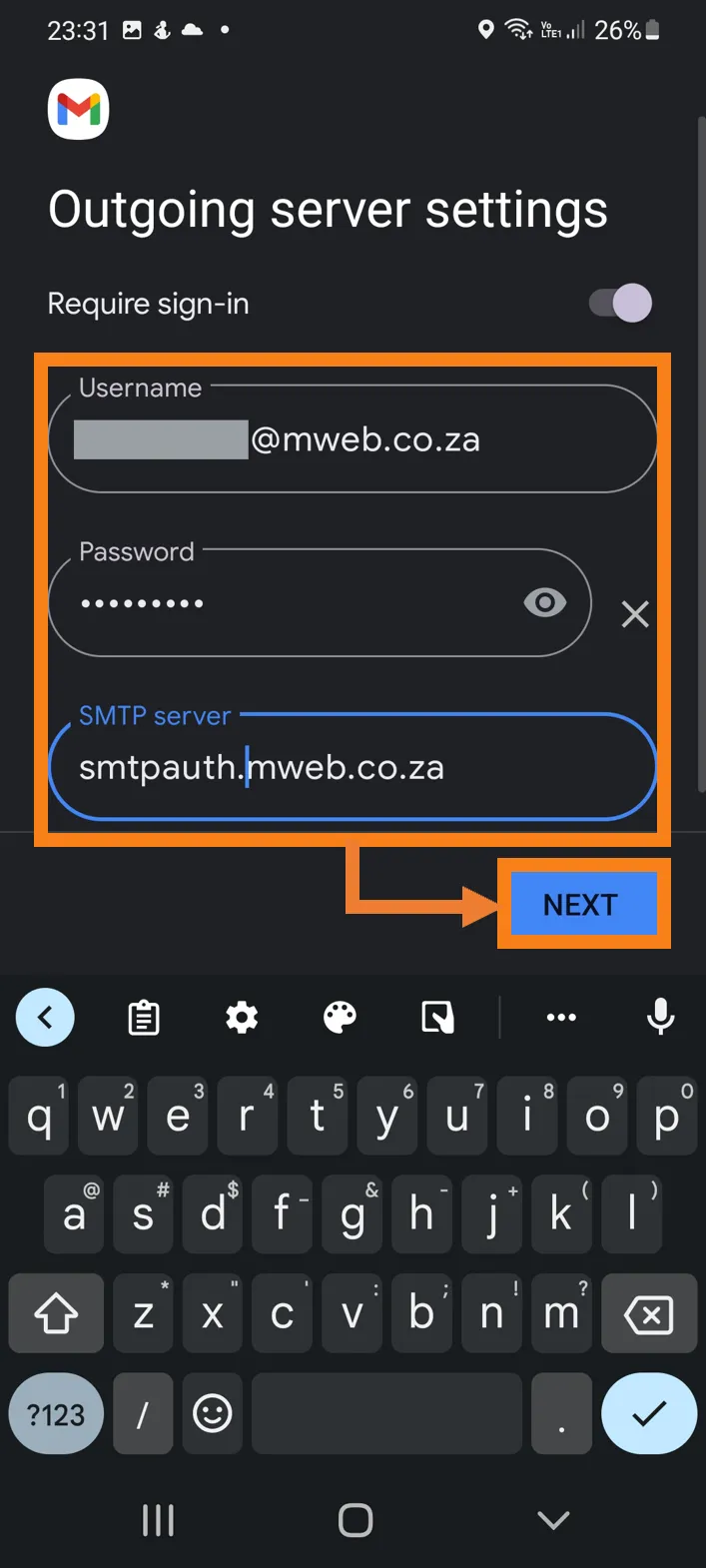
- On the next screen confirm the same login details can be used for the outgoing server
- Enter the server address a smtpauth.mweb.co.za
- Select Next to Continue
-
Finish Setting Up Your Account
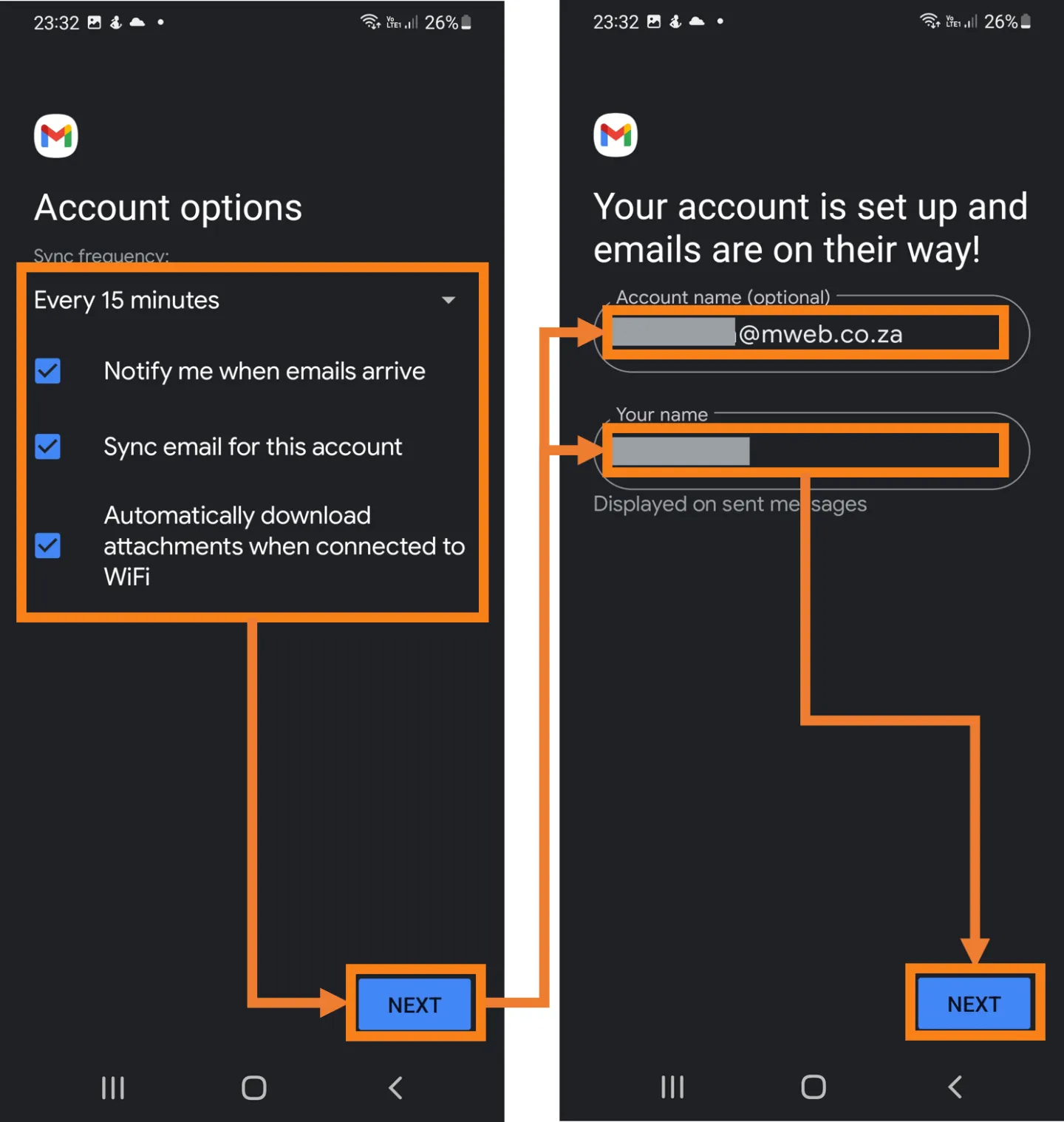
- Choose preferences for notifications and update frequency and select Next
- Finally name your account and Choose a Display Name to show on sent messages.
- One last Next and you’re ready to send emails
Was this article helpful?