
How to Set Up the MTN LTE APN on a Huawei B618
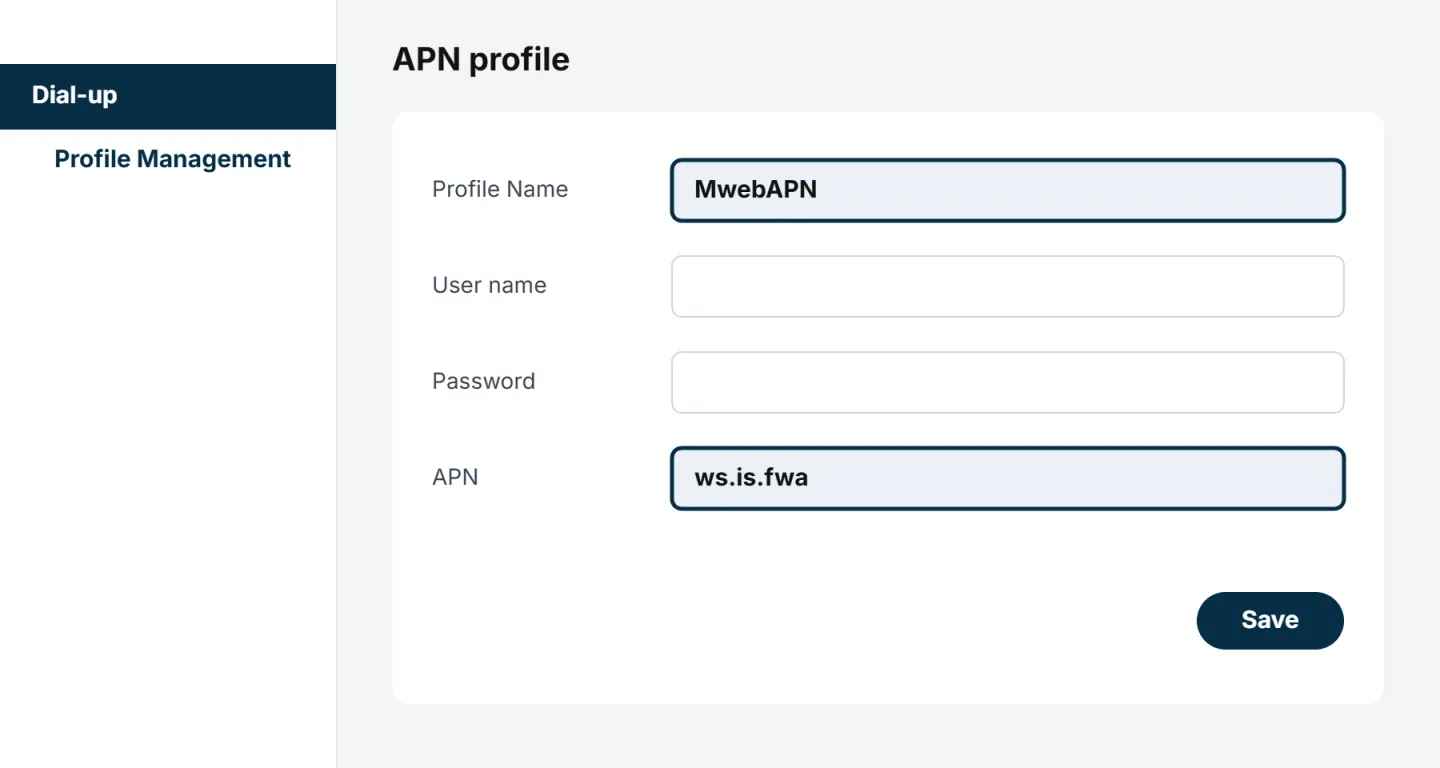
To set up the Mweb MTN LTE APN on a Huawei B618, go to 192.168.8.1 and log in (the default username and password are both admin). Click Settings, then Dial-up and Profile Management, and click New Profile. Enter Profile Name "MwebAPN", leave the user name and password blank, set the APN to "ws.is.fwa" and click Save. Then go to Dial-up, Mobile Network, set Preferred Mode to "4G only", click Apply and restart your router.
Your Huawei B618 needs the Mweb MTN APN to connect to the MTN network. Setting it up takes about 5 minutes.
Mweb MTN LTE APN Settings
| Setting | Value |
|---|---|
| Profile Name | MwebAPN |
| User name | Leave blank |
| Password | Leave blank |
| APN | ws.is.fwa |
The Profile Name is just a label. The APN itself must be
ws.is.fwa.
How to Set Up Your APN
Connect to Your Router
Connect your phone, tablet or computer to the router's WiFi or plug in a network cable. The WiFi name and password are on the router's label.
Log In to Your Router
Open your browser, type
192.168.8.1in the address bar and click Log In at the top of the page. The default username and password are bothadmin.Complete the Quick Setup
If this is your first time logging in, you'll go through the Quick Setup. Make sure Auto-Update is enabled, save your WiFi details and set a new router login password.
Open Profile Management
Click Settings at the top of the page, then Dial-up on the left and Profile Management.
Add the Mweb APN
Click New Profile and enter the settings from the table above. Leave the user name and password blank, then click Save.
Set the Network Mode to 4G Only
Under Dial-up, click Mobile Network. Set Preferred Mode to 4G only and click Apply.
Restart Your Router
Restart the router and give it a few minutes to connect. You should now be online.
A factory reset wipes your APN. If you reset your router, add the APN again before testing your connection.
Was this article helpful?