
How to Set Up the MTN LTE APN on a Huawei B612
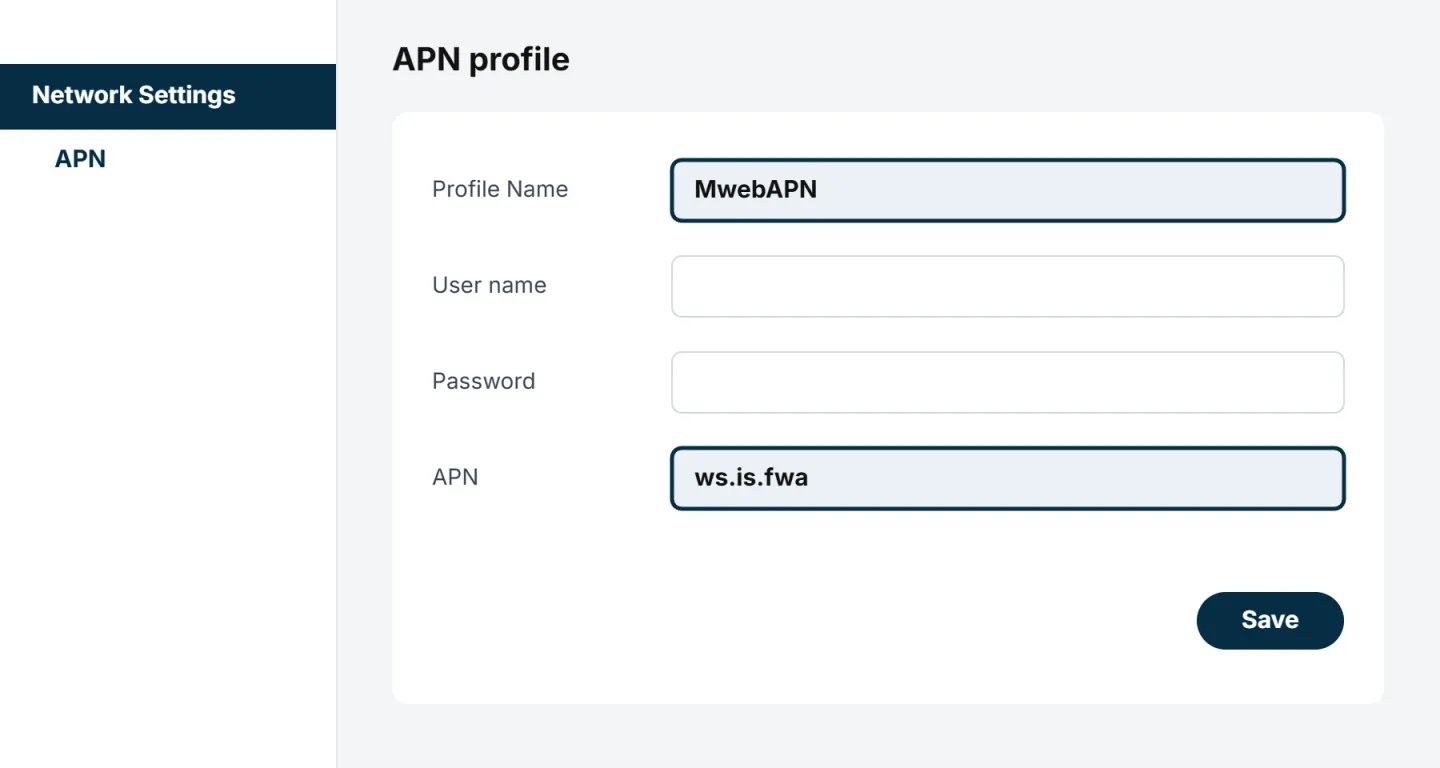
To set up a Huawei B612 for Mweb MTN LTE, insert the Micro SIM into the slot on the bottom of the router, plug in the power and connect to the router's WiFi (details on the label). Go to 192.168.8.1 and log in (the default password is admin). Click Network Settings, then the plus (+) icon, and add Profile Name "MwebAPN" with the APN "ws.is.fwa", leaving the user name and password blank. Click Save, set Preferred network mode to "4G only" under Mobile Network Searching, then restart your router.
Here's how to set up your Huawei B612 router, from inserting the SIM to adding the Mweb MTN APN. It takes about 10 minutes.
Before You Start
What's in the Box?
- Huawei B612 router
- Power cable
- Network (Ethernet) cable
- Mweb MTN LTE SIM card
Mweb MTN LTE APN Settings
| Setting | Value |
|---|---|
| Profile Name | MwebAPN |
| User name | Leave blank |
| Password | Leave blank |
| APN | ws.is.fwa |
The Profile Name is just a label. The APN itself must be
ws.is.fwa.
How to Set Up Your Router
Insert Your SIM
Your router takes a Micro SIM, so pop out the middle size from the SIM card. The SIM slot is on the bottom of the router, with a sticker showing which way the SIM goes in.
Plug in the Power
Plug the power cable into the power socket on the back of the router, then into the wall. The light on the front of the router will come on.
Connect to Your Router
Find the WiFi name and password on the back of the router, then connect your phone or computer to that WiFi network. If it doesn't connect first time, check the password and make sure Caps Lock is off.
Log In to Your Router
Open your browser and type
192.168.8.1in the address bar. Log in with the password on the router's label (the default isadmin).Open the APN List
Click Network Settings at the top of the page. You'll see the APN list. Click the plus (+) icon to add a new APN.
Add the Mweb APN
Enter the settings from the table above, leaving the user name and password blank. Scroll down and click Save. Your new APN will show as the default in the list.
Set the Network Mode to 4G Only
Click Mobile Network Searching on the left. Set Preferred network mode to 4G only and click Save.
Restart Your Router
Restart the router and give it a few minutes to connect. You should now be online.
A factory reset wipes your APN. If you reset your router, add the APN again before testing your connection.
Was this article helpful?