
How to Manage your Account with the Mweb Mobile App
Our new Mobile App is all about making it easier to get things done and putting the control at your fingertips and we’ve packed the full Mweb Account Management experience into a few small screens.
Follow the walkthrough below to see how to manage your master account and additional user profiles directly from the Mobile App.
If you don’t already have the Mweb Mobile App download it from your favourite App Store and follow this guide to get started.
Open the Profile Management Screen
Once you’re logged into the Mobile App, select the Profile icon in the top right to manage your account
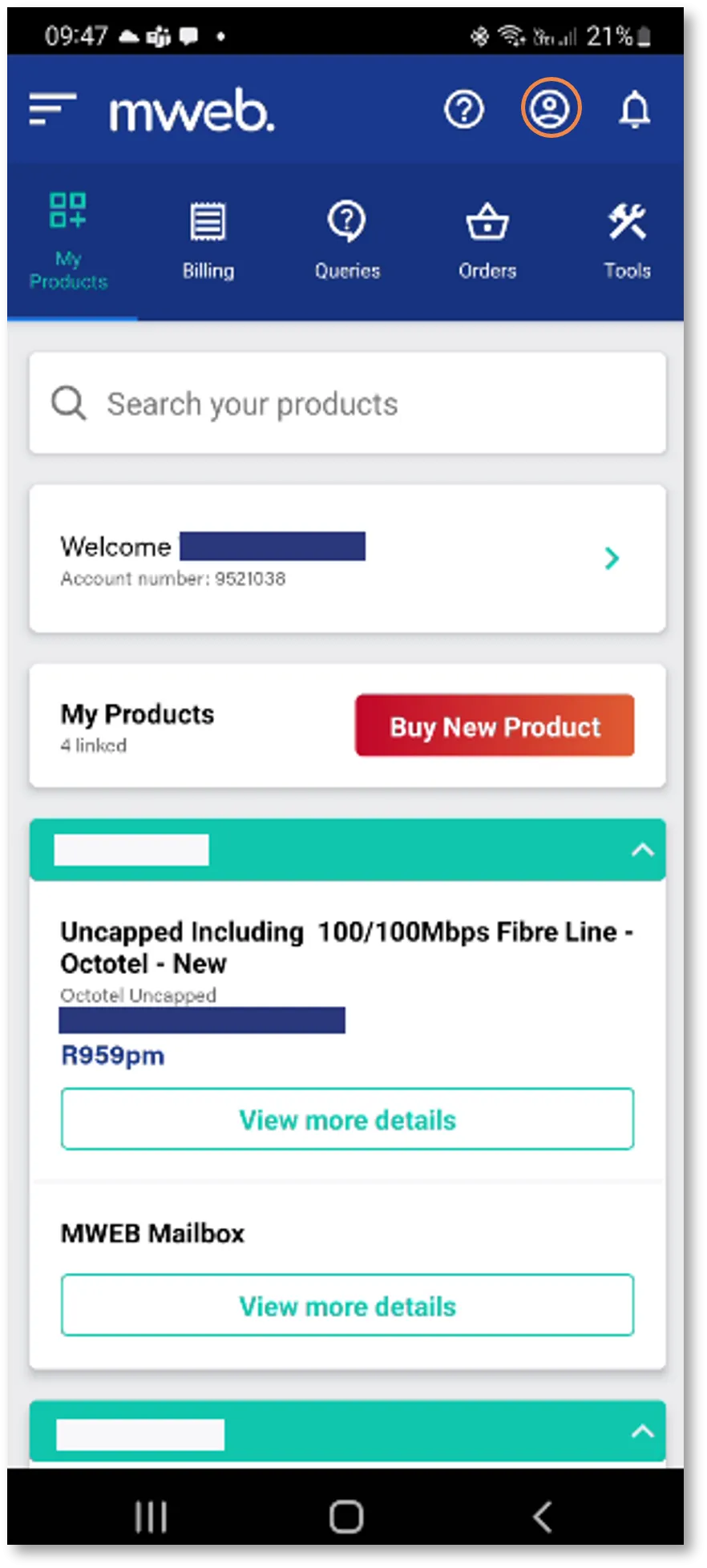
View and Manage Accounts on the Device
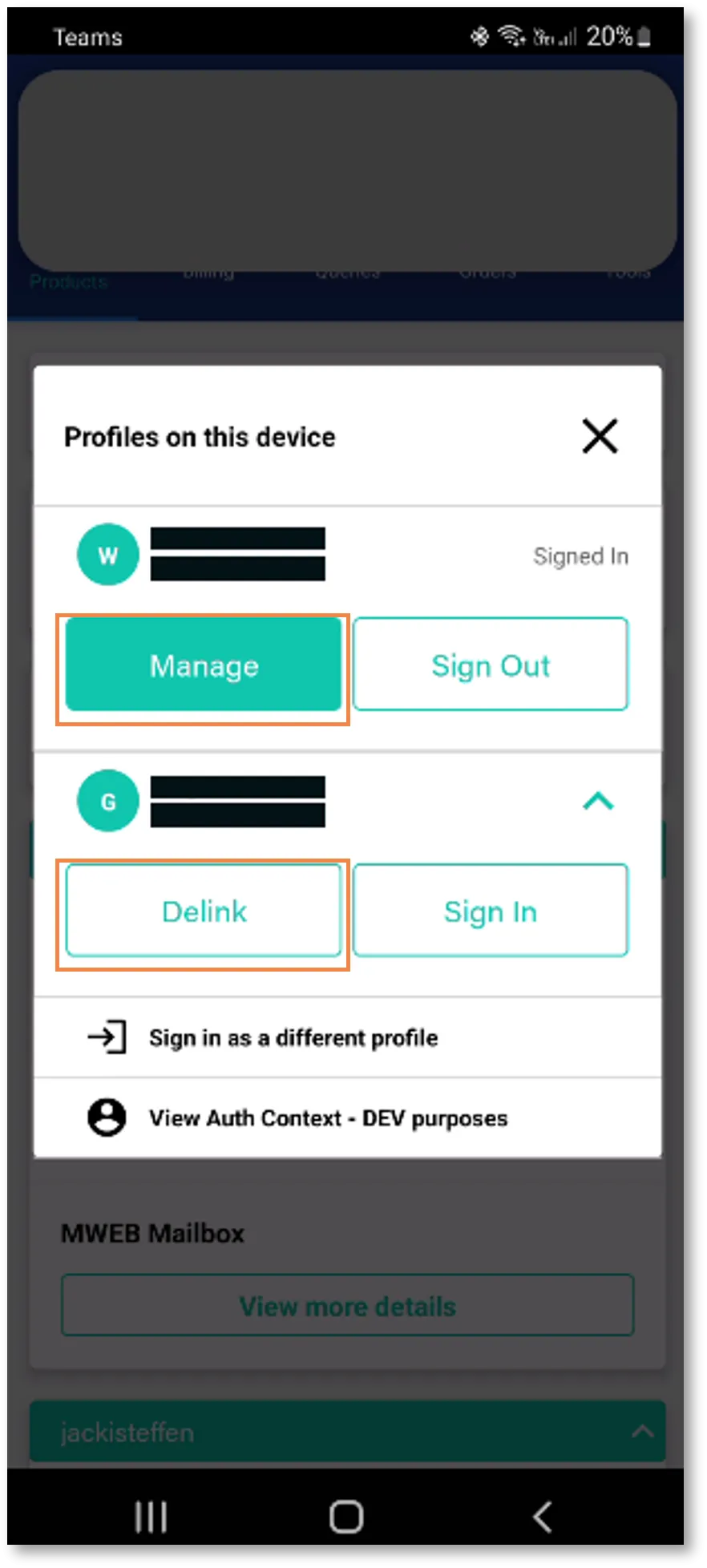
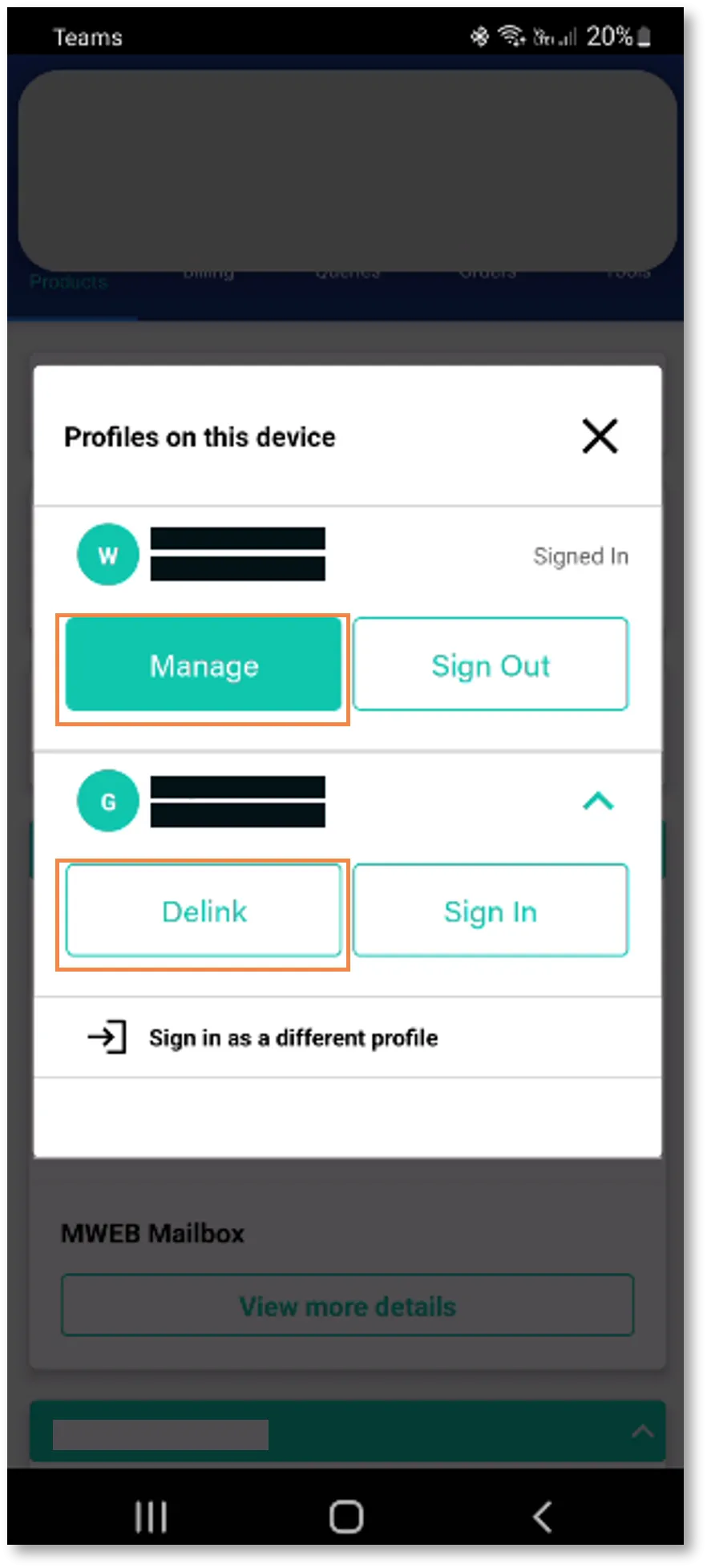
- The Mweb Mobile App Supports using one device to manage multiple Mweb accounts
- From the profile screen you can Manage the Currently Signed in Account, switch accounts, or delink an account you no longer wish to have on this device.
Account Management Screen
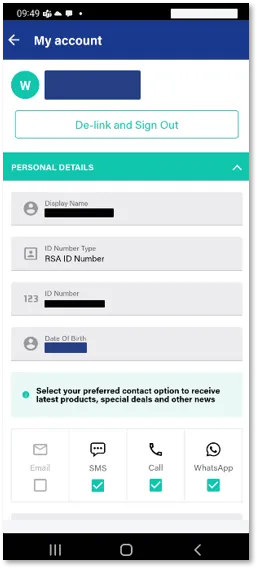
- Selecting Manage will bring up the Account Management screen.
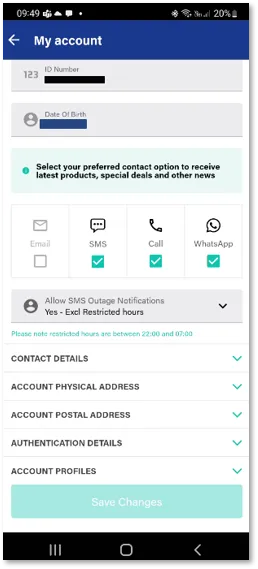
- Your primary personal details are read only and cannot be edited online
Contact Details and Preferences
- Scroll Down to find your preferences for receiving communication from Mweb, or expand the sections to edit your Contact Details and Address Details.
Current Account Password
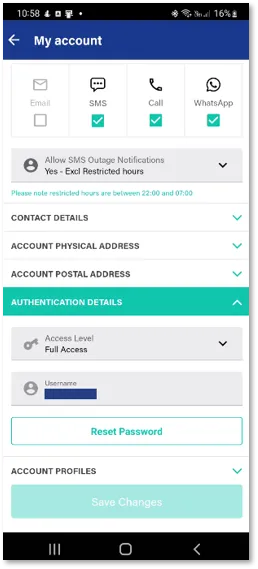
- Expand the Authentication Details item if you wish to change the password for the currently logged in user.
Adding Account Profiles
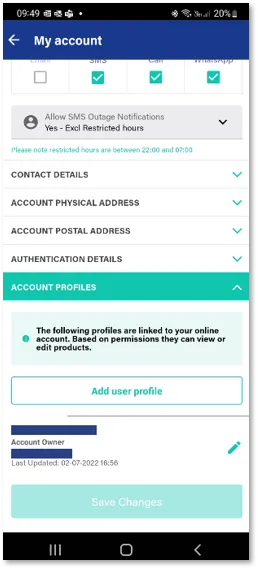
- You can have even more control over your accounts by adding additional user profiles to your account and assigning different roles and permissions to them.
- Every additional user is fully secured with their own OTP verified username and password - they can even manage the services you’ve given them access to using the Mobile App.
- For more details on how this works we recommend reviewing this guide on Profile Management
User Profile Creation Wizard
- Follow the guided steps to create a new user profile
- Personal information, must be accurate as this user will be allowed to interact with your account and our call centre with the access level you have granted them and may need to pass security checks
- Your new user will need to be available with their mobile phone in order to complete the OTP validation step needed to complete creating the profile
Was this article helpful?