
How to Improve Your WiFi Signal
Looking for help with WiFi disconnections and slow speeds?
Use our Scan tool in the Mweb app to diagnose and fix WiFi issues quickly.
LEARN MORE
Having trouble with slow or unreliable WiFi? A weak WiFi signal can disrupt everything from streaming videos to browsing the internet. Here are a few simple steps you can take to improve your WiFi signal and get a more reliable connection.
By following these steps, you can improve your WiFi signal and enjoy faster, more reliable internet throughout your home. If you’ve tried everything and still have issues, it may be time to upgrade your equipment or contact support for further assistance.
-
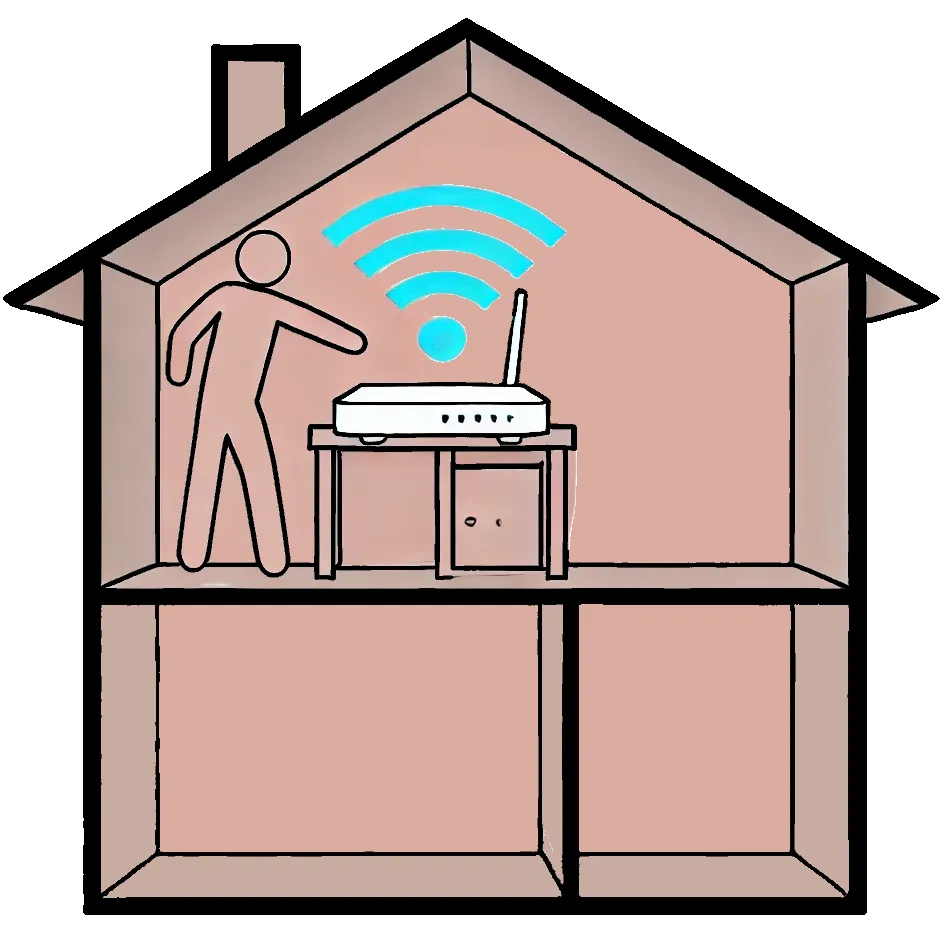
Place Your Router in the Right Spot
Your router’s location can have a huge impact on the strength and range of your WiFi signal.
- Central Location: Place your router in the middle of your home to distribute the signal evenly.
- Elevated Position: Keep it off the floor, preferably on a shelf or mounted on a wall.
- Away from Obstacles: Avoid placing it behind large furniture or thick walls, which can block the signal.
-
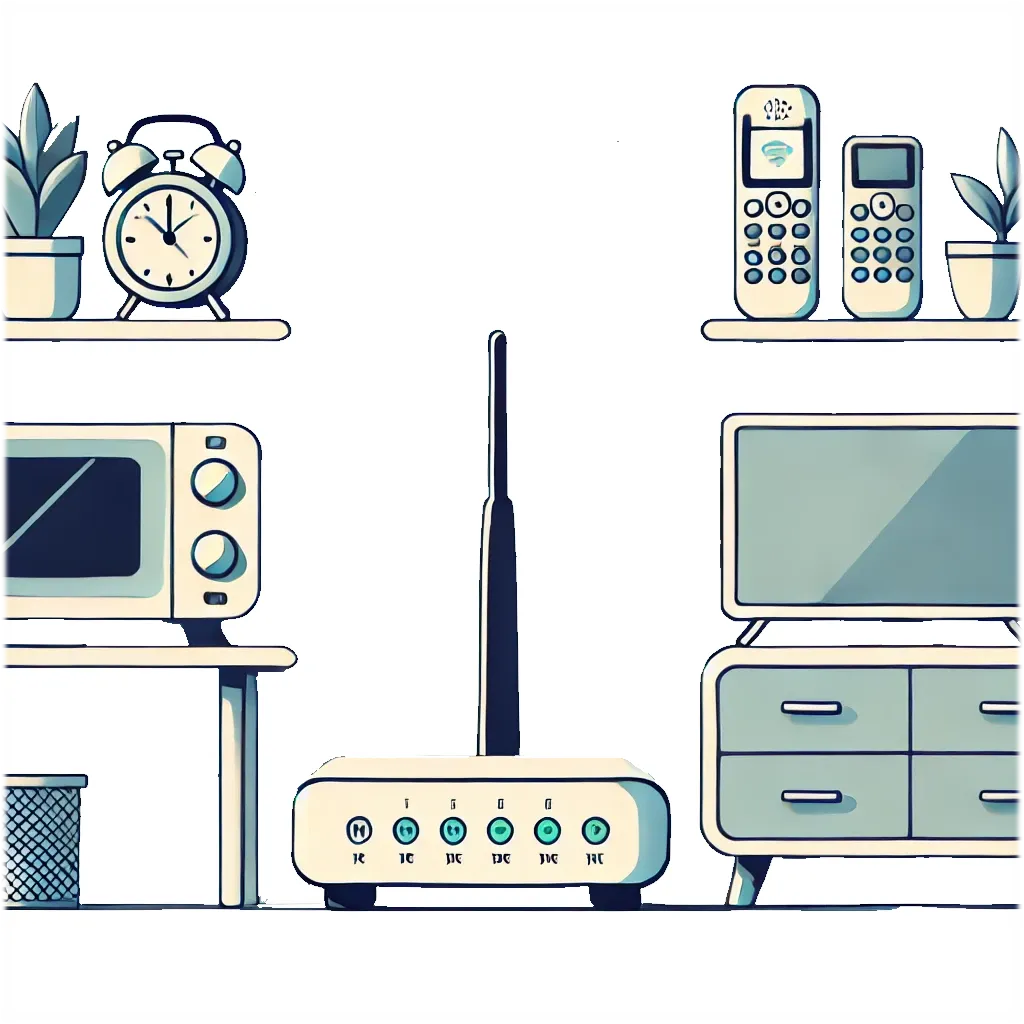
Avoid Interference
Certain household electronics can interfere with your WiFi signal.
- Microwaves: If your router is close to a microwave, the signal can drop when the microwave is on.
- Cordless Phones: Older cordless phones, especially those that use 2.4 GHz, can interfere with your WiFi signal.
- Other Electronics: Wireless speakers, baby monitors, and Bluetooth devices may also cause interference. Try to keep your router away from these.
-
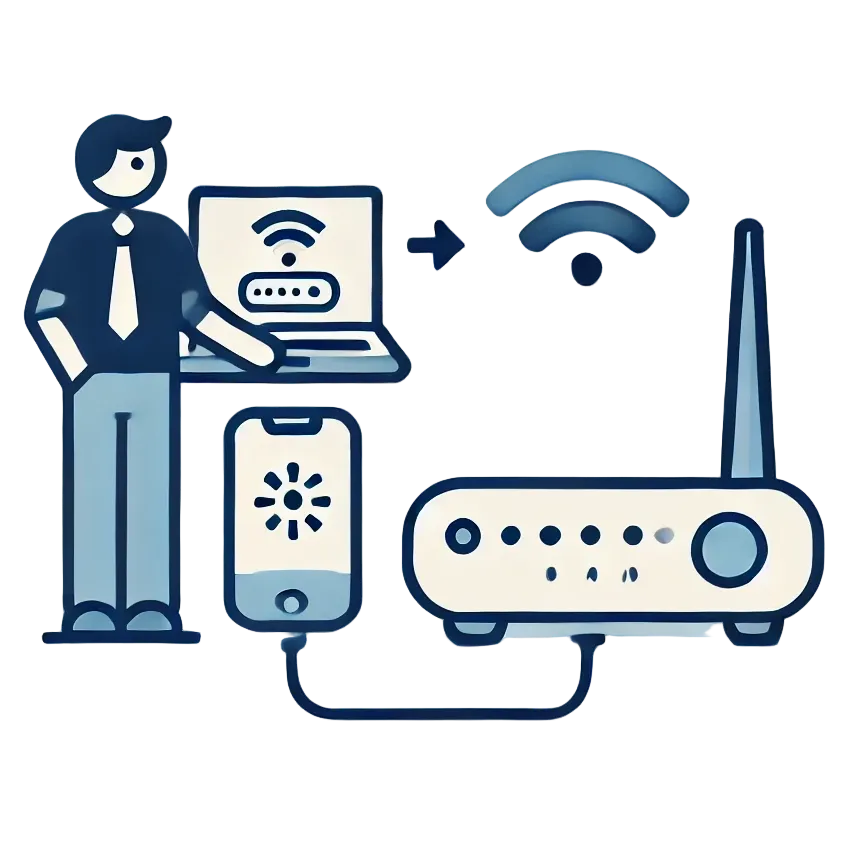
Update Your Router
Router manufacturers often release firmware updates to improve performance or fix issues. Keeping your router up to date can help enhance its signal.
- Check for Updates: Log in to your router’s settings (instructions should be in the router manual) and look for any available firmware updates.
-
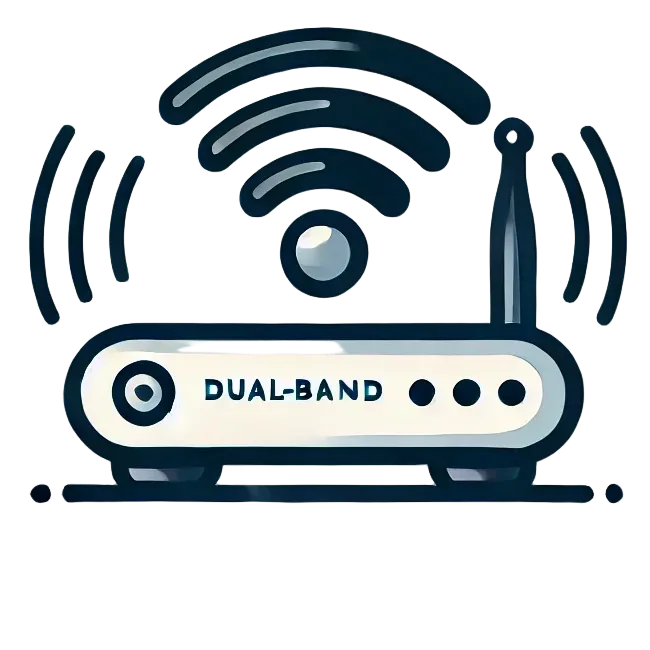
Upgrade Your Router
If your router is more than a few years old, it might not be able to keep up with modern WiFi standards.
- Newer Technology: Upgrading to a dual-band or tri-band router can give you access to 5 GHz and 6 GHz frequencies, which offer faster speeds and less interference than the older 2.4 GHz band.
- WiFi 6 Routers: If you want the latest tech, consider getting a WiFi 6 router, which offers faster speeds, better efficiency, and increased capacity for multiple devices.
-
Use a WiFi Extender
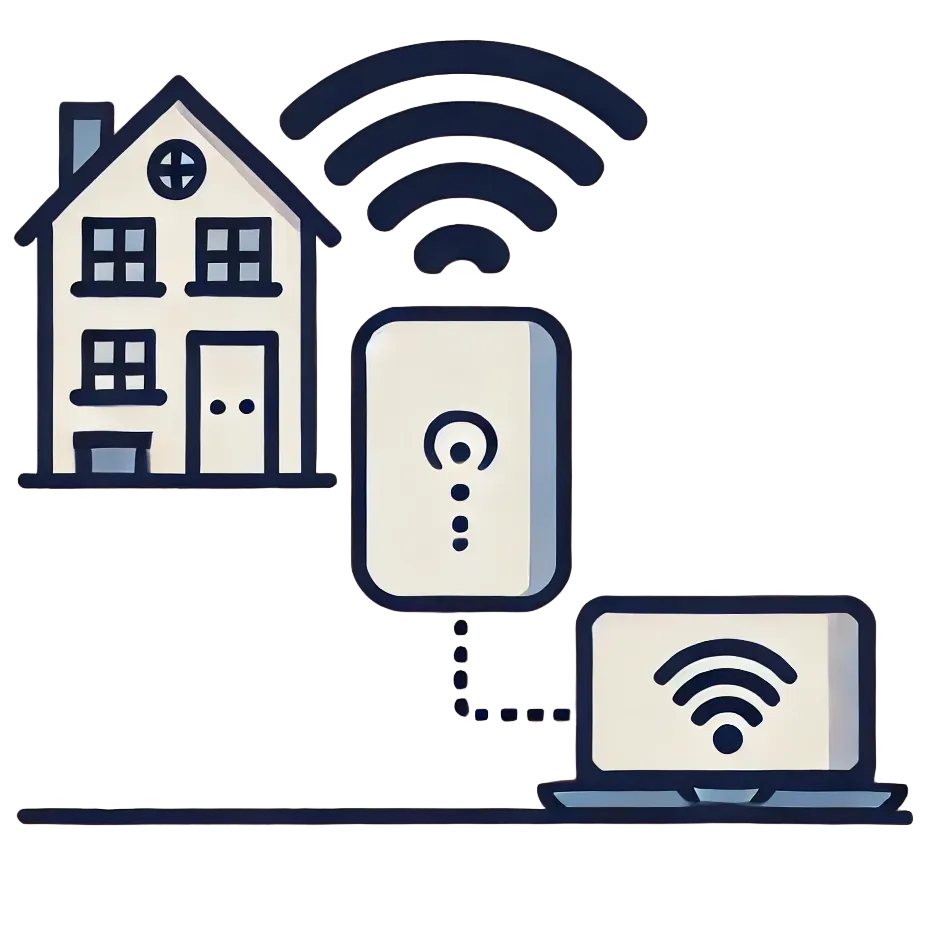
If certain parts of your home have weak or no signal, a WiFi extender can help by boosting the signal into those areas.
- Plug-and-Play: A WiFi extender is a small device that plugs into a power outlet and repeats the signal from your router.
- Positioning: Place the extender in an area where the signal is still strong, but close enough to the area where coverage is weak.
-
Minimise the Number of Devices
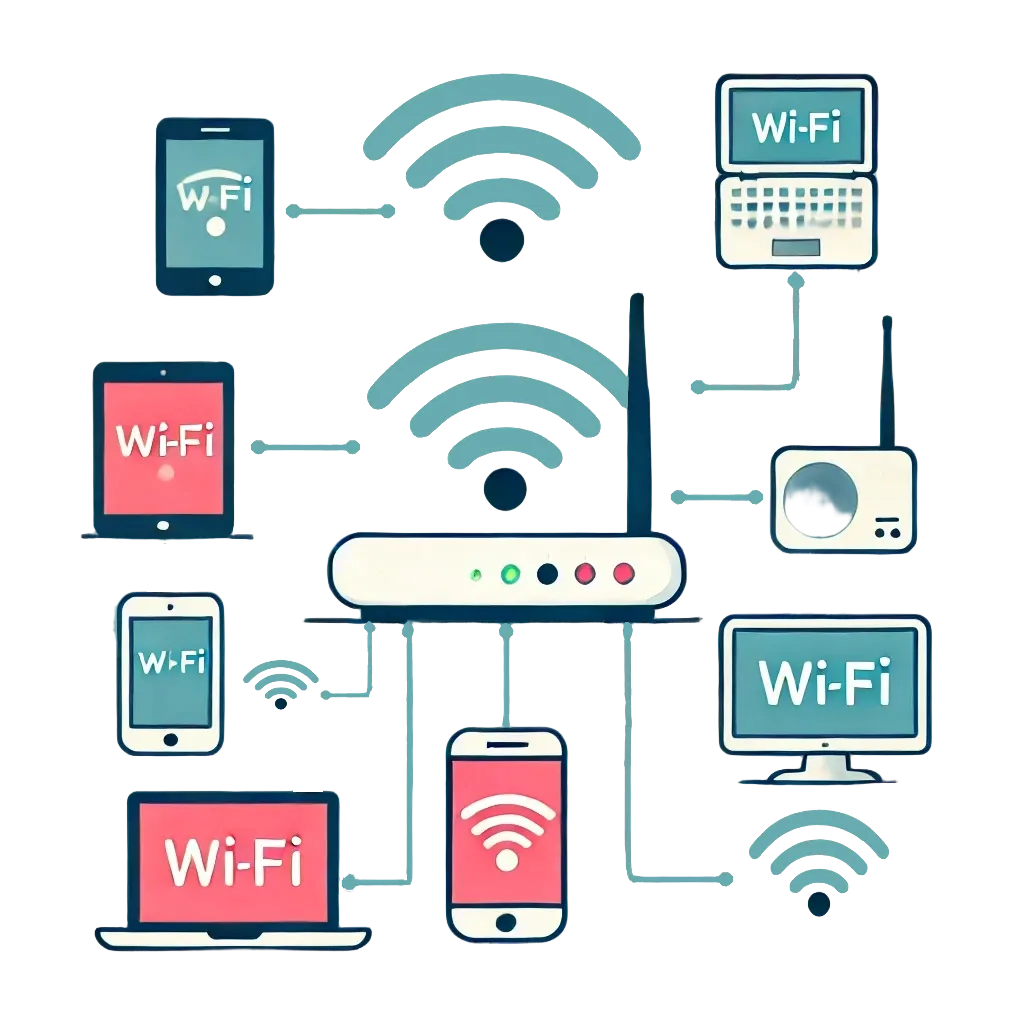
The more devices connected to your WiFi, the more bandwidth they use, which can slow down your connection.
- Prioritise Devices: Disconnect any devices that aren’t in use, and prioritise bandwidth-hungry devices like your smart TV or gaming console.
- Guest Networks: Set up a separate guest network if you regularly have visitors. This will prevent them from using up your main network’s bandwidth.
-
Change Your WiFi Channel
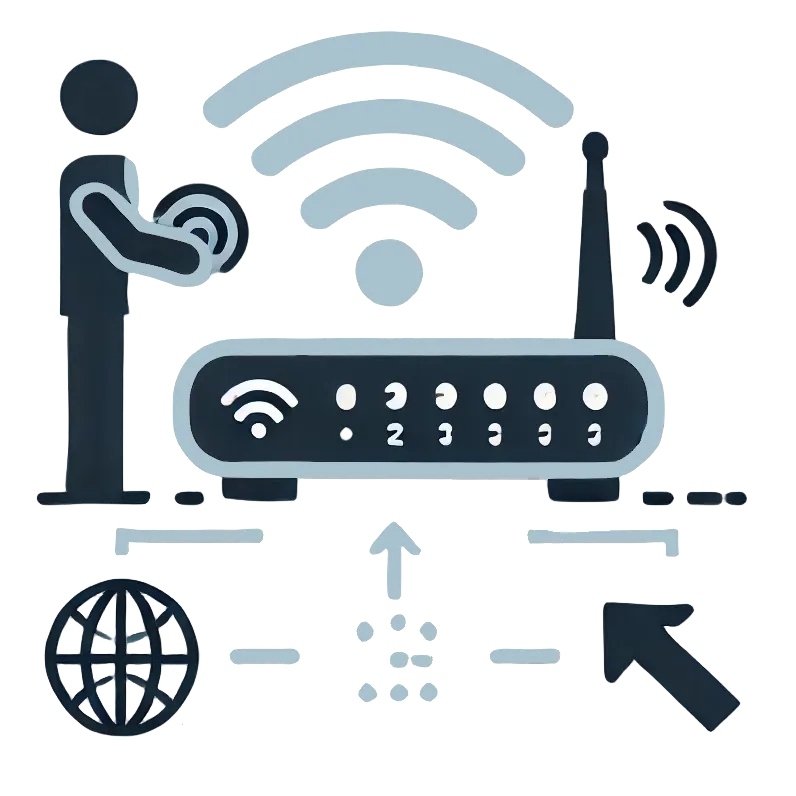
Routers broadcast on different channels, and if too many routers in your area are on the same channel, this can cause interference.
- Log in to Your Router: Access your router settings and switch to a less crowded channel. Most routers allow you to choose between channels manually.
- Automatic Channel Selection: Some newer routers automatically choose the best channel, but it’s still worth checking.
-
Use Ethernet for Critical Devices
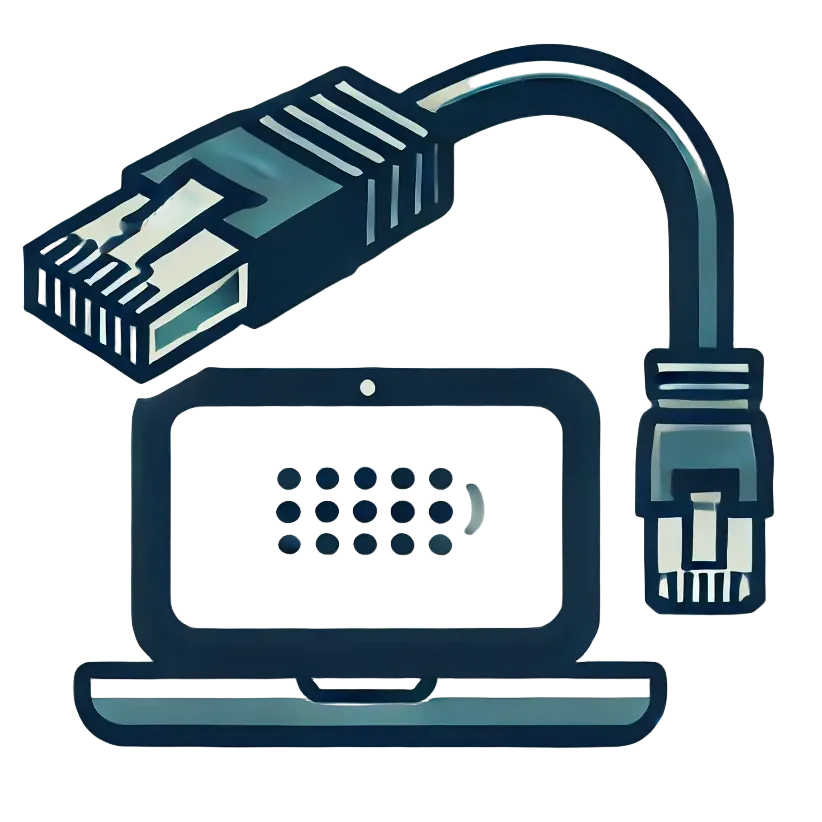
While WiFi is convenient, a wired connection will always be more stable.
- Ethernet Cable: Connect critical devices, like your computer or gaming console, directly to the router using an Ethernet cable. This reduces the strain on your WiFi and ensures these devices get the best possible connection.
-
Limit Background Activity
Many apps and devices use WiFi in the background, even when you’re not actively using them.
- Background Downloads: Turn off automatic updates or downloads on devices like phones, computers, or gaming consoles.
- Streaming & Downloads: Avoid downloading large files or streaming video on multiple devices at once if your connection is already slow.
Was this article helpful?