
How to Setup your Zyxel EX3301 Fibre Router
The Zyxel EX3301 can provide you with superior WiFi service on all your devices anywhere in your home.
We’ve divided our setup guide into 4 different sections, depending on your experience level you can skip ahead to the one you need, or start right from the beginning:
- Unboxing and Router Info
- Plugging in and Connecting to your Router
- Quick Setup Guide
- Manual WAN Setup
Unboxing and Router Info
Follow these steps to familiarize yourself with your new router:
-
Unboxing your Router
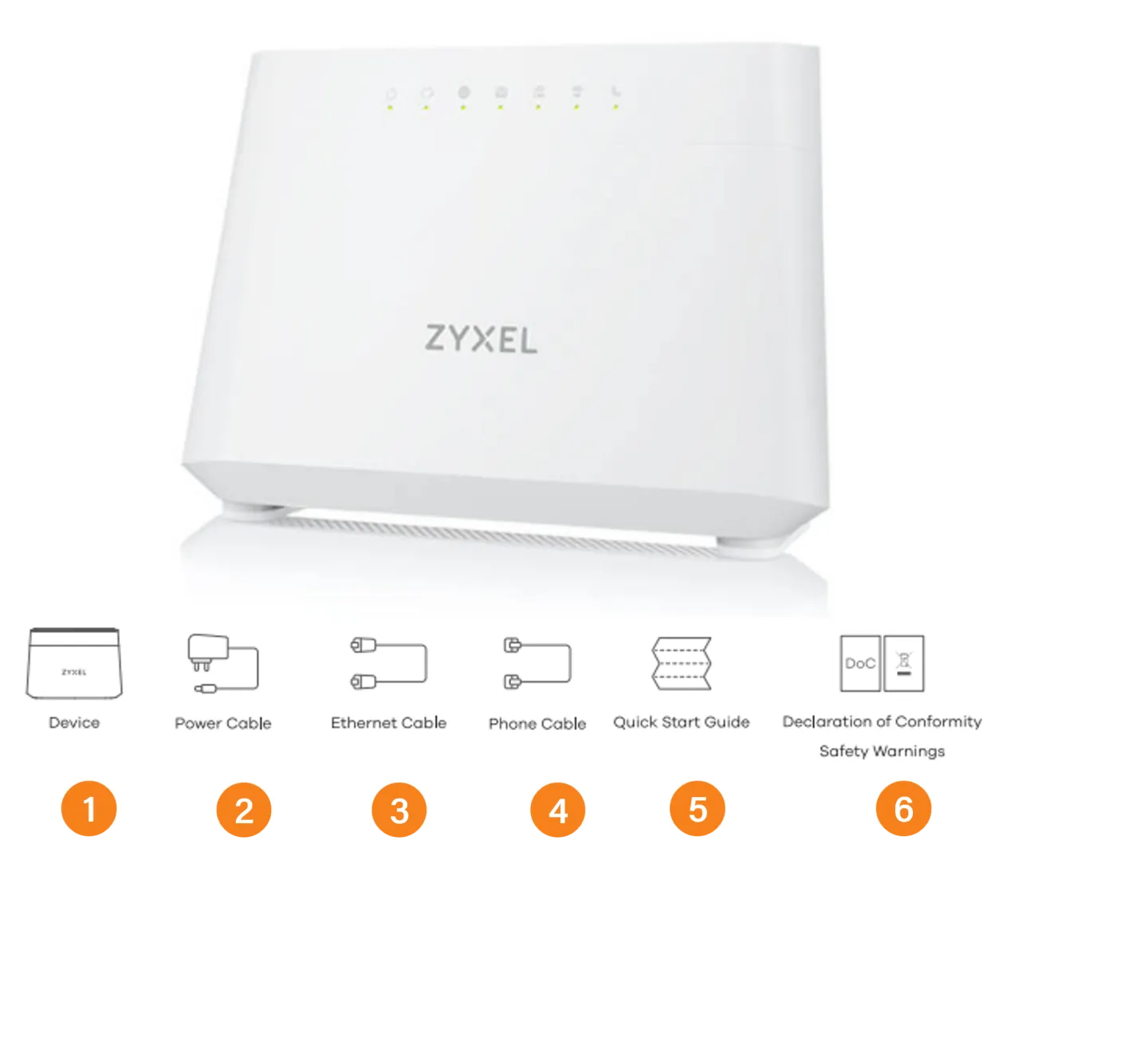
In the Box you will find:
- Zyxel EX3301 router
- Power cable
- Ethernet cable
- Phone cable
- Quick start guide
- Safety warnings
-
Front Panel Lights
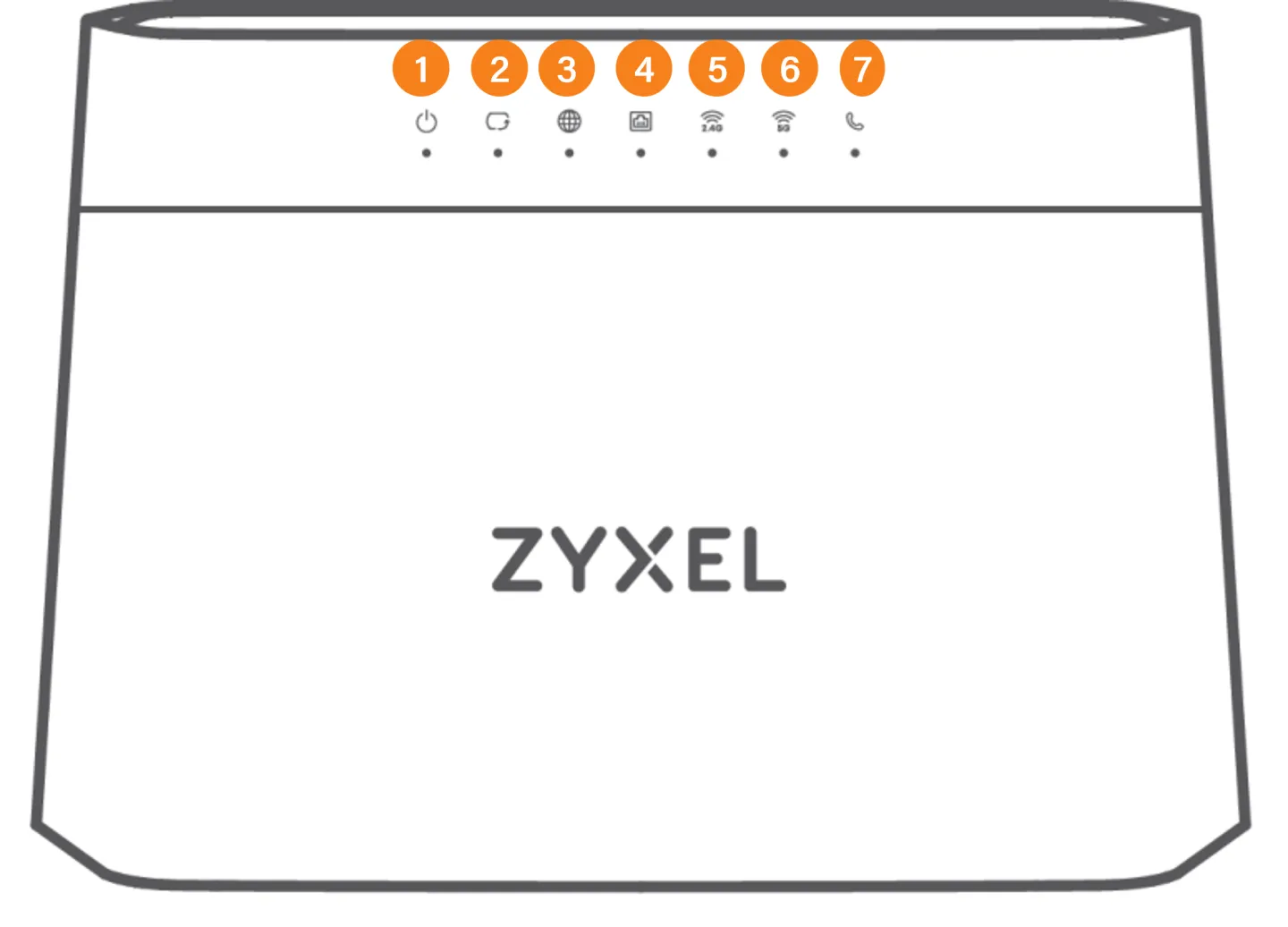
Familiarize yourself with the lights on the front panel.
You should see the following:
- Power
- Ethernet WAN
- Internet
- LAN 1-4
- 2.4Ghz wifi
- 5Ghz wifi
- Phone
-
Ports and Connectors
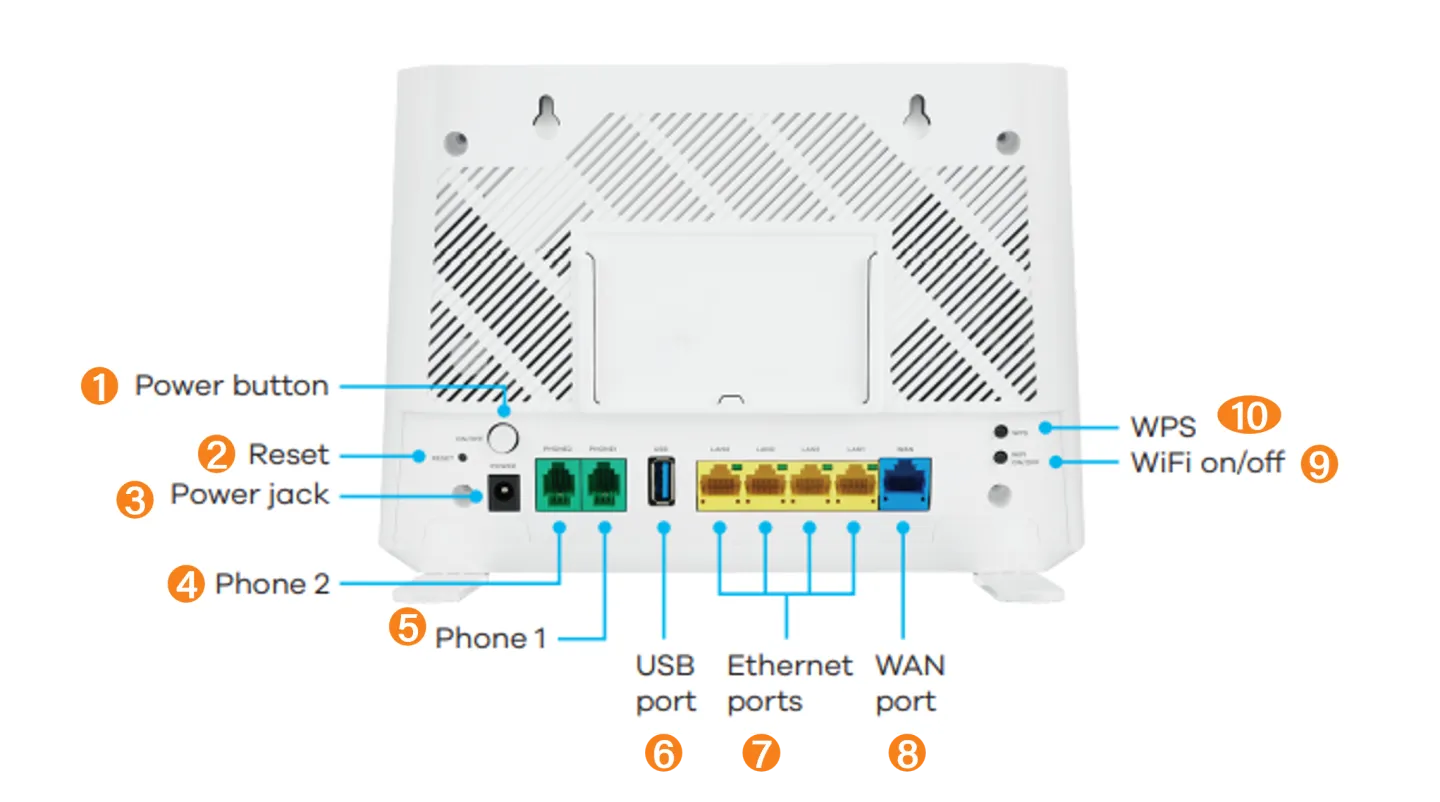
On the back panel, you should see the following :
- Power button
- Factory Reset switch
- Power IN
- Phone Port 1
- Phone Port 2
- USB port
- Ethernet 1-4
- Ethernet WAN
- Wifi On/Off
- WPS
-
Info Sticker
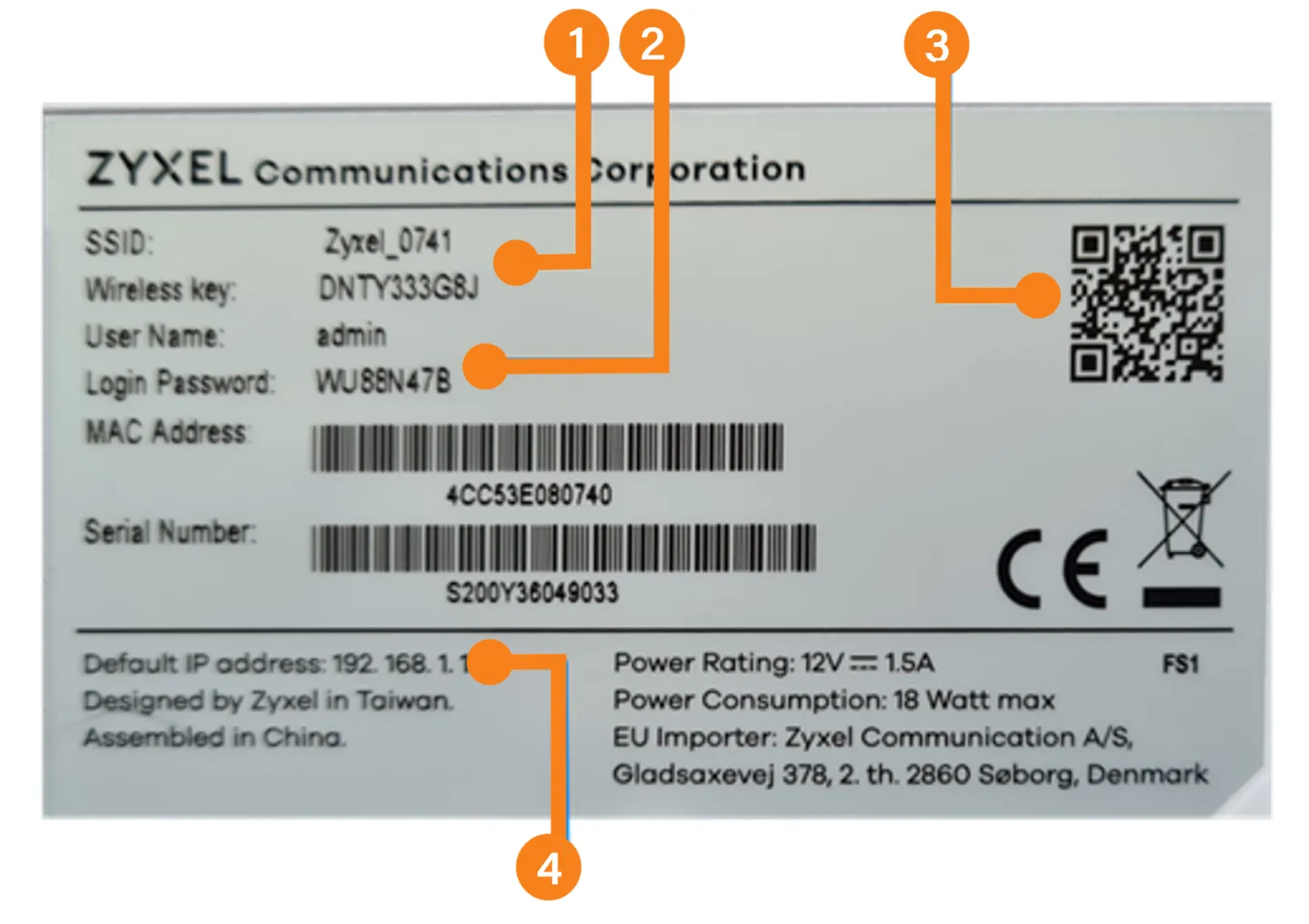
You will need the information on the sticker on the underside of the router. We recommend that you take a photo of the sticker with your phone before commencing with plugging in and setting up.
- Default wifi SSID (network name) and password
- Default admin username and password
- Default Wifi QR Code (you can this for a quick setup from your phone)
- Default router address
Plugging In
Follow these steps if you need assistance plugging in and connecting to your new router.
and Connecting to your Router
-
Plugging in the Router 2-1
Now that you’re familiar with your router lets connect it to your fibre ONT and the power:
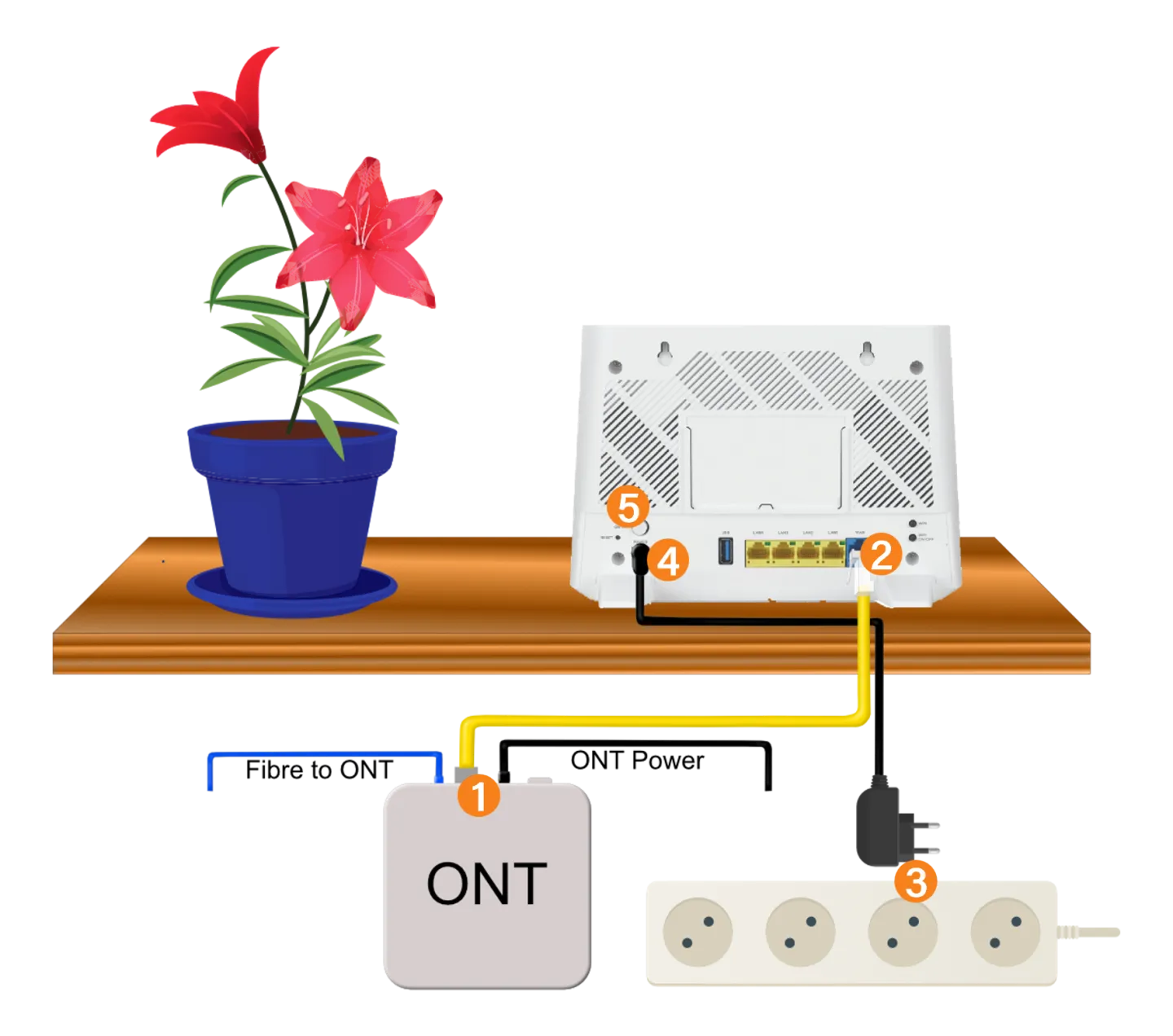
Using the yellow ethernet cable provided, connect the LAN port on the fibre ONT device (1) to the blue port labelled WAN on the back of the router (2)
Plug the routers’ power supply cable into the wall power supply (3) and into the small round power socket on the back of the router (4).
Switch the power on at the wall socket and then press the Power On/Off button (5) on the router.
-
Connecting via ethernet
If you have an devices connecting with an ethernet cable, or if you’re plugging in your laptop to complete the quick setup you can connect them now.
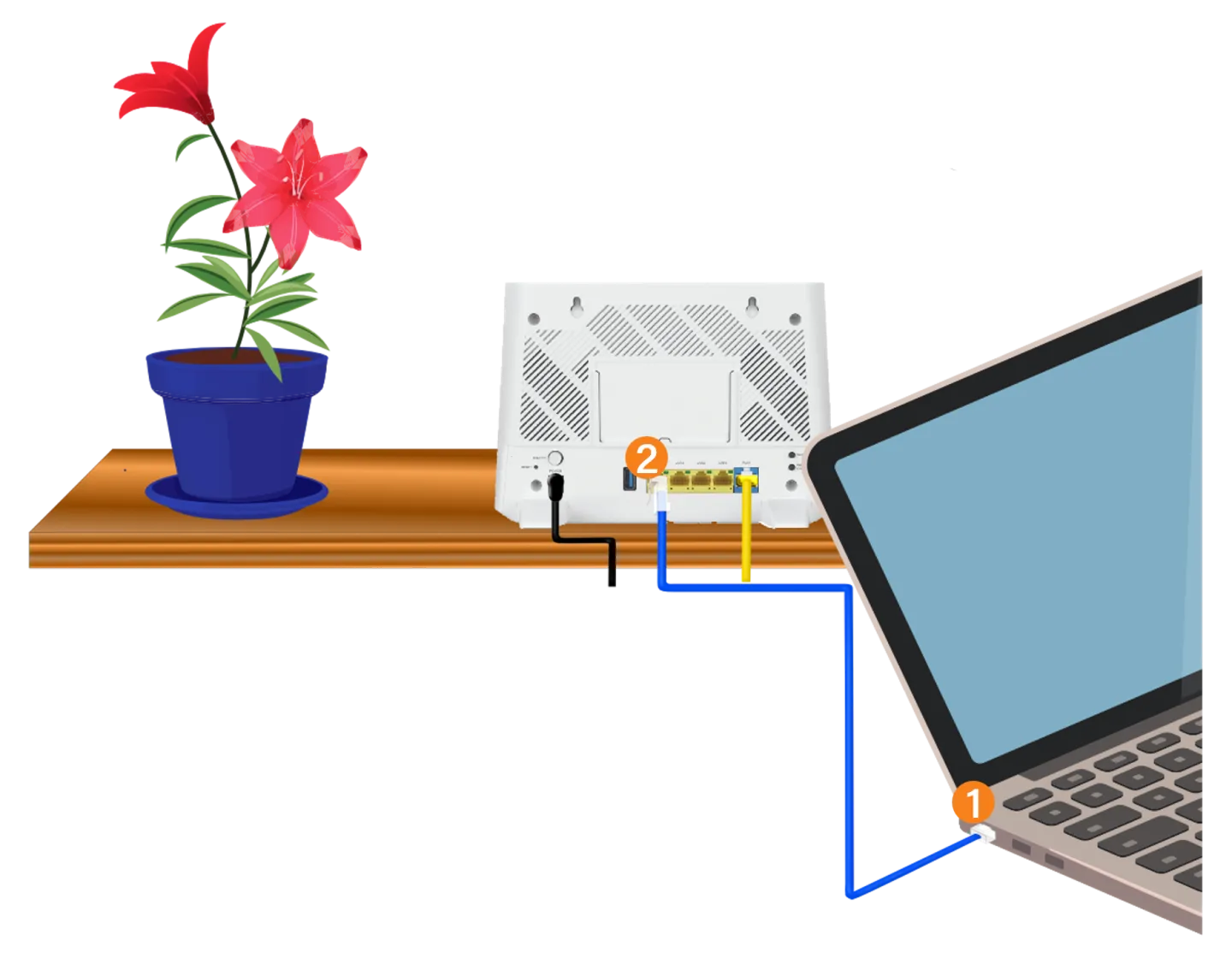
Plug one end of the Ethernet cable into the Ethernet port of your desktop or laptop (1)
Plug the other end into the yellow LAN port labelled “LAN1, 2, 3 OR 4 (2) at the back of the router .
-
Connecting Via Wifi
If you do not have access to an ethernet port on your device (usually Mac users) you can simply connect to the default Wifi network.
Refer to the sticker and connect your device to the preferred wifi network using the default password
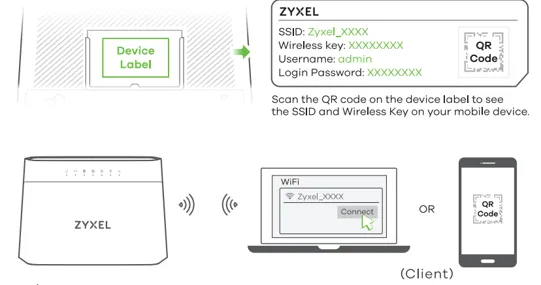
Connect to 5Ghz for faster speeds and 2.4Ghz if you’re further from the router.
Router Setup Wizard
Follow these steps for help completing the setup Wizard on your new router
-
Log in to your router through your preferred Web Browser
Open your web browser e.g. Google Chrome, Firefox, Microsoft Edge etc
Type the default address in your address bar: (192.168.1.1)
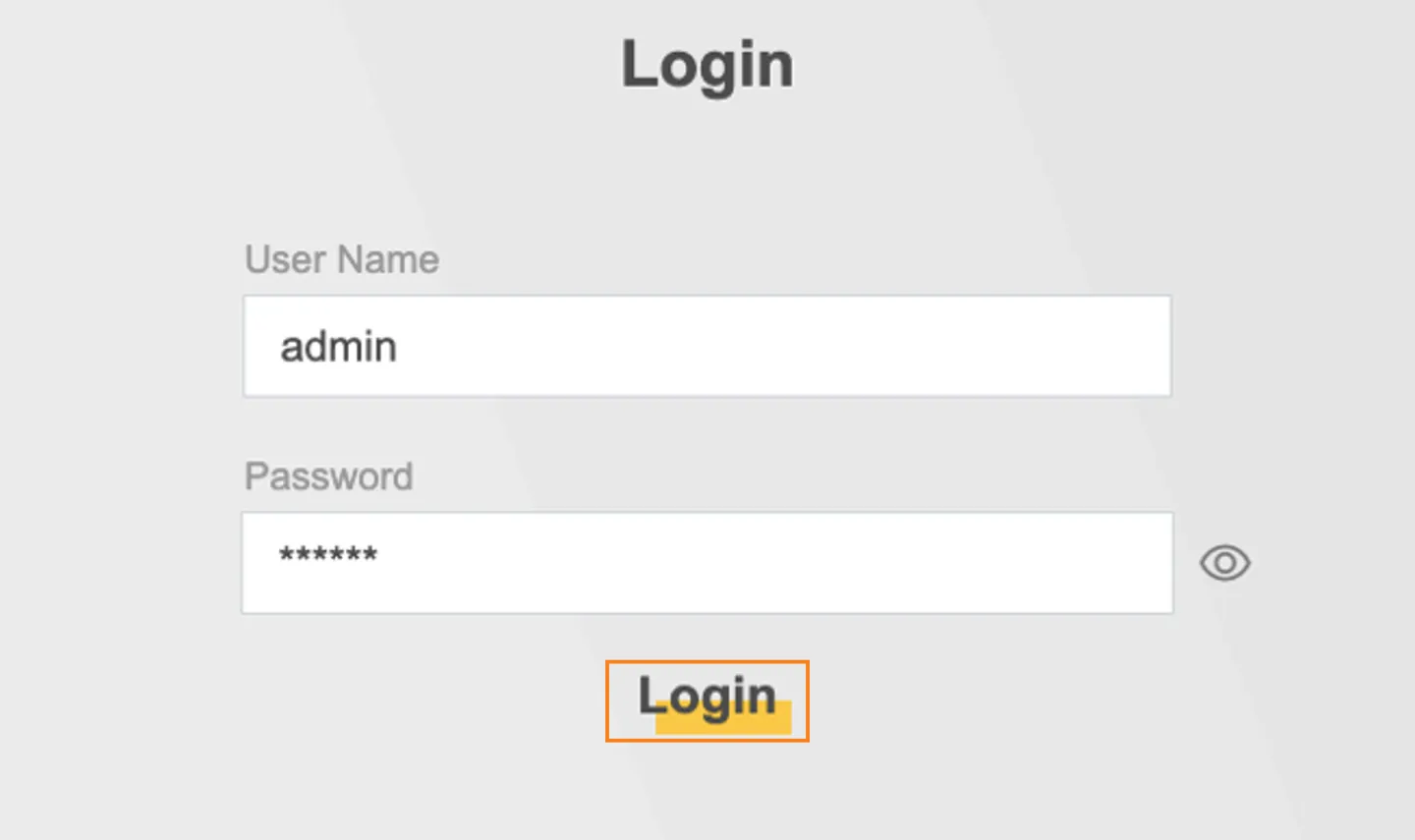
Login using the default username and password
-
Password Reset
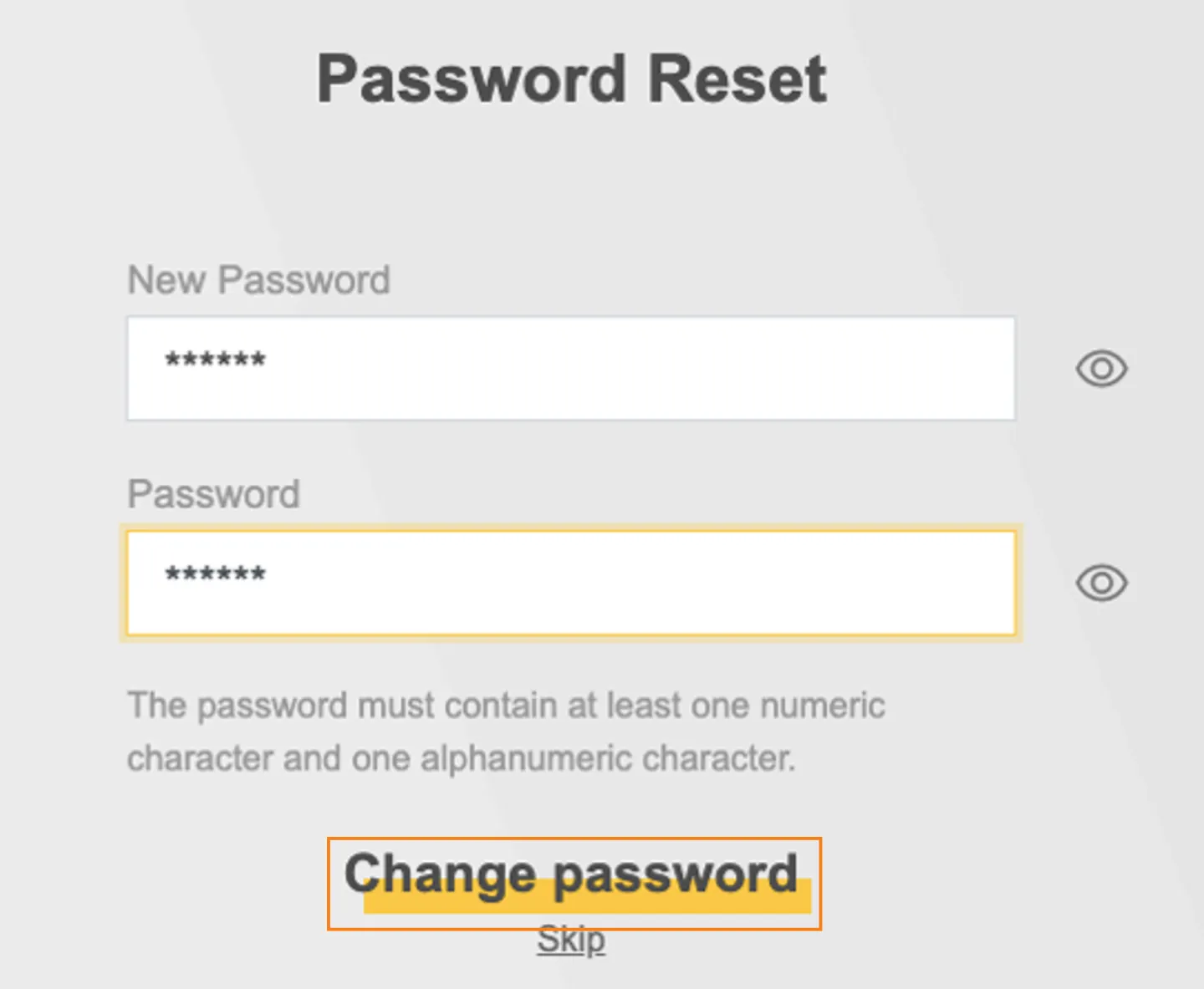
If this is the first time you are logging into the router you will be prompted to change the default password (recommended)
Enter a new password twice and click on Change Password to continue.
-
Start the setup Wizard
If this is your first time accessing the router the setup wizard should start automatically
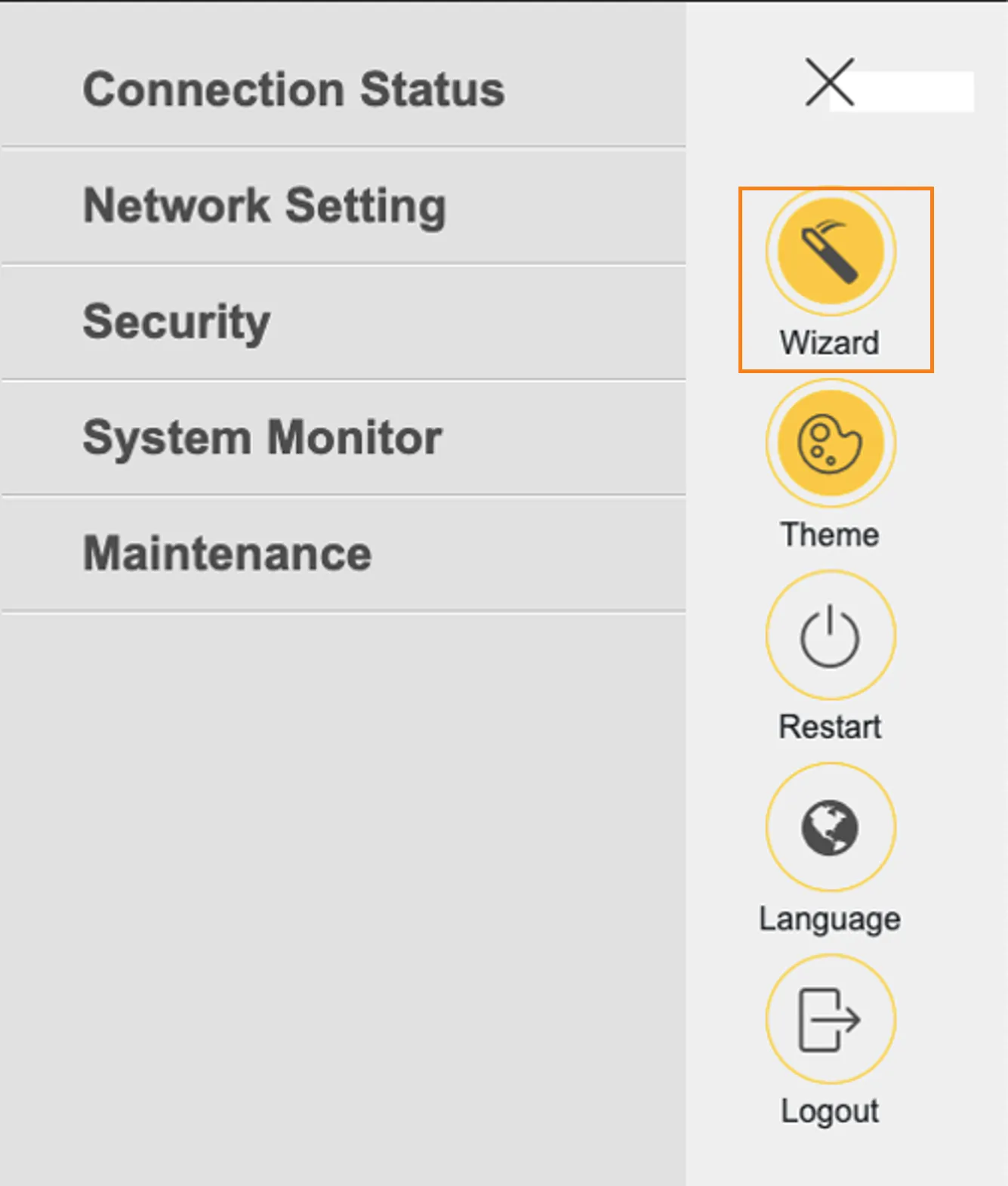
To start the Wizard manually, access the 3 stripe (hamburger menu in the top right hand corner) and Select Wizard.
-
Start the setup Wizard
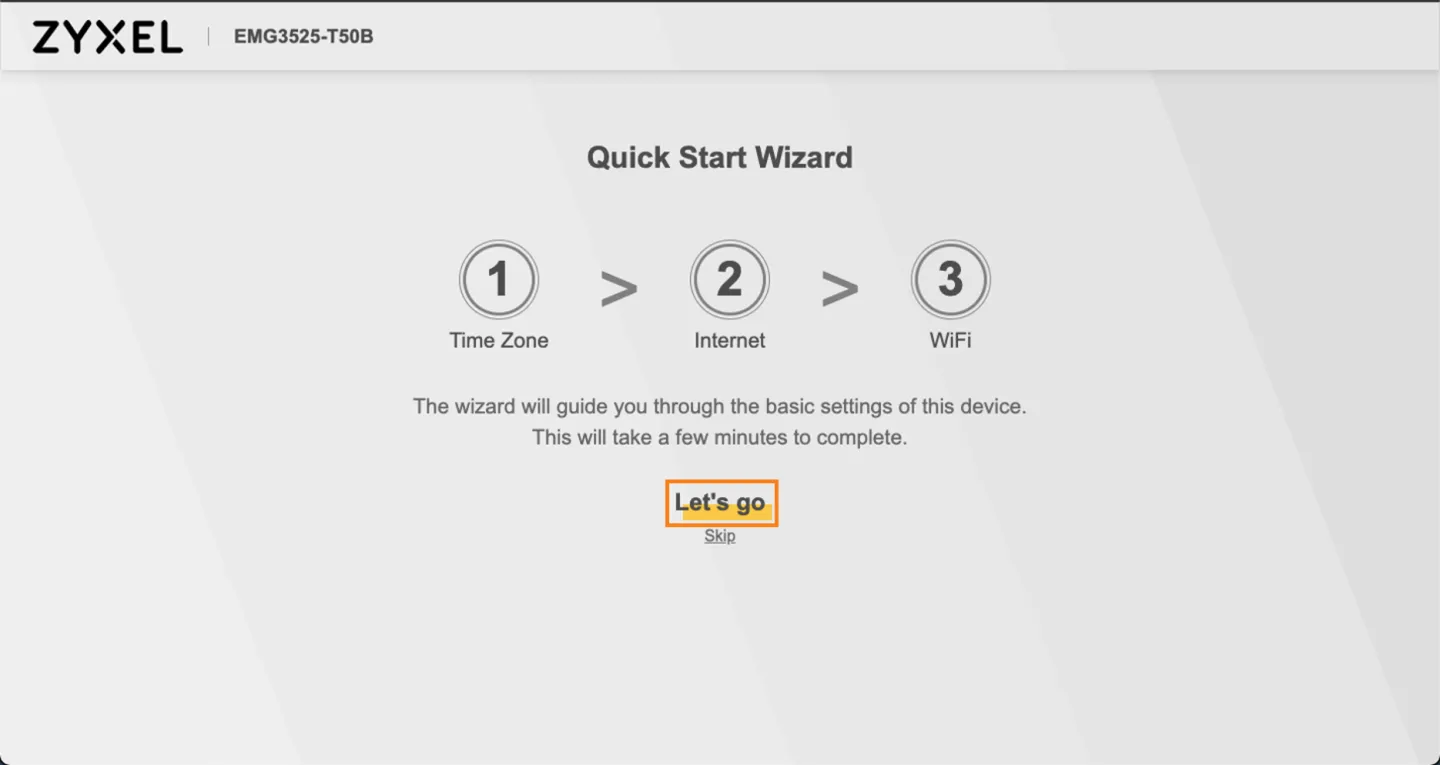
When the wizard appears click on Let’s Go to continue
-
Time Zone
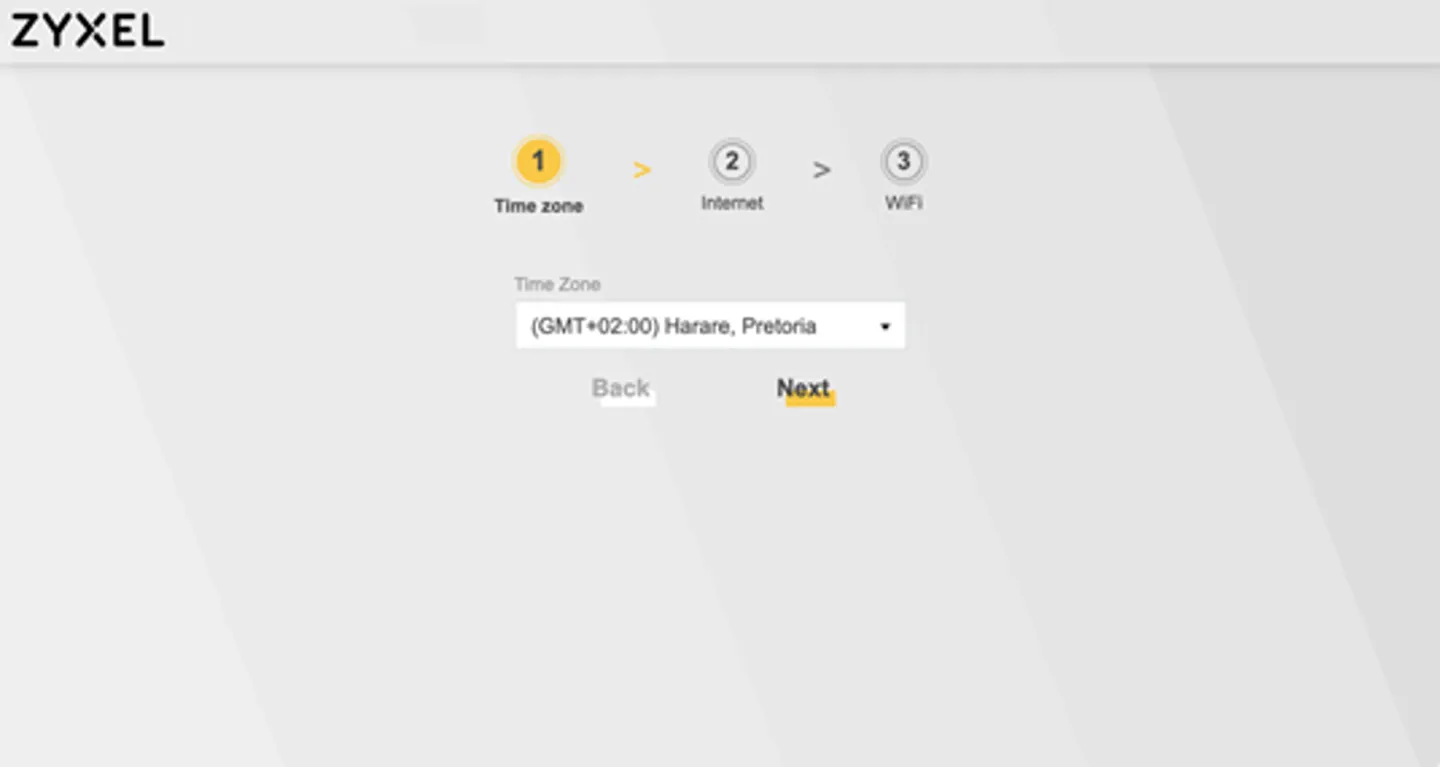
The time zone should be correctly defaulted to GMT +2:00 Harare, Pretoria.
Click Next to Continue.
-
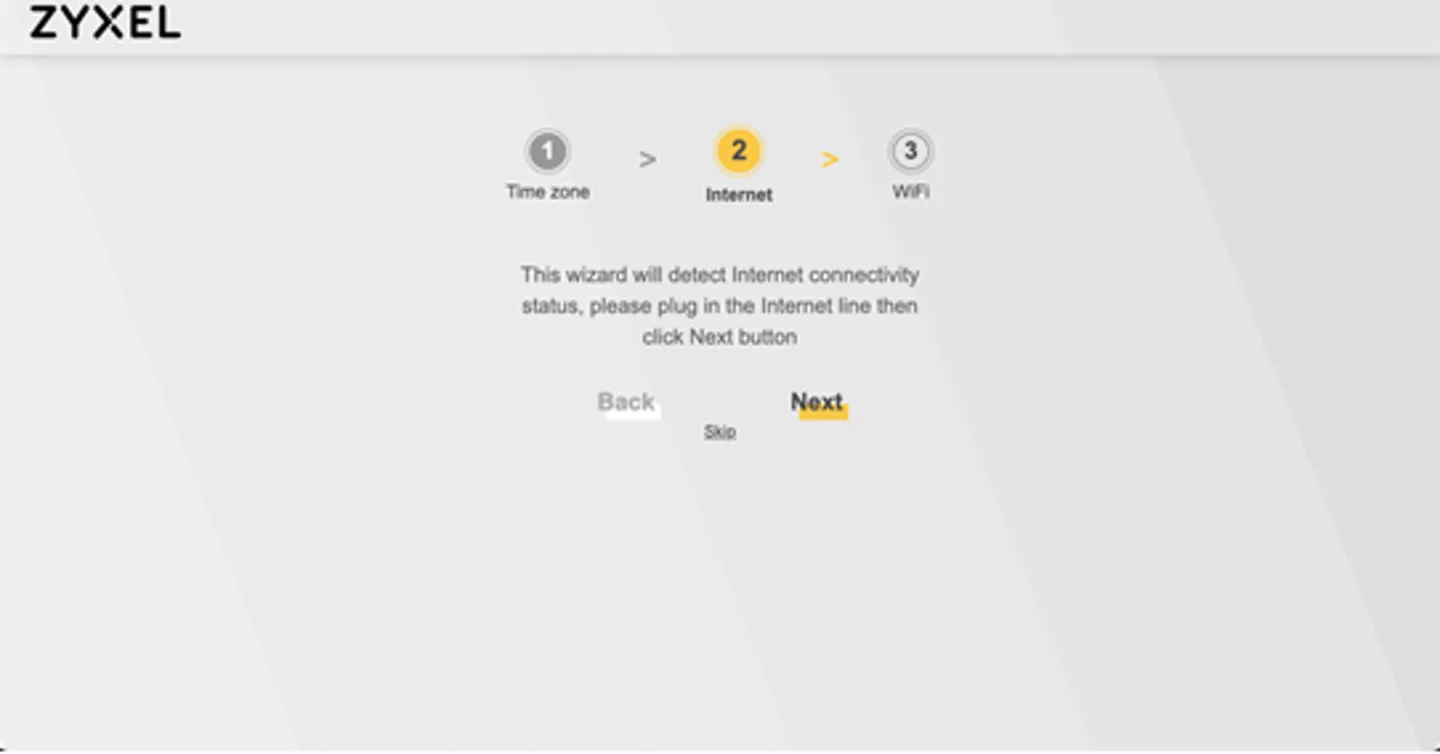
Detecting Internet Connection
The Wizard will detect if there is an active connection on the Ethernet WAN port and attempt to configure it automatically.
Mweb uses an automatic configuration system which pairs your Mweb supplied router with your account and should automatically setup your connection in most cases.
Click on Next to attempt automatic setup.
-
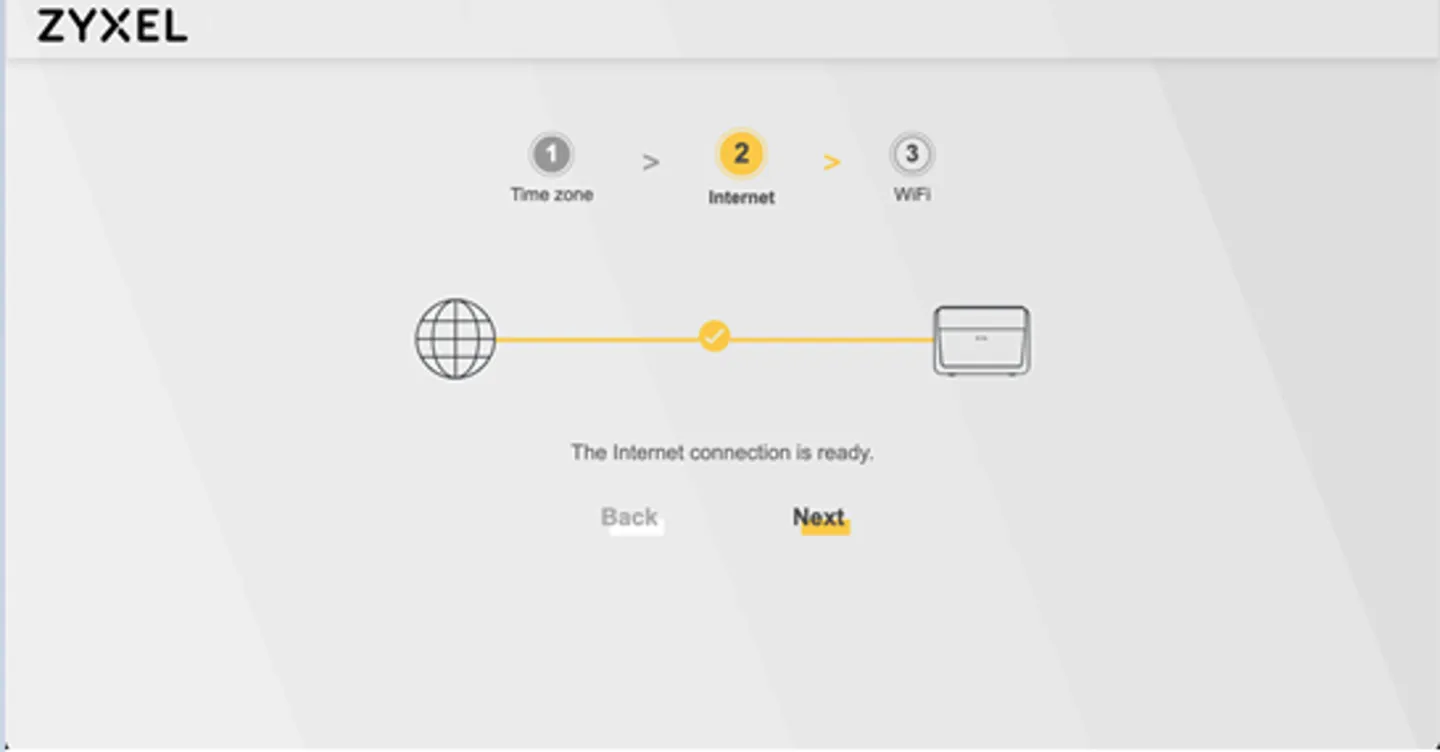
Detecting Internet Connection
Once the connection attempt is complete you can
Click Next to move to the next step
-
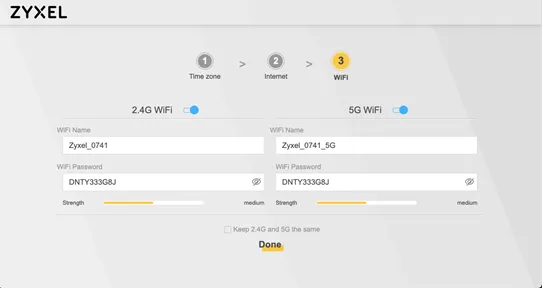
Wifi Settings
The wizard will present you with the default wifi settings, which you can either change, or leave them as is.
If you’re uncertain about what wifi settings you need, you can review the wifi recommendations for more advanced users below.
When you are finished click on Done
-
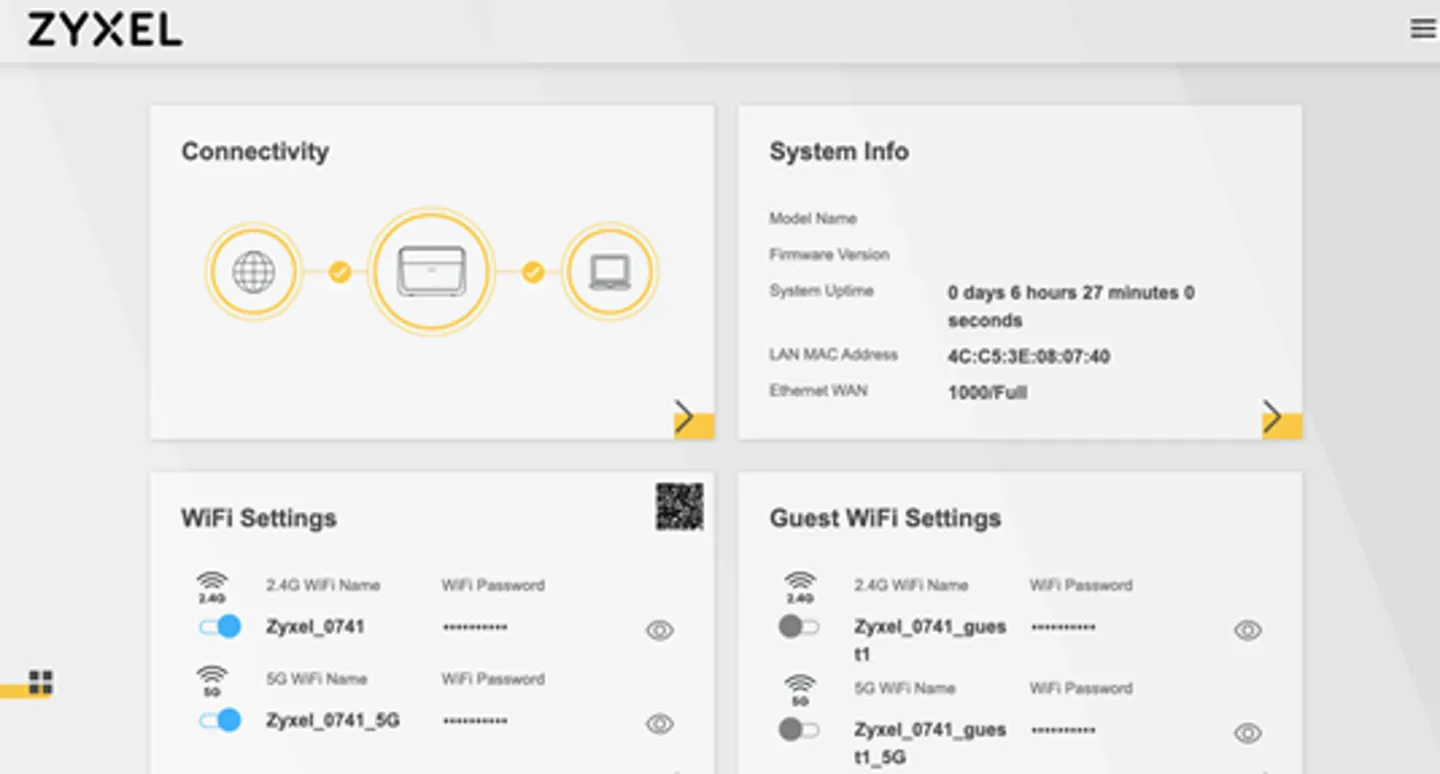
Status Screen
Once you are back at status screen you should see all ticks in the Connectivity block at the top left, which means everything is working.
Manual WAN Setup
If your internet connection is not working as expected, or you are being redirected to the Mweb portal with a login error you may need to proceed to the next section.
-
Open Broadband Settings
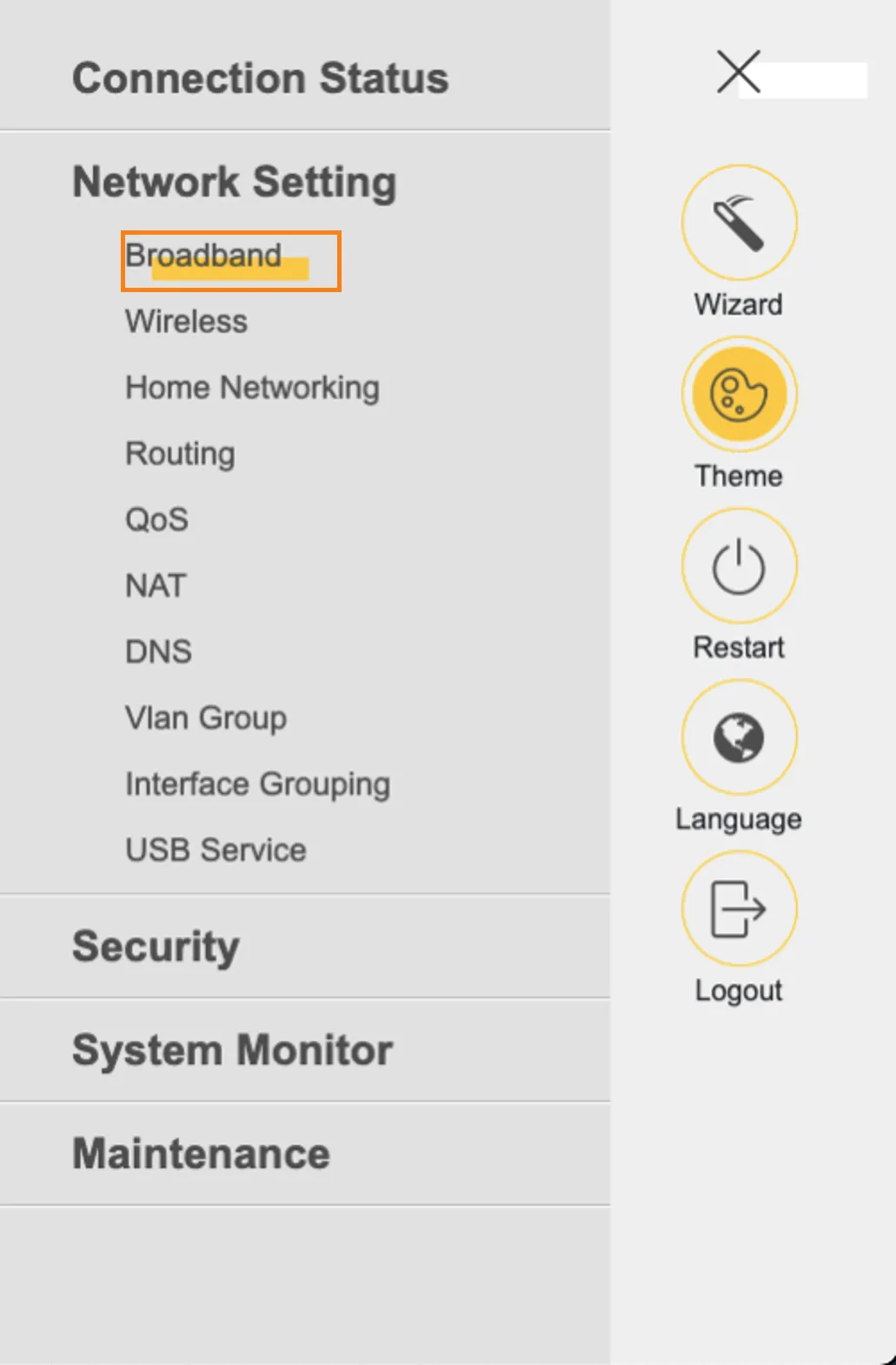
Click on the 3 stripe (Hamburger menu) and choose Network Setting > Broadband
-
Edit WAN Connection
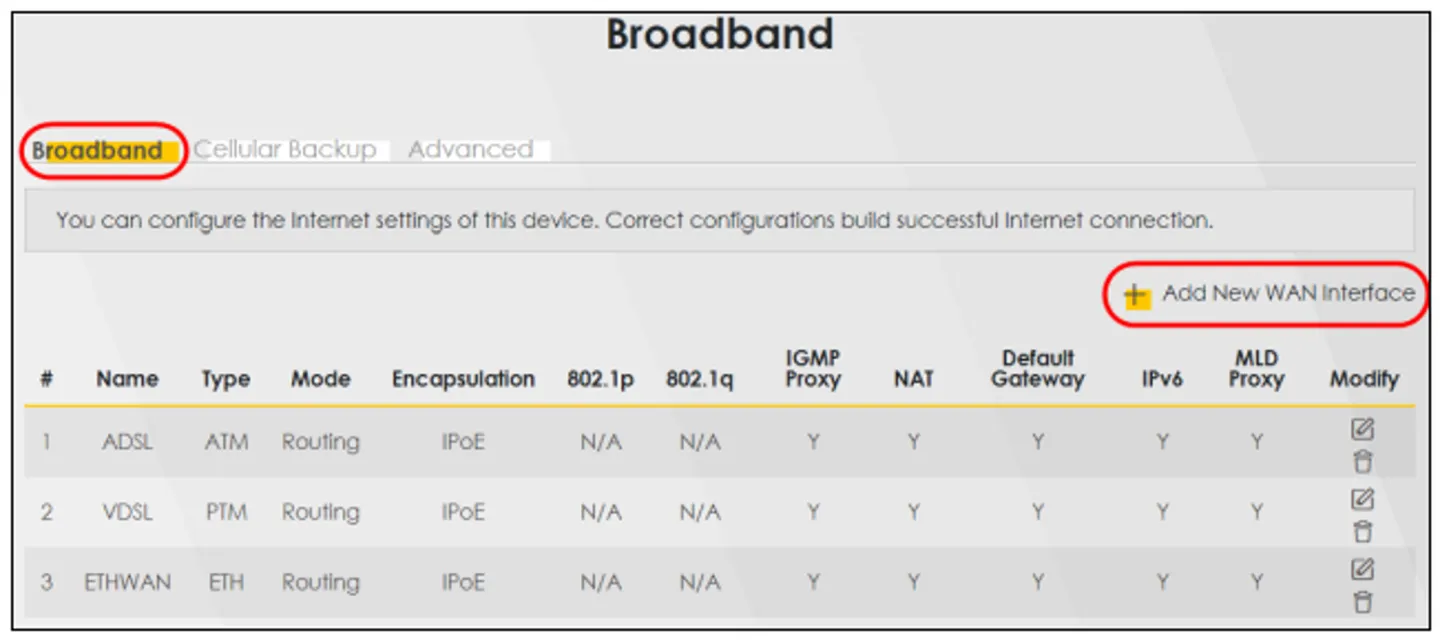
WAN is short for Wide Area Network.
This is where your Mweb login details are set on the router.
Mweb supplied routers should automatically be linked to your fibre service, but sometimes you may need to enter these settings manually.
Click on the Pencil (edit settings) icon at the far right.
-
Enter Network Settings
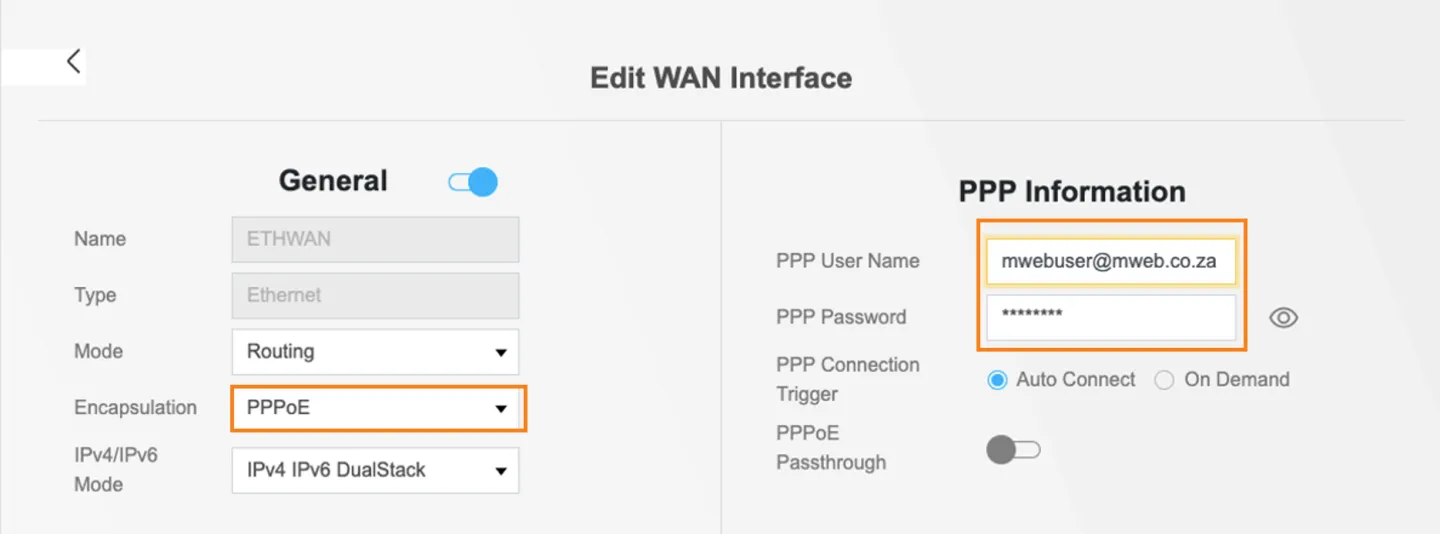
Your connection type under General depends on which fibre network you are connected to and should have been autodetected.
If it is set to PPPoE (which is the most common), you will need to enter the fibre username and password provided to you during sign-up in the PPP Information block on the right
-
Apply Settings
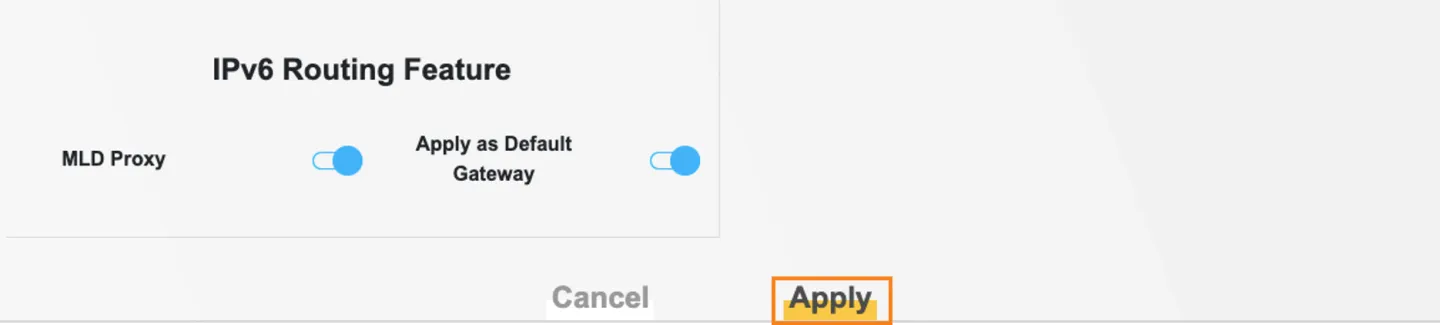
Once you have entered your details scroll all the way to the bottom of this section and click Apply.
- If you don’t know your Fibre product username and password you can user your master account username and password to log in to your online MWEB Account and follow this guide to retrieve them.
- If your connection type was detected as IPoE then it means you have an assigned network address and do not connect with a username and password.
- If you’re struggling to get connected, try following this guide on basic connection troubleshooting and call for help if you need it.
Was this article helpful?