
How to Change your Master Account Password
Tightening up on security is never a bad idea.
To change your master account password, simply login to our self-service portal at www.mweb.co.za and follow the easy guide below:
If you’re not sure how to log in you can follow the steps in this guide .
Open the User Profiles Page
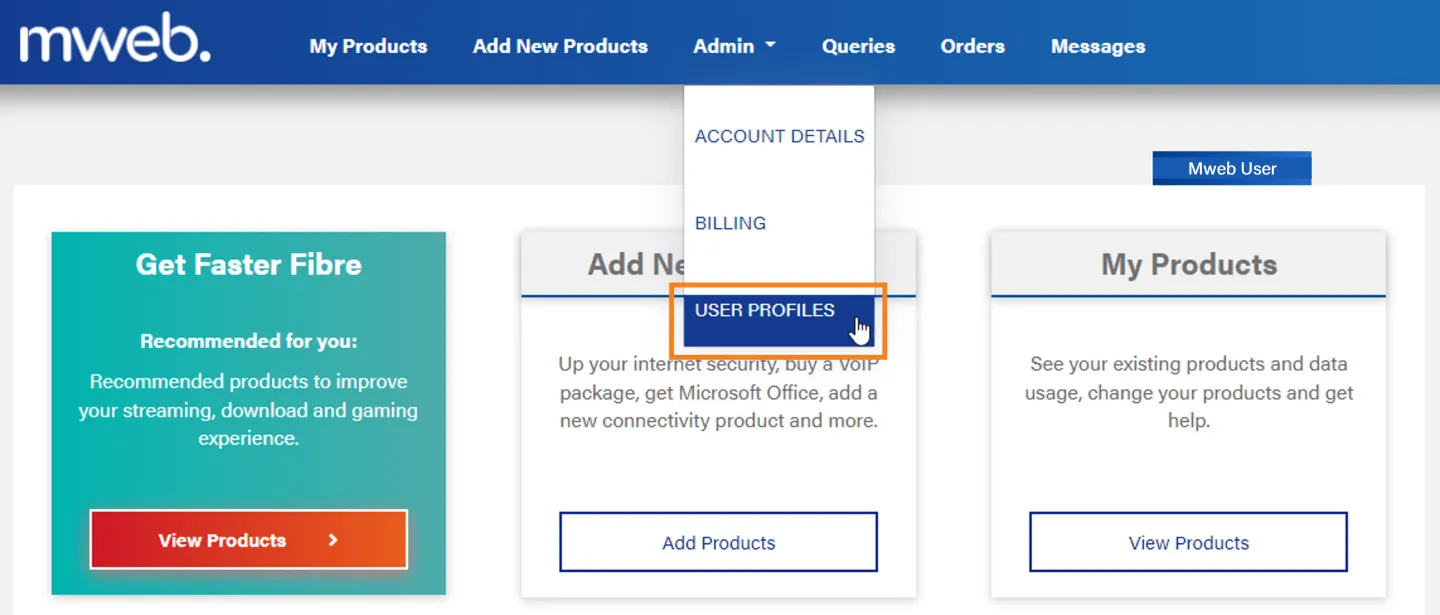
Once you are logged in, select Admin -> User Profiles from the menu bar.
Open the Account Owner Profile
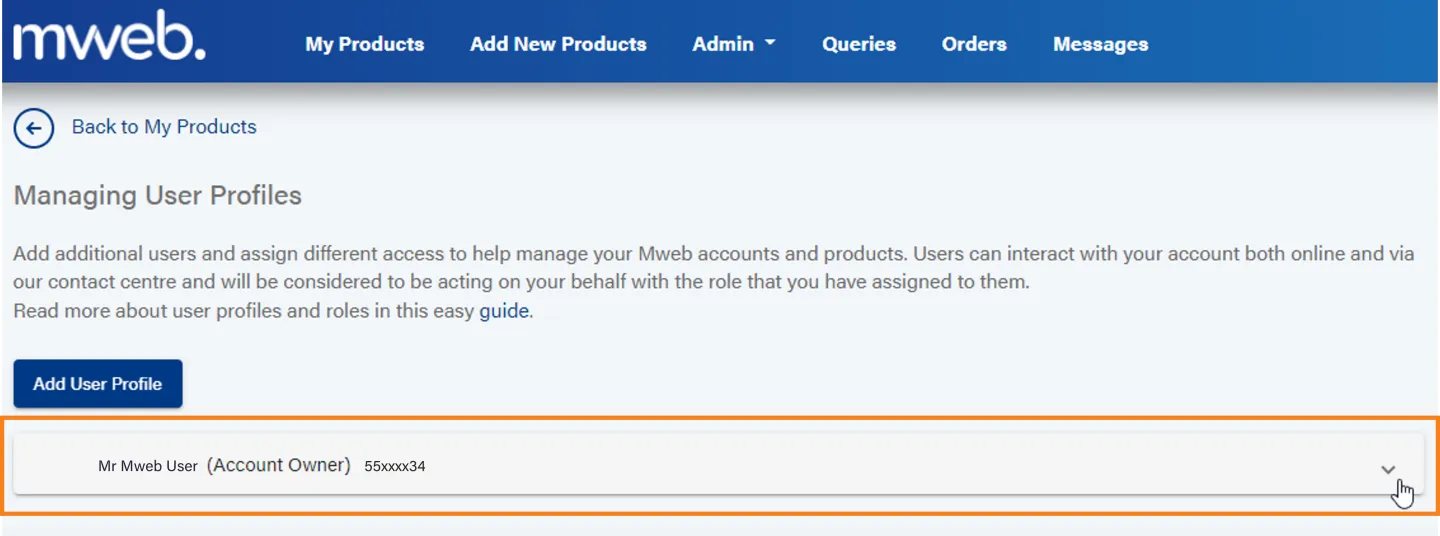
Locate the profile for your master account and click on the down arrow to expand it.
If you have added other profiles to your account the master account is the one at the top of the list, labelled (Account Owner)
Select Change Password
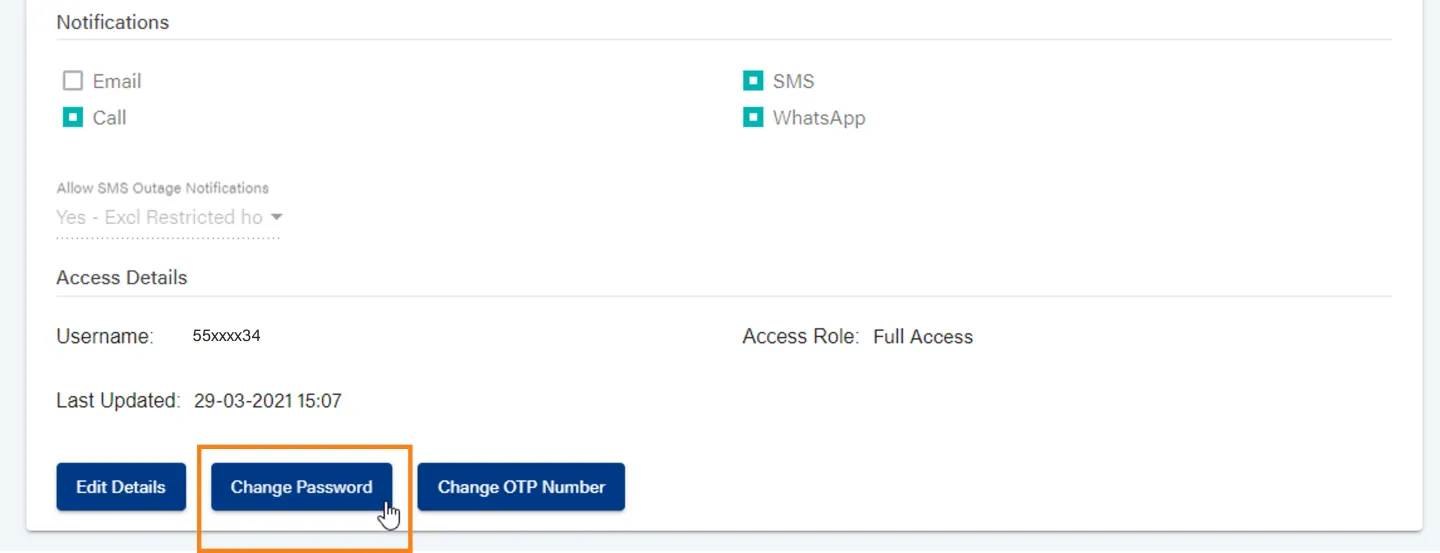
Scroll to bottom of the User Profile and click on the Change Password button
Enter a new password
Enter your new password twice to confirm.
Click on the eye icon if you need to see what you’ve typed.
Once you’re happy with your new password click on Save, or click Close if you’ve changed your mind.
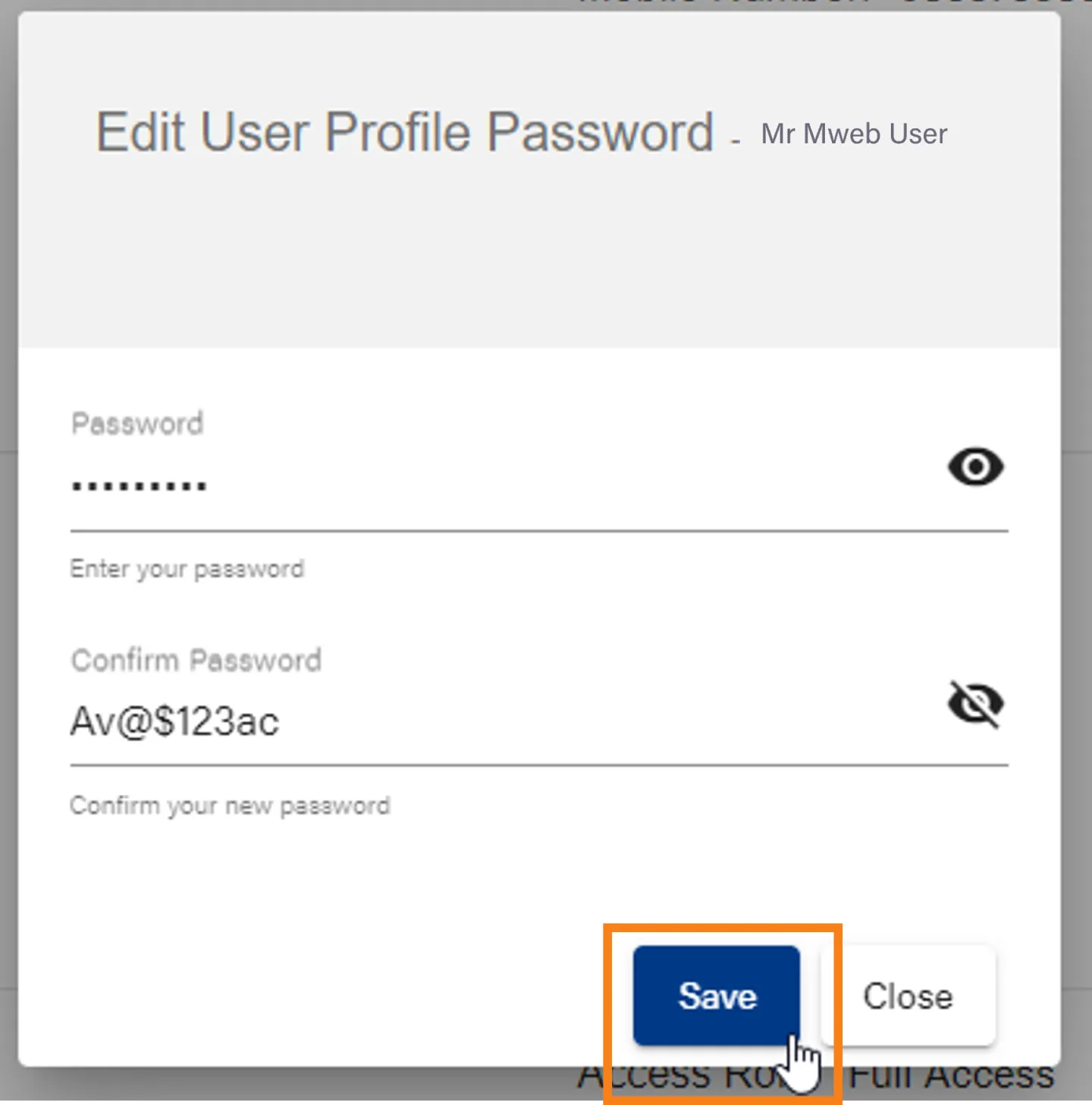
Make sure that you use a strong password with a mix of upper and lowercase characters, numbers and special characters.
Was this article helpful?