
How to Manage your Billing with the Mweb Mobile App
Never lose track of your Internet bill again.
With our new Mobile App at your fingertips you’ll be able to keep track of your account balance, check statements and if you’ve gotten a little behind you can make a payment from within the app.
If you don’t already have the Mweb Mobile App download it from your favourite App Store and follow this guide to get started.
The Billing Screen
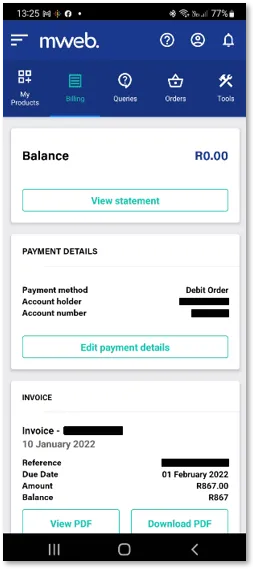
- Select Billing from the top menu bar to see your account balance and access billing and payment related options
Statement Details
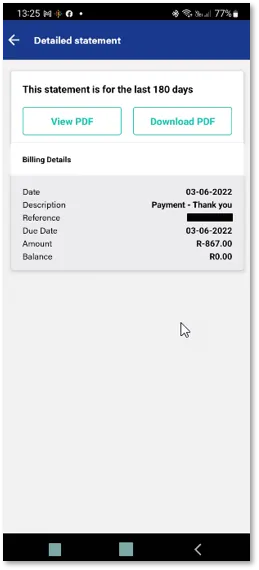
- Selecting View Statement will open the statement screen
- You can scroll through statement entries on the screen, or select to view, or download a PDF version
View your Latest Invoice
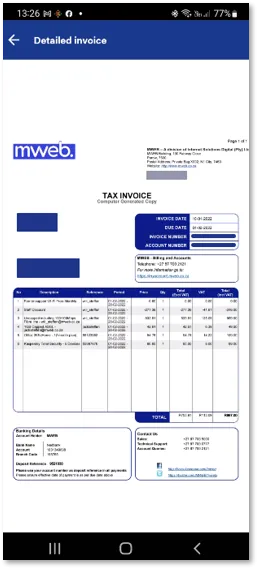
- You can also view your latest invoice, or download it as a PDF
- You can currently only view your latest invoice in the Mobile App, historical invoices are available from the website.
Update Payment Details
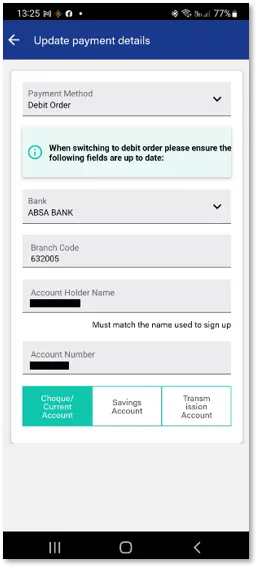
- Select Edit Payment details, if your debit order account has changed, or if you are a cash customer wishing to move to a debit order.
Settle an Arrears Amount
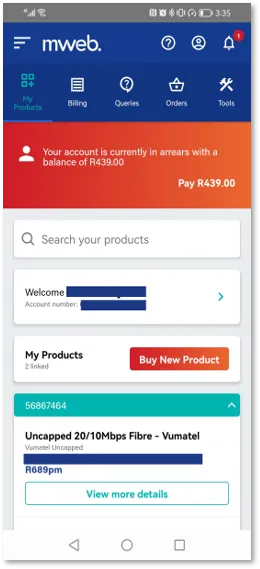
- A banner notification will appear in the Mobile App if your account is in arrears.
- Select the Pay Button on the banner to settle your outstanding balance via Pay-U
Was this article helpful?