
How to set up Microsoft 365 Home and Personal
Once you have signed up, it’s quick and easy to get your Microsoft 365 product up and running. Follow these step by step instructions below. If you get stuck, log an online query, and someone from our team will get in touch to help you get started.
-
Receive your license key
- You will be sent a license key via SMS and email with detailed instructions on how to get Connected.
-
Create your Microsoft Account
Next up, you will need to create a Microsoft Account if you don’t already have one set up.
Go to the Microsoft page and follow the steps by step instructions to create an account.

-
Download Microsoft Office 365
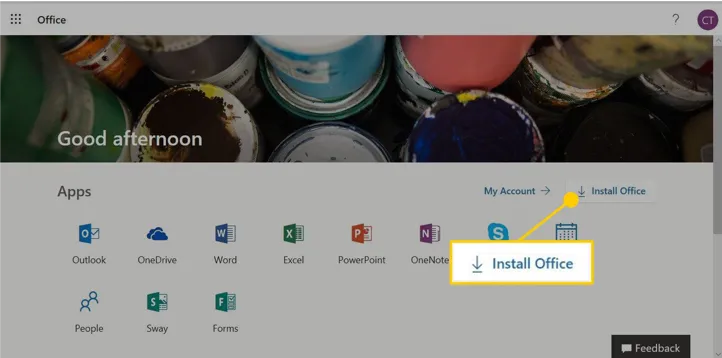
- On the device that you want to Install Microsoft 365, go to the Microsoft 365 portal.
- Sign in using the details you set up above.
- Once you are successfully signed in, select the Install Microsoft tab.
-
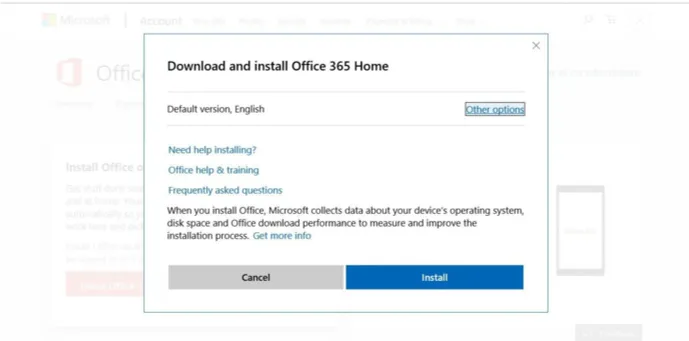
Start the Installation Process
- If you want to Install Microsoft 365 applications on your desktop/ laptop, select the option “Install Microsoft on all your computers.”
-
Completing the Installation
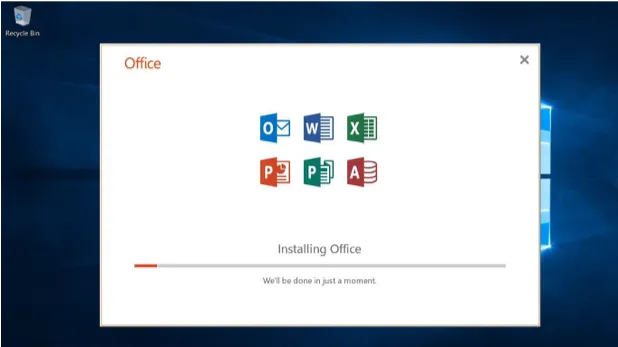
- Depending on your web browser, you may be prompted to run or save the downloaded file. Some browsers will do this automatically.
- Once completed, select “run”.
- Follow the prompts to complete downloading and Installing the Microsoft Apps.
-
Activating Office 365
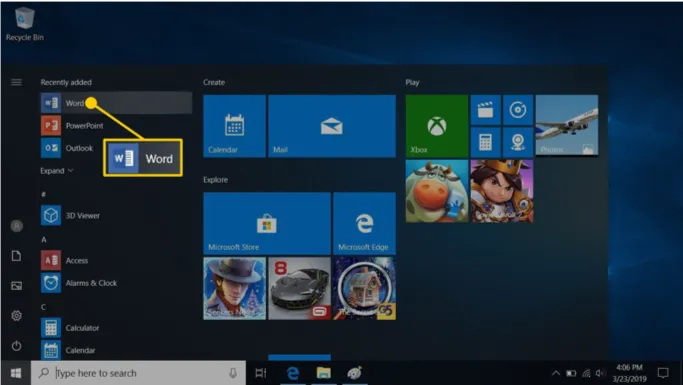
- After Installation has been completed, you will need to activate Microsoft 365.
- Simply select one of the Microsoft apps (like Word) in your desktop menu and click on it to open.
- You will be asked to enter your Microsoft email address and password that you initially created in step 1.
- You will be presented with a screen asking you to accept the license agreement. Select “accept.”
- Once you have accepted, your applications will be ready to use.
-
Start the Installation (Mobile Devices)
Was this article helpful?