
Using the Continuity Tools in Antispam Cloud
The Continuity section helps you keep mail flowing even when your mail server is down or delayed. It also lets you check queued messages, resend them, or send mail directly from the continuity portal.
Below is a breakdown of the three Continuity tools.
-
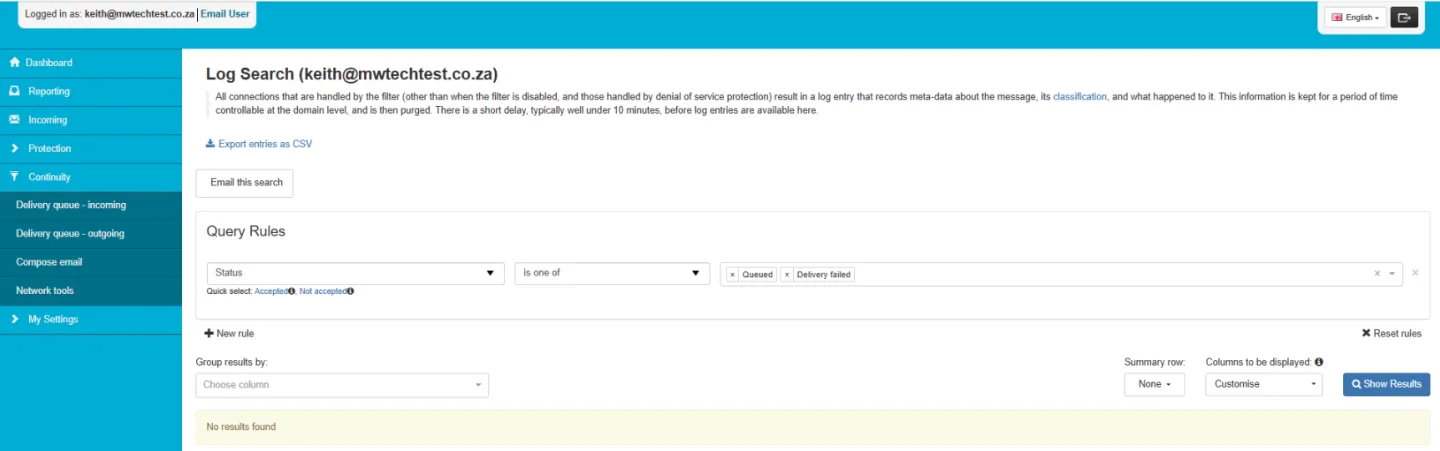
Delivery Queue - Incoming
This shows messages waiting to be delivered to your mailbox.
If your mail server is offline or slow, your mail will queue here until it comes back online.What you can do
-
View incoming queued messages
-
See retry attempts and reasons for delay
-
Release or delete messages (if enabled)
Steps
-
Open Continuity → Delivery queue - incoming
-
Review the list of queued messages
-
Click a message for more details
-
-
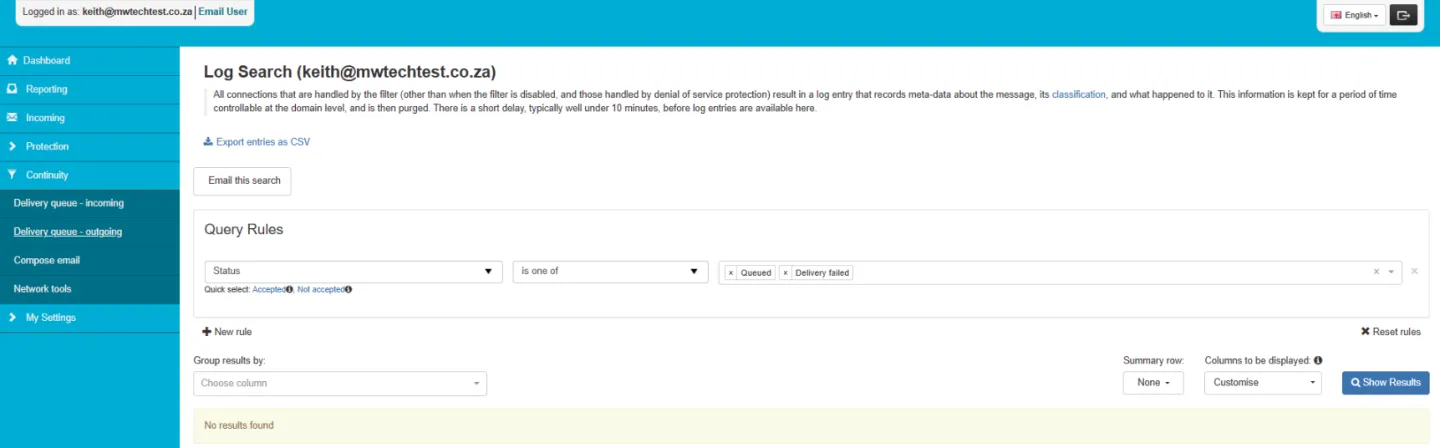
Delivery Queue - Outgoing
This shows messages sent from your domain that are still waiting to be delivered.
Useful for
-
Checking why outgoing mail is delayed
-
Verifying whether a message left your system
-
Identifying delivery failures or throttling
Steps
-
Open Continuity → Delivery queue - outgoing
-
Review the status of each message
-
Click on any entry for full delivery logs
-
-
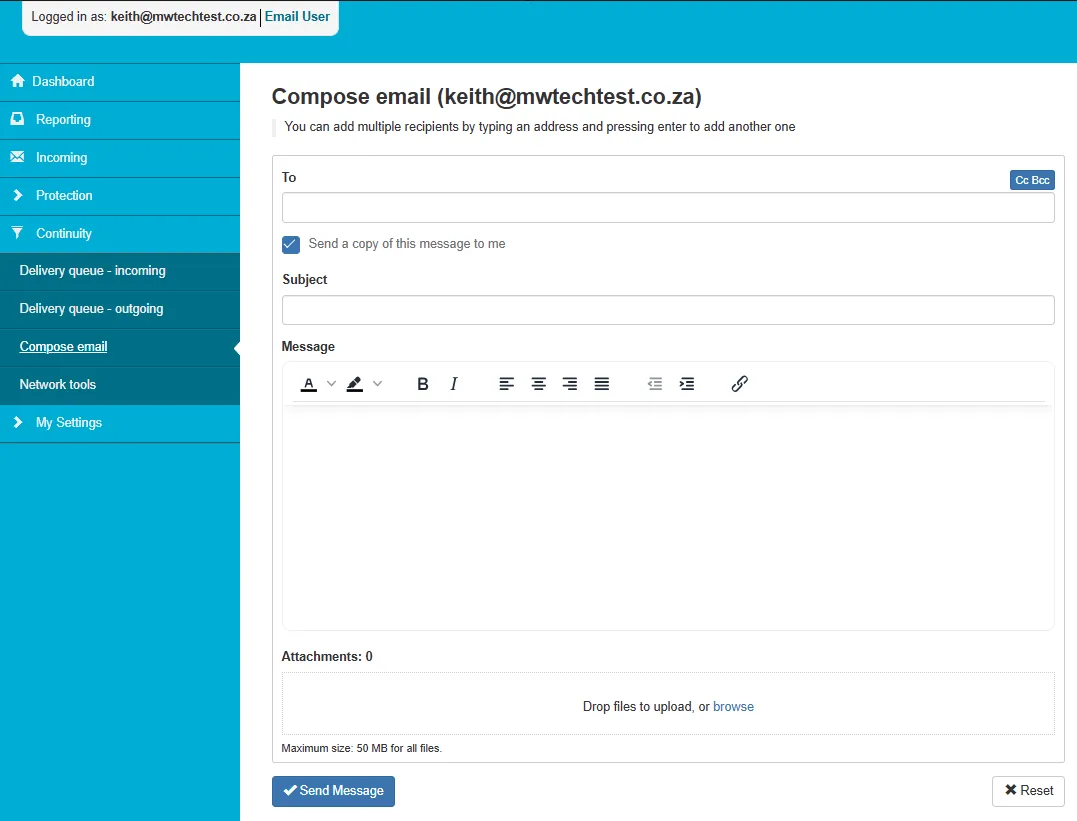
Compose Email (Continuity Webmail)
If your normal mail service is down, you can still send mail straight from the portal.
Features
-
Send new messages
-
Add multiple recipients
-
Attach files (up to 50 MB total)
-
Option to CC/BCC
Steps
-
Open Continuity → Compose email
-
Enter your recipients
-
Type your message
-
Attach files if needed
-
Click Send Message
-
Was this article helpful?