Accessing the Antispam Cloud Portal
Follow these steps to log in for the first time.
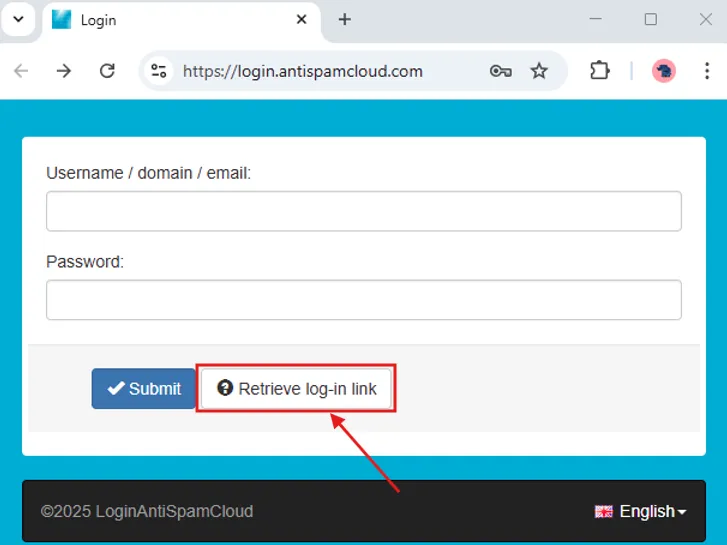
- Go to https://u.mweb.co.za/spam
Select Retrieve log-in link.
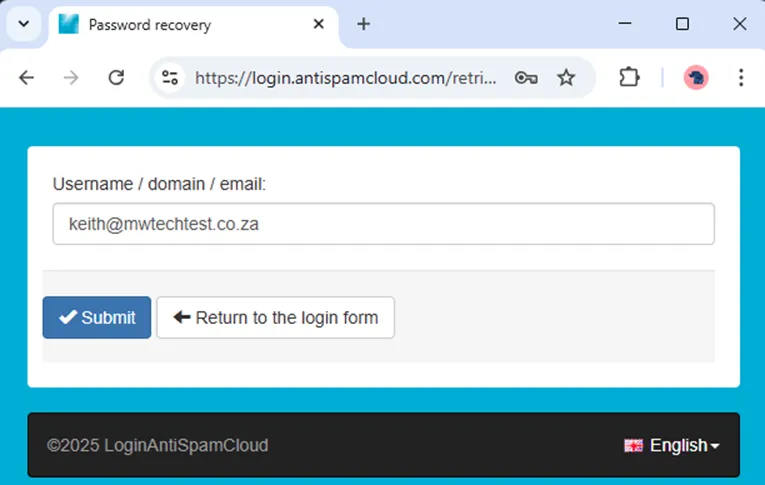
Enter your full email address and click Submit.
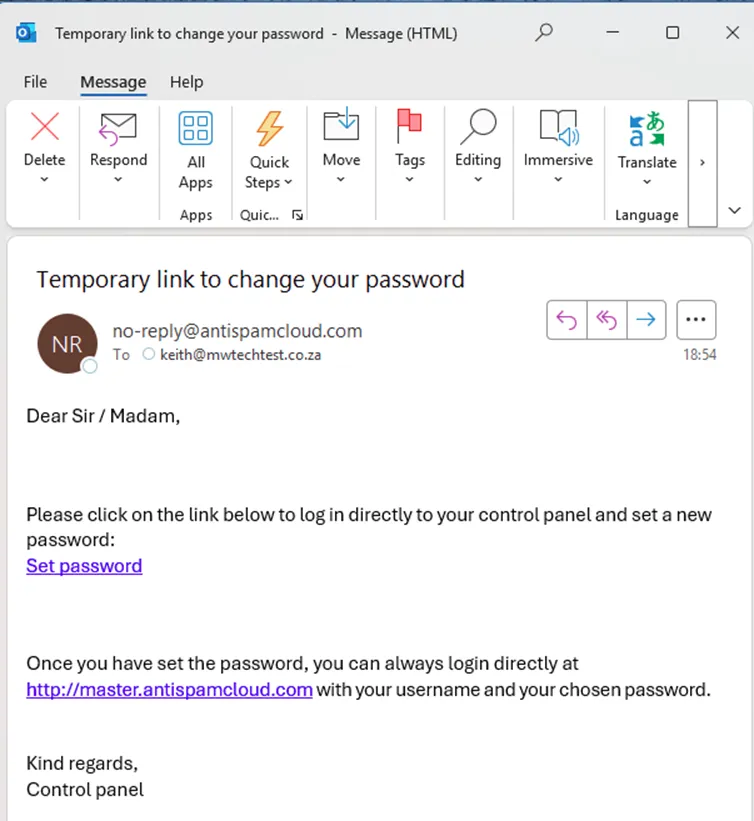
Check your inbox for the link.
You will receive an email from:
no-reply@antispamcloud.com
Subject: Temporary link to change your passwordOpen the email and click Set password.
Create your password.
You will see a page asking you to set your password.
Passwords must be at least 16 characters long.
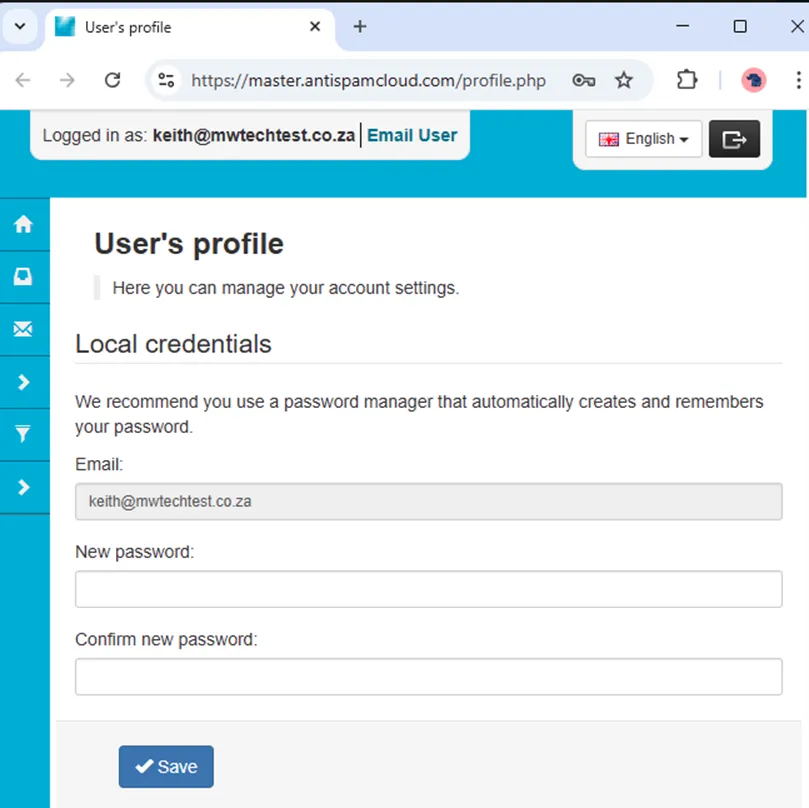
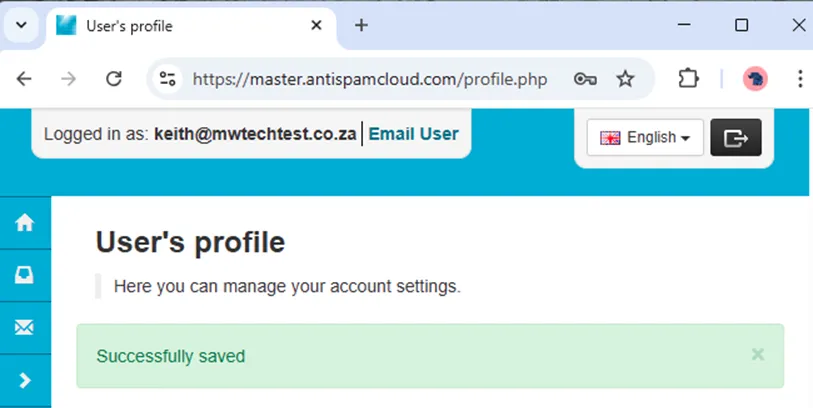
After saving your password, you will see a success message.
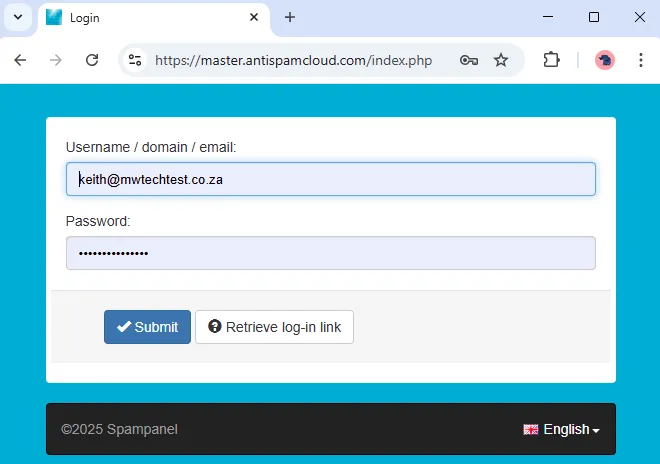
Log in at https://u.mweb.co.za/spam
Enter your:
- Email address
- New password
Click Submit.
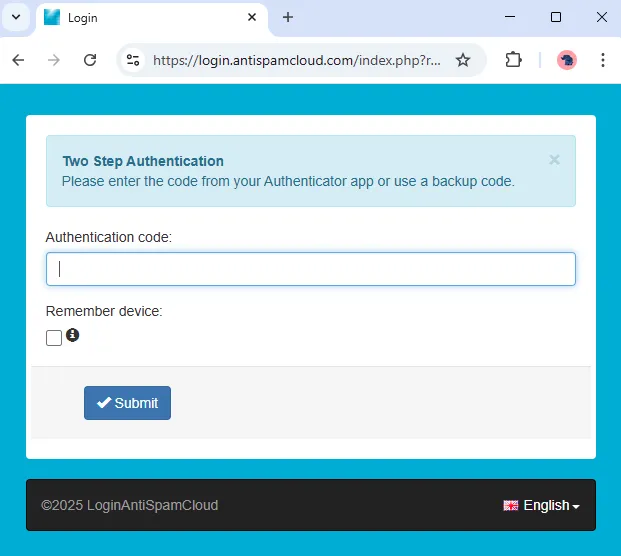
Complete Two Step Authentication if prompted.
If 2FA is enabled, you will be asked for your six-digit code.
You can also choose to remember the device by ticking the box.
Then click Submit.
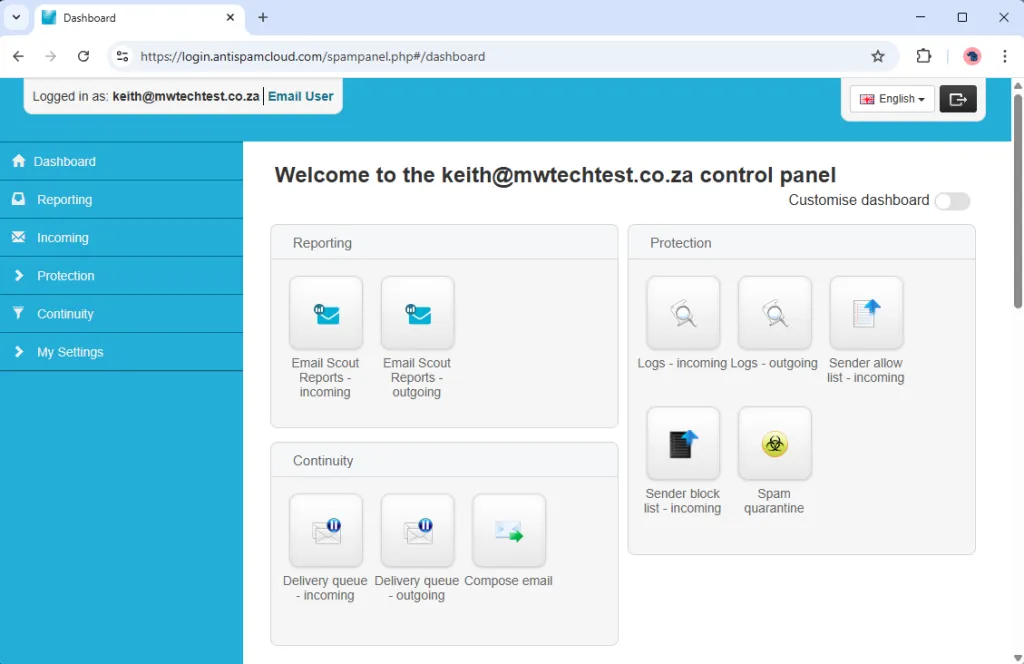
You will now see your dashboard.
Was this article helpful?