
Your DigiGuard Identity
Deep and Dark Web
• This is where you can tell the portal what you want to search the Deep & Dark Web for.
• We have created a quick tour to show you how to configure your Deep & Dark Web search terms.
Alerts
• This is where you can view the details of the Alerts that have been generated for your account.
• It is important to remember that the Alerts for your account is generated based on the way that you have configured your account.
• We have created a quick tour to show you how to navigate around the Alerts page.
• Our scans run on different schedules that are dependent on the network that we are scanning.
• This means that it could take up to an hour or two before alerts are generated based on the criteria that you have configured.
How to get started Step 1 of 2
-
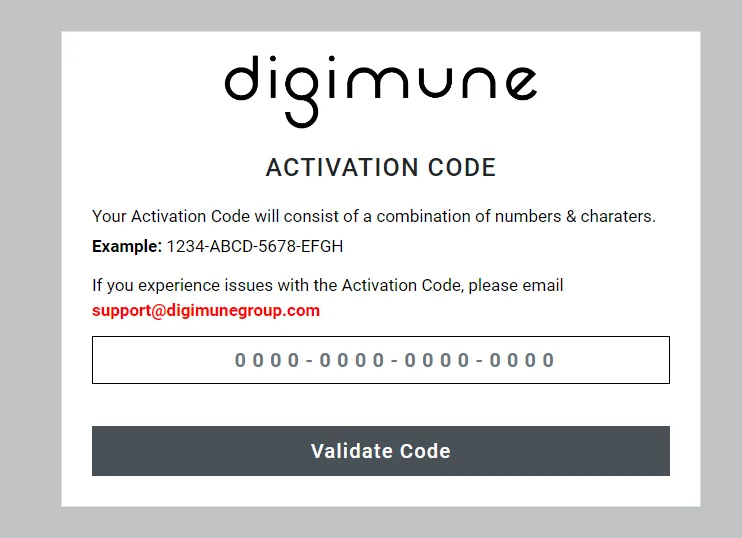
Register with DigiGuard Identity - Activation Code
Clicking the link will take you to the DigiGuard portal where you will be able to register your account and configure your cyberspace monitoring settings.
• Visit the Digimune Registration page.
• Enter the Activation Code XXXX-XXXX-XXXX-XXXX found in your ‘’Get Started with Online Identity Protection Bundle’’ email and click on Validate Code.
-
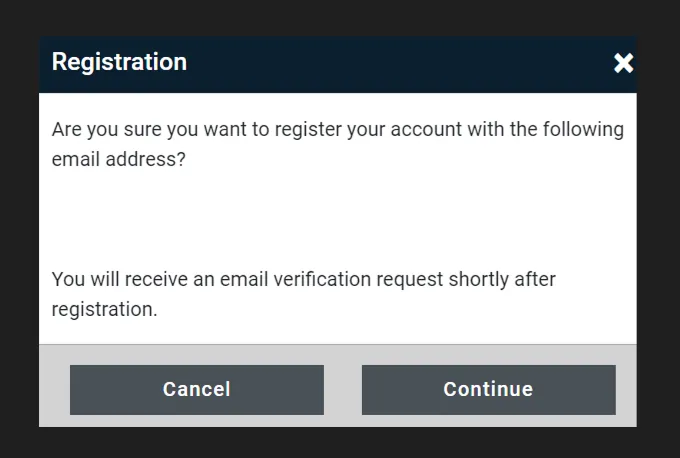
Register with DigiGuard Identity - Registration
• Complete the information required on the Registration Page and click on Register.
• Once you click Continue you now need to create a password to when logging into the portal.
Your Dashboard
Once you have registered you need to login to your account.
Go to Your Account and enter the login details you used during registration.
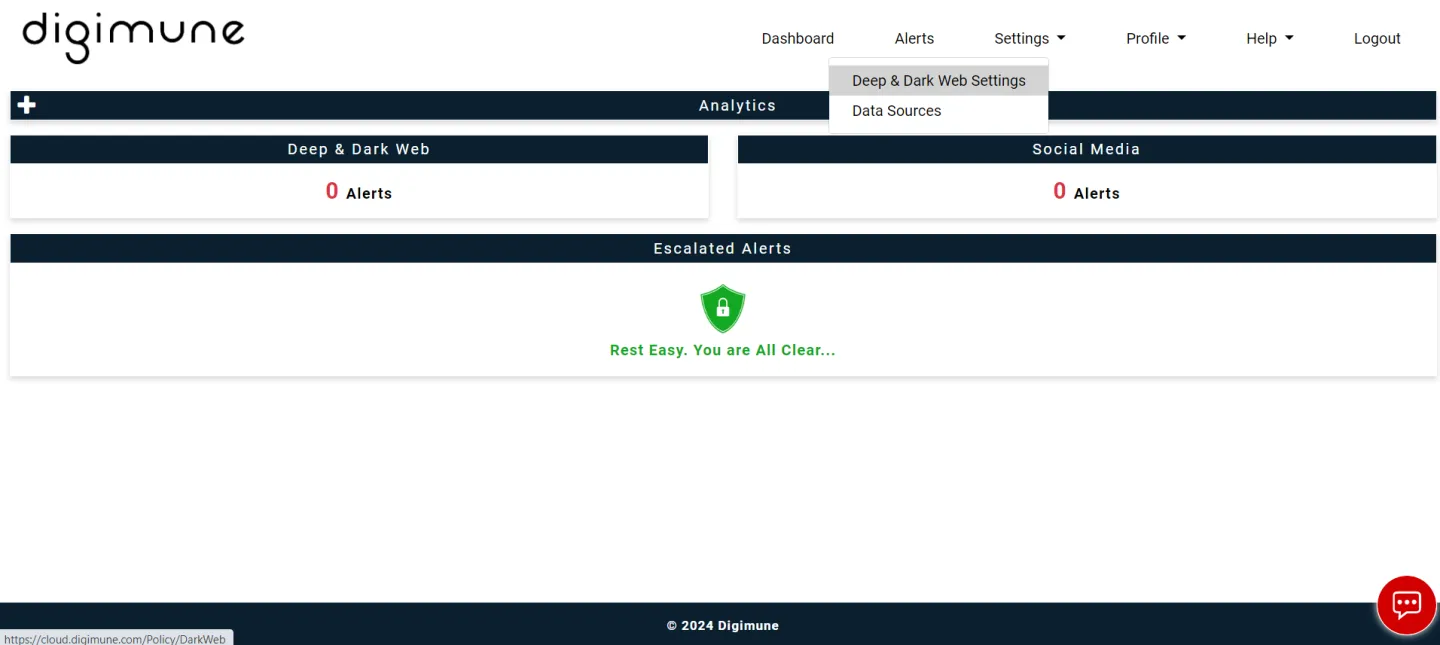
For Digimune to monitor your details go to Settings, then to Deep & Dark Web Settings.
How to register your details 1 of 2
-
Add details
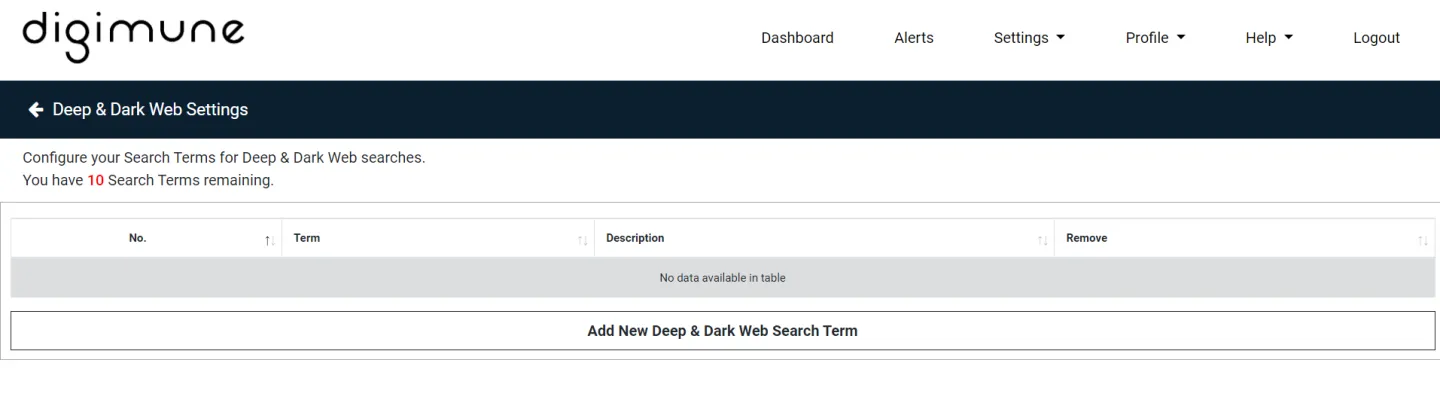
• You can click on Add New Deep & Dark Web Search Term to configure your search terms.
-
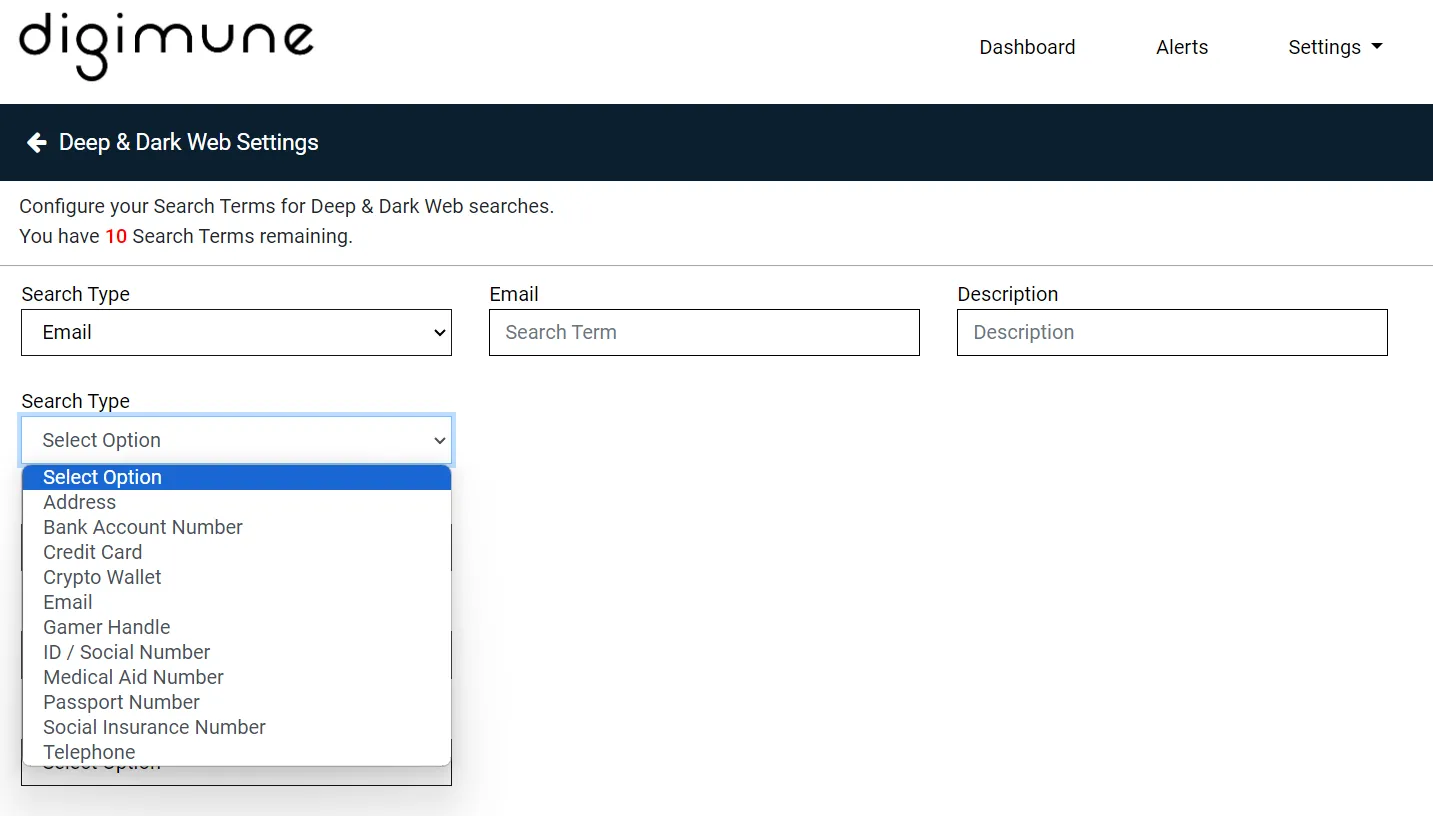
Configure your Search Terms
• There is a list of pre-defined Search Types that have been created for you to select from. You can select the Search Types that you would like to add from the list.
• Once you have selected the Search Type, you can add the relevant information and description in the fields provided.
• Once you have configured all of your Deep & Dark Web search terms you can scroll to the bottom of the page to save the search terms that you have configured.
• You are now ready to configure your own Deep & Dark Web search terms. You can access this tour again at any time by clicking on the dashboard Help button. We also have a Support Team on standby to assist with any questions that you might have. You can reach them at support@digimune.com.
Please note : VERY IMPORTANT NOTE: Please DO NOT add generic or broad search terms like only your name i.e. John. If the search terms that you define are very generic or broad, it could lead to a large number of Alerts being generated that are not relevant to you.
Was this article helpful?