
cPanel Backups
How to Manage cPanel Backups for Your Mweb Hosting Product
Learn how to backup and restore your website using the cPanel Backup feature with this simple guide.
Note: The 1GB, 5GB, and 15GB plans require manual backups through cPanel, which means you'll need to download and restore files yourself. Consider upgrading to the 25GB and 60GB plans which offer automated backups through JetBackup. These plans make restoration faster and easier, giving you more time to focus on your website.
With cPanel Backup, you can easily create a manual backup of your website whenever needed. This allows you to restore specific files or your entire website in the event of unexpected issues, providing peace of mind and ensuring your data is secure.
Log into cPanel
First you need to log into the Mweb online Account. Make sure you click Full Access and enter your OTP.
Read more about accessing and using the Mweb online account here. If you are already comfortable with logging into cPanel, you can skip ahead to the "Accessing the Backups" section.
Now follow these easy steps to log into the cPanel to access Backups.
-
Logging into the cPanel from the Mweb online account
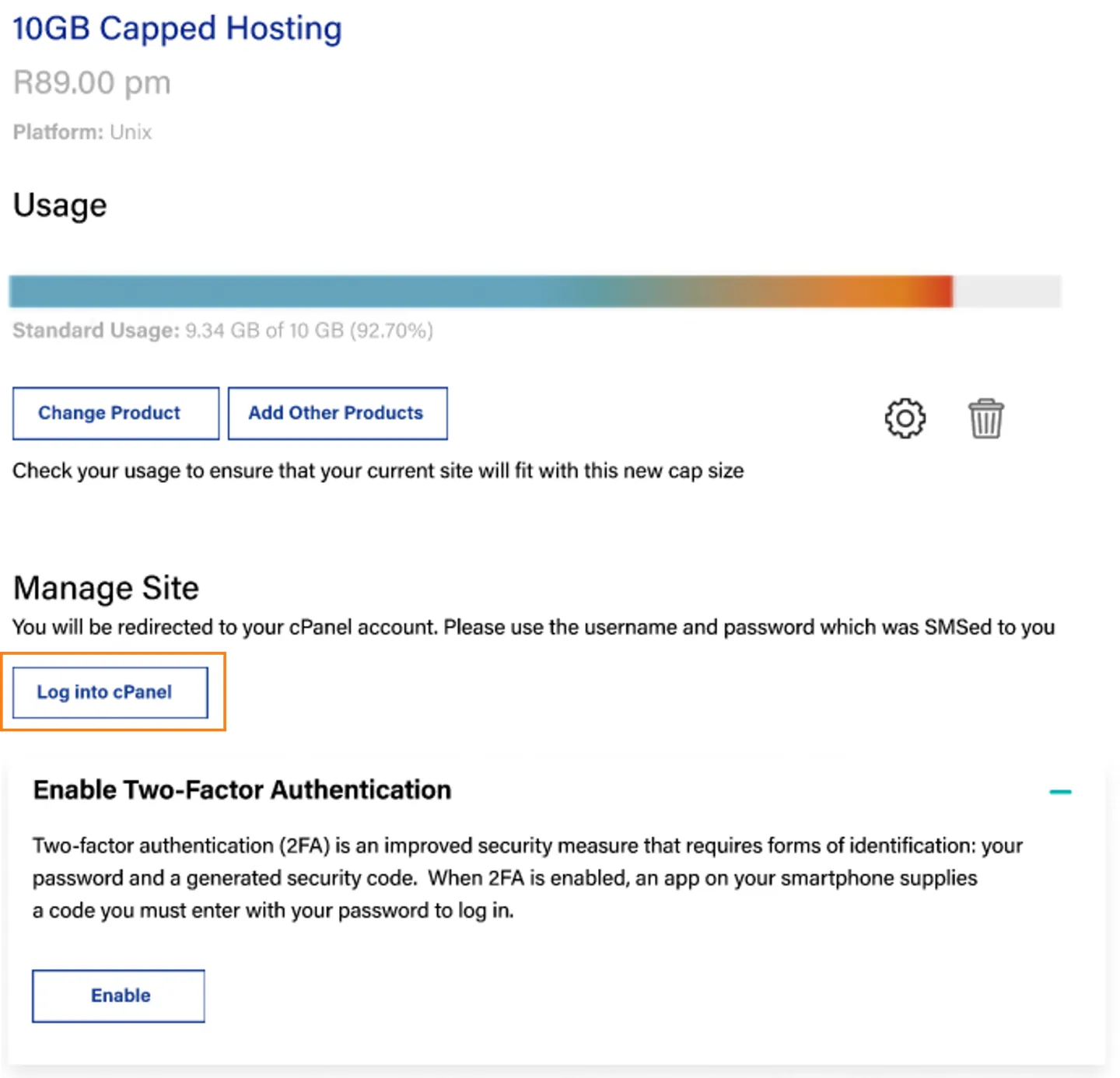
•Once logged in, click on My Products and then scroll down to your Hosting product.
•Now click ‘’Log into cPanel’’ which will direct you to another page.
-
Finding the cPanel username and password
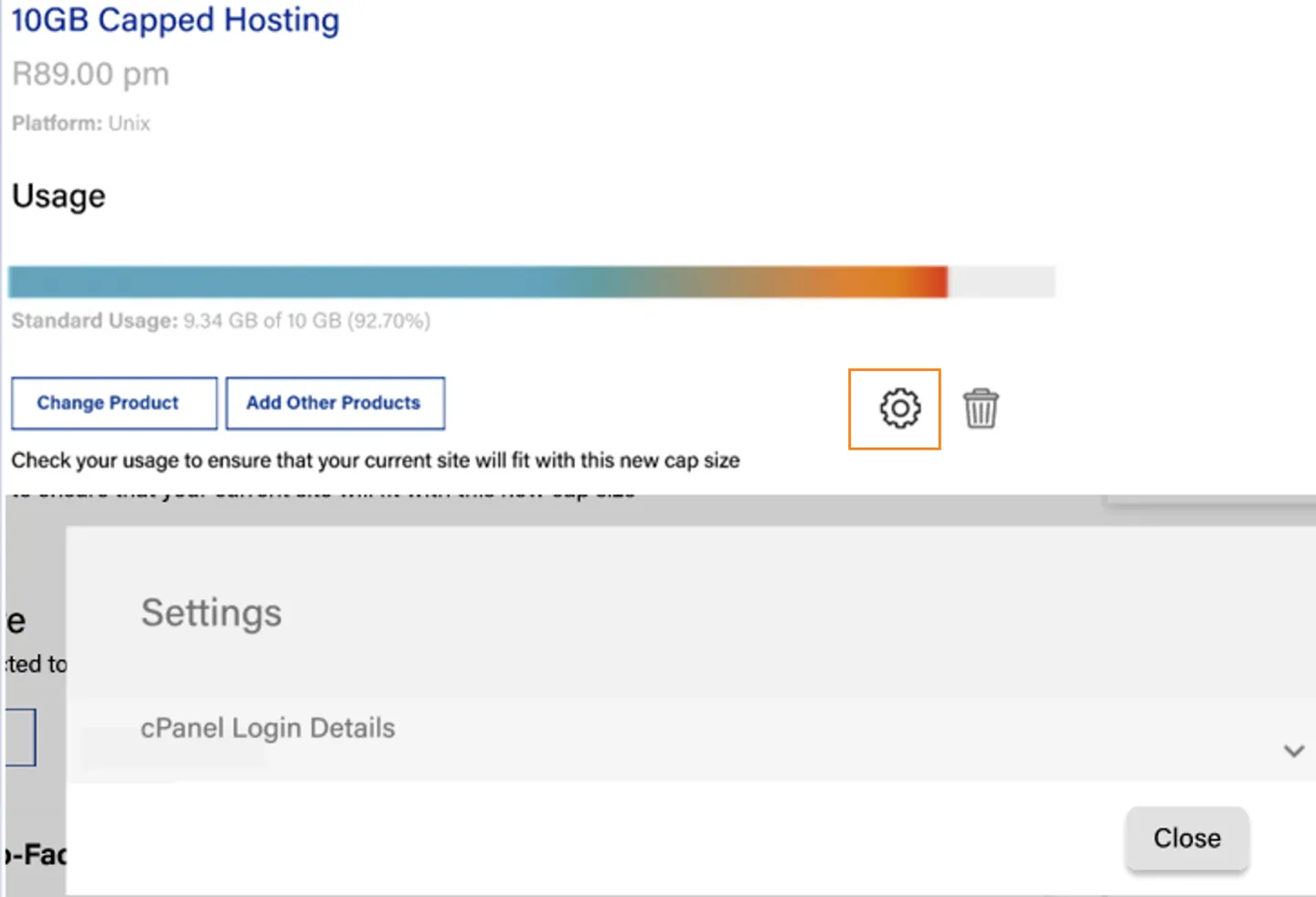
The cPanel username would have been SMSed to you on the cell number registered to your Mweb account.
•If you have misplaced this, you can view these details by clicking the settings gear-button within the Mweb online account.
-
Logging into cPanel
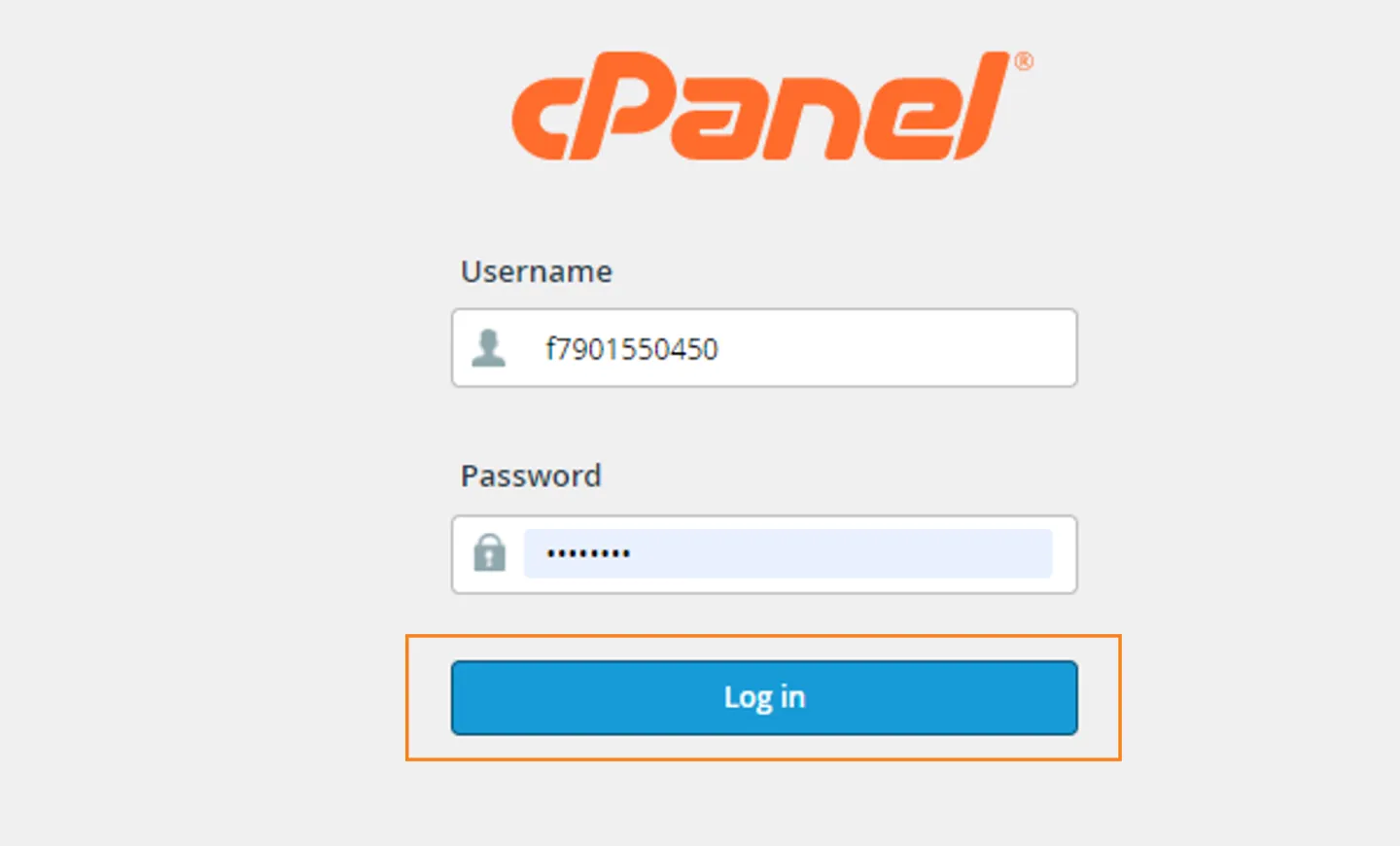
•Enter the username and password and click ‘’Log in’’.
Accessing the Backups
-
Access Backups
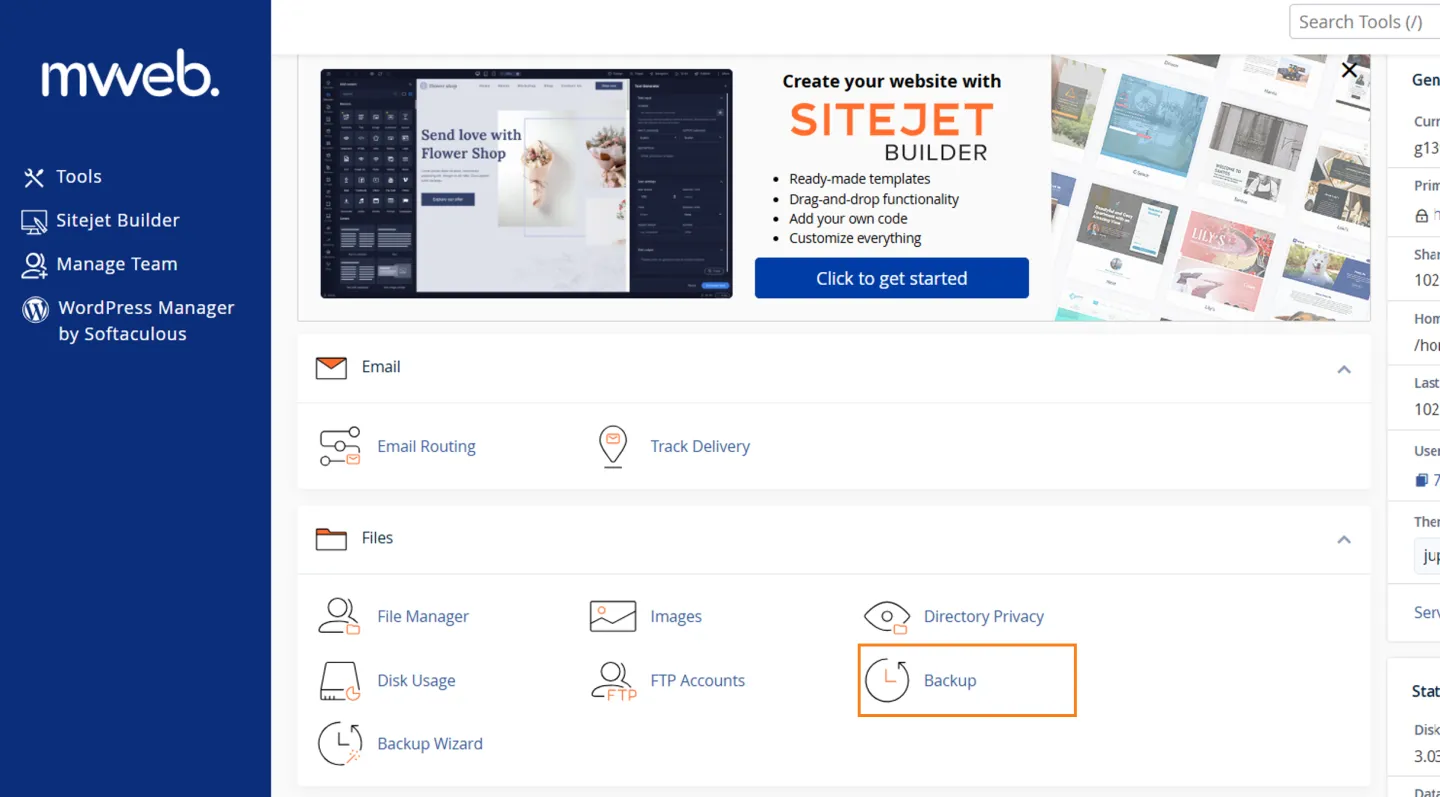
- You will now be directed to the cPanel dashboard.
- Scroll down to the "Files" section and click on "Backup."
- Please note, cPanel Backups are only available on the 1GB, 5GB, and 15GB plans and are not automated.
-
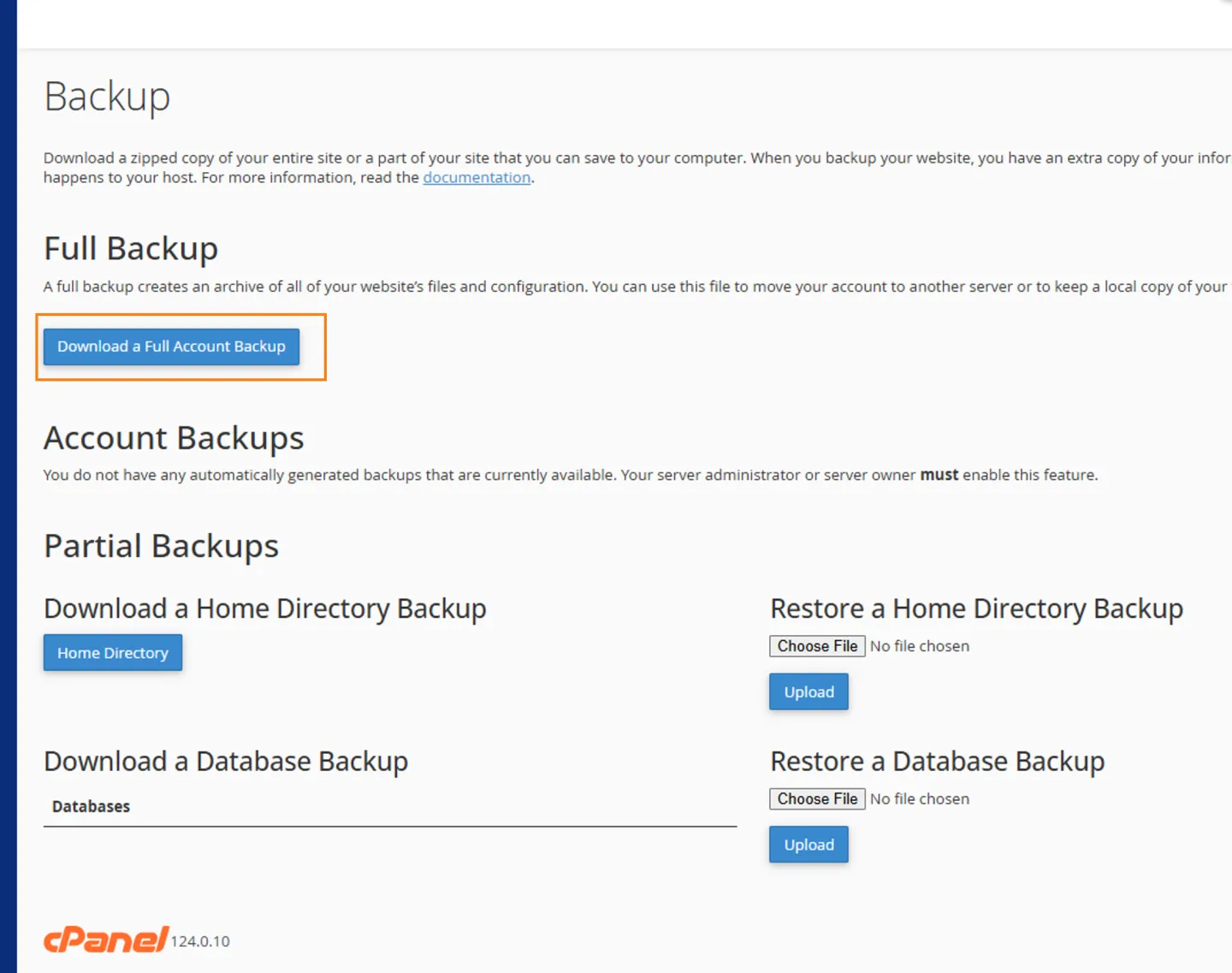
Access Backups - Download a Full Account Backup
- Click on "Download Full Account Backup"
- On this screen, you will not be able to back up your entire account, including your home directory, remote FTP server, or secure copies. The backup will be emailed to you instead.
-
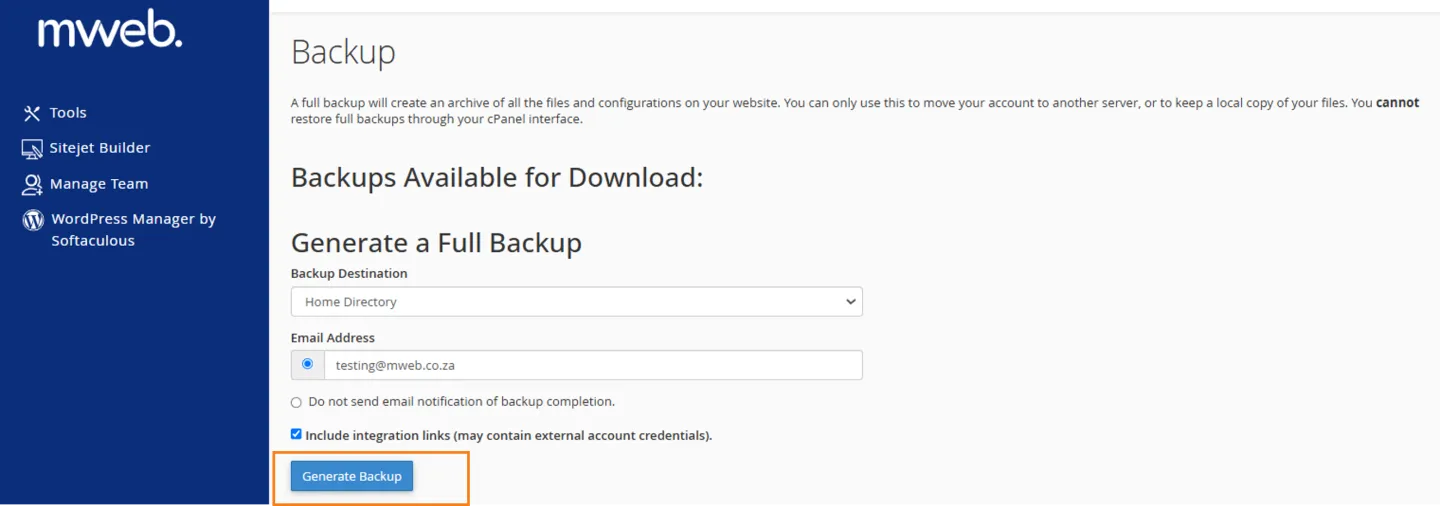
Access Backups - Generate Backup
- After clicking on "Download Full Account Backup" you will be prompted to enter the email address where the download link should be sent.
- Once you've entered the email address, click on "Generate Backup."
-
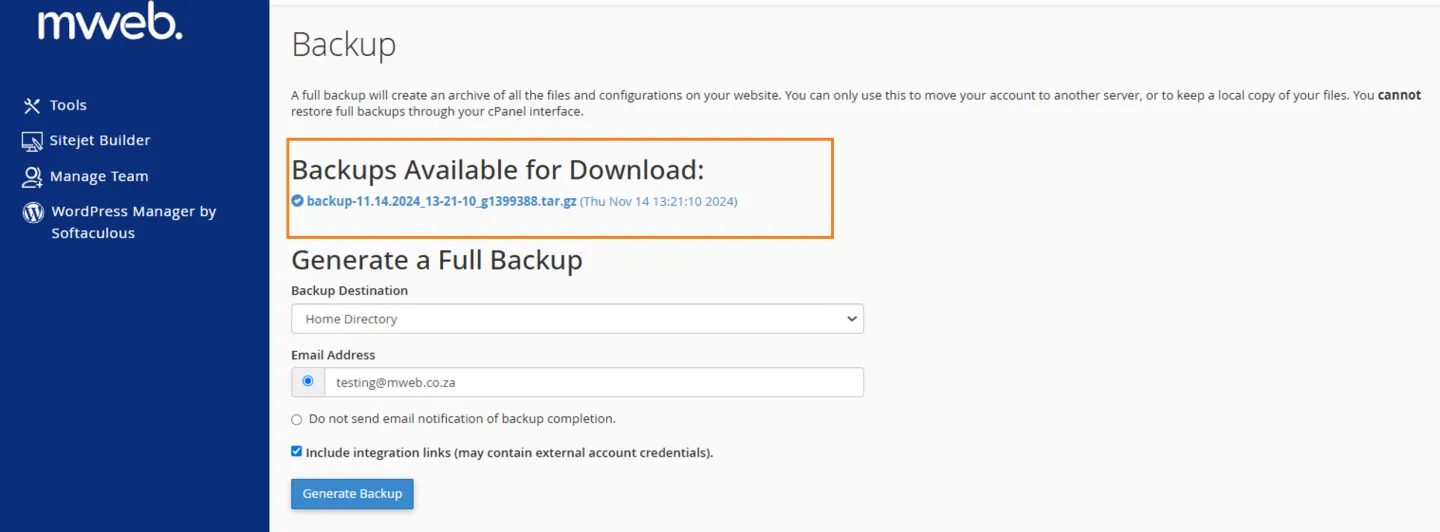
Access Backups - Backup Destination and E-mail
- Once the backup is generated, it will appear on the same page.
- Click on the backup link to download it to your device. You will also receive an email with a zip file containing the backup.
Note: We do not store a copy of this backup on our servers, so it’s important to save and secure your website backup.
Important: Emails cannot be recovered through cPanel Backup as they are stored on a separate server.
To learn more about using the cPanel, visit the cPanel Tutorial page.
Was this article helpful?