Set Up Your ZTE K12 LTE Router
Set Up Your ZTE K12 LTE Router
Your ZTE K12 LTE router takes just a few minutes to set up. Insert your SIM, switch it on and connect to WiFi.
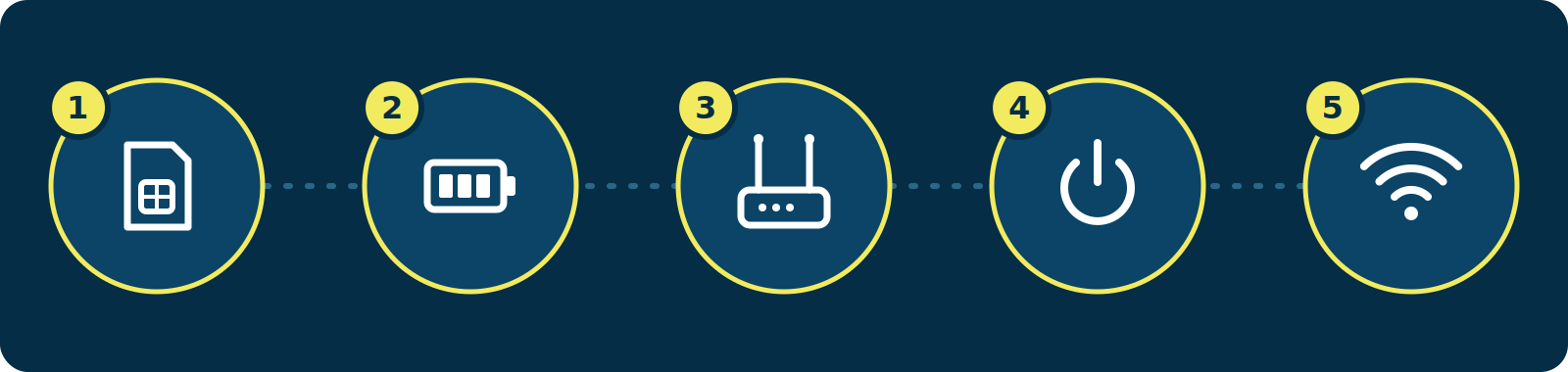
Five steps to set up the ZTE K12 router What You’ll Need
- Your ZTE K12 LTE router
- An active LTE nano-SIM card
- The power adapter
- The WiFi details on the label underneath your router
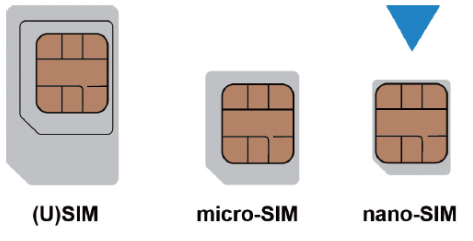
SIM card sizes, with nano-SIM being the one you need How to Set Up Your Router
- Insert the SIM card: Turn the router around, find the nano-SIM slot at the bottom and insert your nano-SIM card securely.
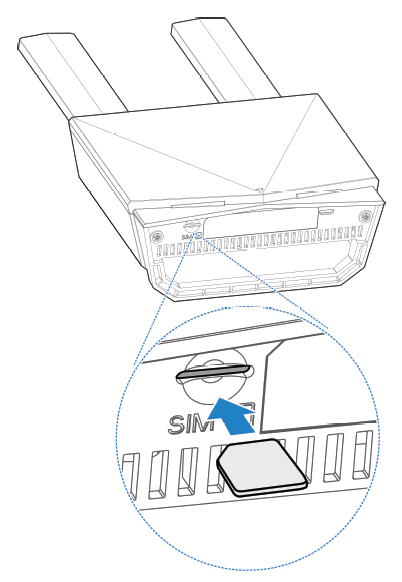
Inserting a nano-SIM card into the ZTE K12 - Insert the battery (if included): Open the battery cover, insert the battery and close the cover. The router still works on power without a battery.
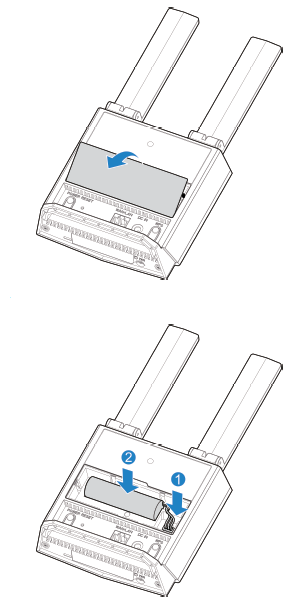
Removing the battery cover and inserting the battery - Position the antennas: Lift both antennas so they stand upright.
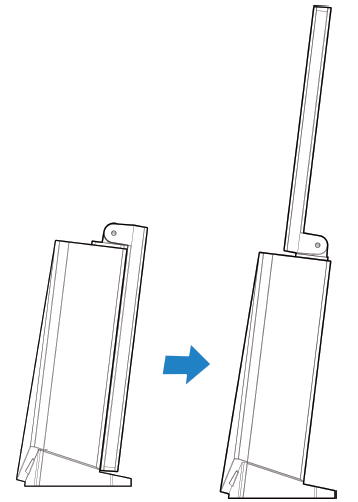
Lifting the ZTE K12 antennas upright - Power on the router: Plug in the power adapter, then press and hold the power button for about 3 seconds. Wait 1 to 2 minutes while the router connects to the LTE network automatically.
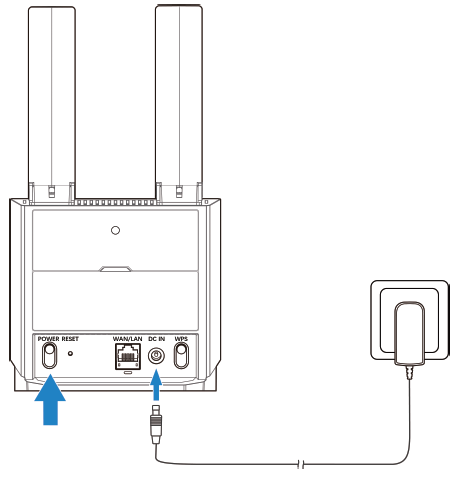
Connecting the power adapter to the ZTE K12 - Connect to WiFi: Find the WiFi name and password on the label. On your device, open your WiFi settings, select the router’s WiFi name and enter the password.
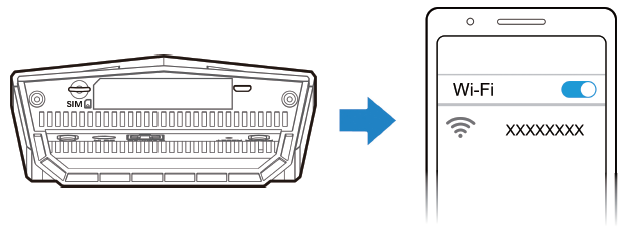
Finding the WiFi name and password on the router label Prefer a wired connection? Plug a network cable into the LAN port on the router and the other end into your computer.
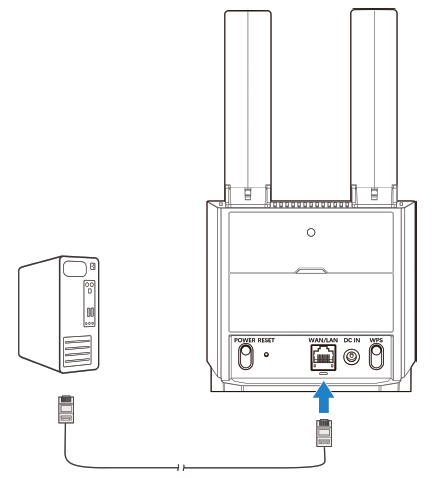
Connecting a computer to the ZTE K12 with a network cable Change Your WiFi Name and Password
- Connect to your router: Connect to the router’s WiFi.
- Open the router page: In your web browser, enter the router IP address shown on the label.
- Log in: Use the default login details on the label.
- Update your settings: Change your WiFi name and password, then save.
Router Not Connecting?
Your router finds its APN settings automatically on the Telkom LTE network, so there’s nothing to set up. If it still won’t connect, log in to your router and check that the APN is set to:
- Profile Name: Mweb Internet
- APN: mweb
Indicator Lights and Ports
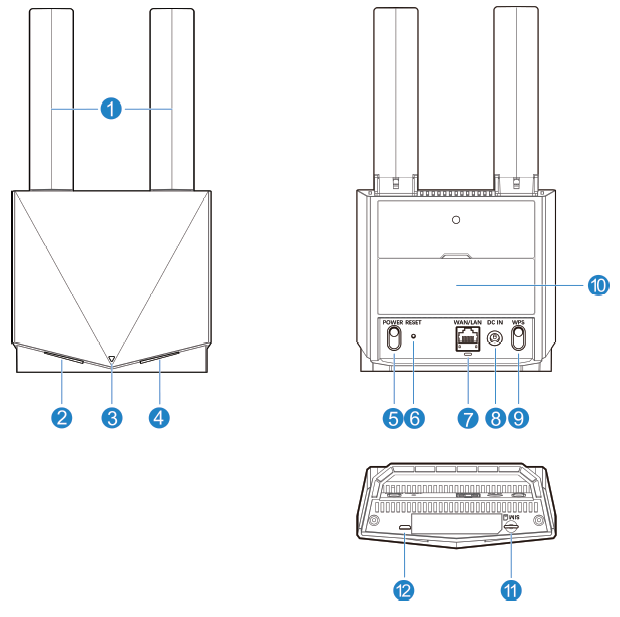
ZTE K12 indicator lights and ports, numbered 1 to 12 - Antennas: Foldable antennas.
- WiFi light: Solid white means WiFi is on. Blinking white means WPS is active. Off means WiFi is off and the router is in power saving mode.
- Power light:
- Solid white: The router is on and the battery level is high or full.
- Blinking white: The battery is charging and the battery level is high.
- Solid blue: The battery level is medium and the power adapter isn’t connected.
- Blinking blue: The battery is charging and the battery level is medium.
- Solid red: The battery level is low and the power adapter isn’t connected.
- Blinking red: The battery is charging and the battery level is low.
- Off: The router is off, or the battery isn’t inserted or working.
- Signal light:
- Red: The router has a problem. It may not be registered to the mobile network, the nano-SIM may be missing or faulty, there may be no network service, or it may be registered but the data service isn’t connected.
- Solid blue: Connected to the 3G network.
- Solid white: Connected to the LTE network.
- Blinking white: The software is updating.
- Off: Power saving mode.
- Power button: Press for more than 3 seconds to switch the router on or off.
- Reset button: Press and hold for about 3 seconds to restore the factory settings.
- WAN/LAN port and status light: Connect to the WAN in Cable Broadband Mode, or connect to a PC. Solid white means the port is connected. Blinking white means data is being transferred. Off means no network cable is connected.
- DC IN port: Connect the power adapter here.
- WPS button: Press and hold for about 3 seconds to activate WPS.
- Battery cover: Open this cover to insert the battery.
- Nano-SIM card slot: Insert your nano-SIM card here.
- Micro-USB port: Only used by the manufacturer.
Troubleshooting
No Internet Connection
- Check the signal light. If it’s red, the router isn’t connected to the network. Check that your SIM card is inserted correctly, then restart the router.
- Wait 2 minutes after switching the router on
- Restart the router
- Move the router closer to a window
Slow Speeds
LTE speed depends on signal strength. Place the router near a window, raised off the floor and away from metal objects.
Can’t Connect to WiFi
- Check the WiFi password on the router label
- Restart the router
- Forget the WiFi network on your device and reconnect
Placement Tips

Router placement tips: near a window, upright, not in a cupboard, restart regularly - Place it near a window, in an open space
- Keep it upright
- Avoid cupboards and spots behind TVs
- Restart it every now and then
Need Help?
Our Support team is happy to help. Get in touch.
©Mweb (Pty) Ltd. All rights reserved.