How to Setup your ZTE MC801A 5G router
How to Setup your ZTE MC801A 5G router
The ZTE MC801A gives you a fast 5G connection and WiFi on all your devices. Insert your SIM, plug it in and connect.
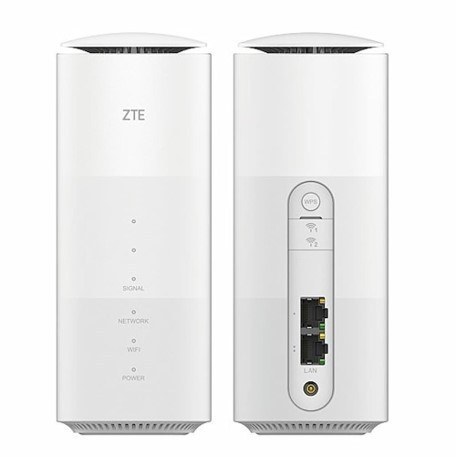
ZTE MC801A 5G router 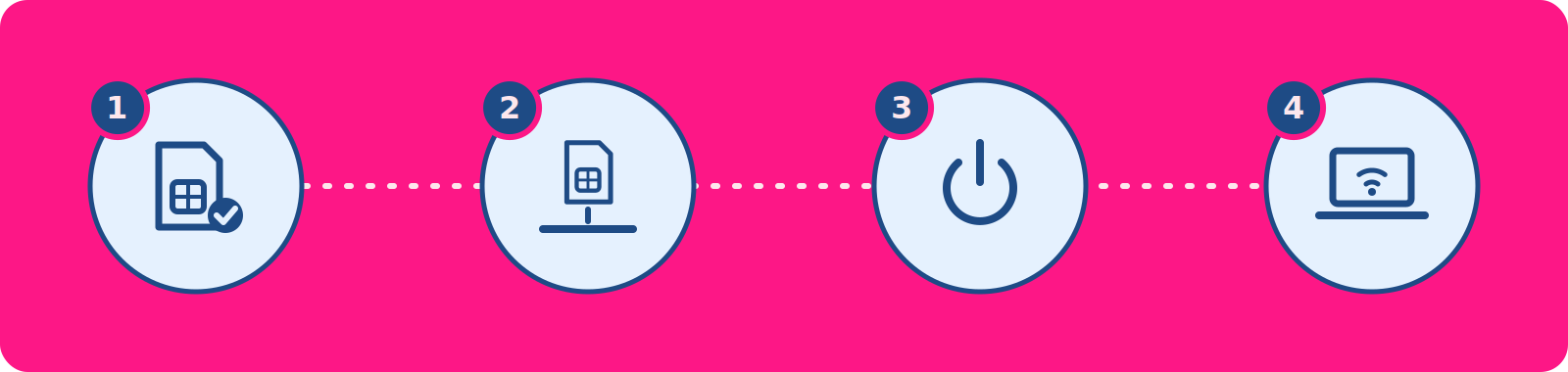
Four steps to set up the ZTE MC801A router What’s in the Box
- ZTE MC801A router
- Power cable
- Ethernet cable
- Quick start guide
- Safety warnings
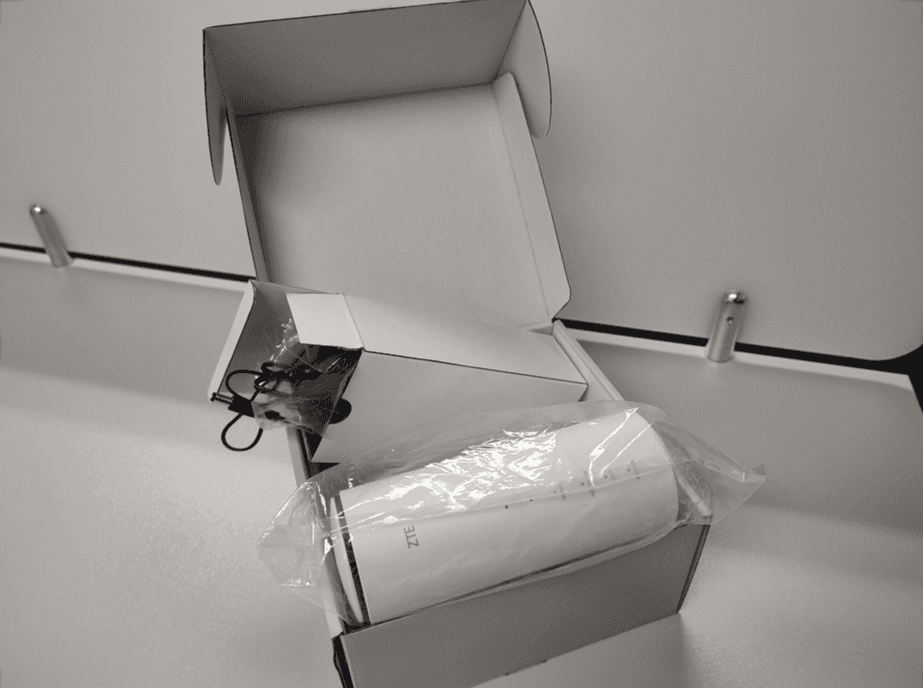
ZTE MC801A box contents The Label Underneath Your Router
The label on the underside of your router has everything you need to connect:
- 2.4 GHz WiFi network name
- 5 GHz WiFi network name
- Default WiFi password
- Router admin URL
- Router admin password
- IMEI and serial number (sometimes needed for technical support)
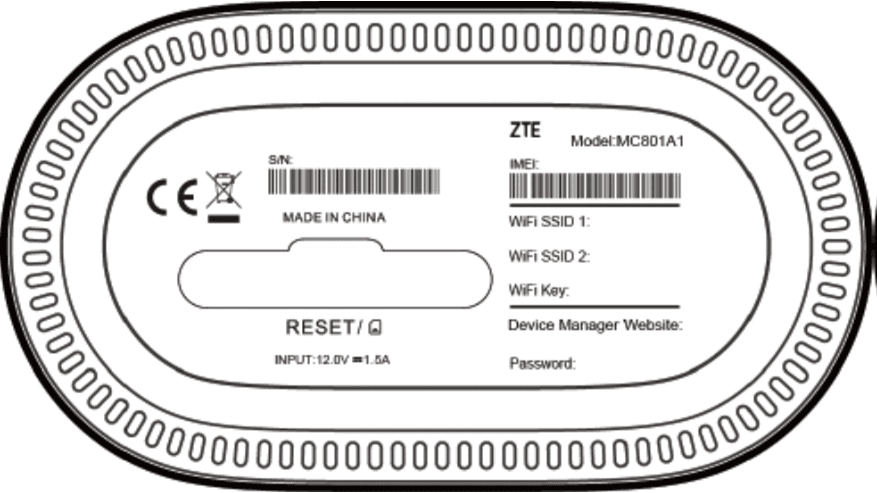
Label underneath the ZTE MC801A router Tip: Take a photo of the label with your phone before you plug in the router.
How to Set Up Your Router
- Prepare your SIM card: Make sure you have a valid nano-SIM card.
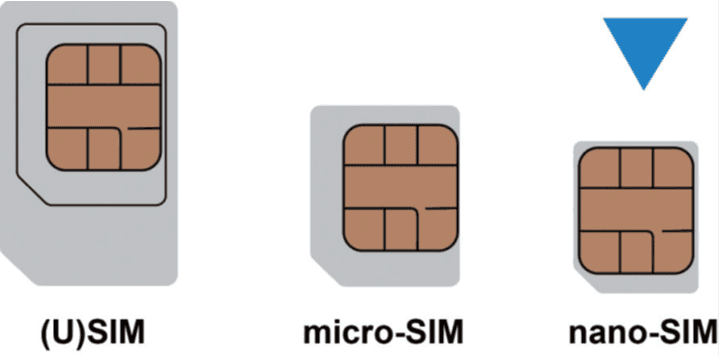 Nano-SIM card
 - Insert the SIM card: Open the slot cover at the bottom of the router and insert the nano-SIM card, using the image on the router as a guide. You’ll feel a click once it’s in place.
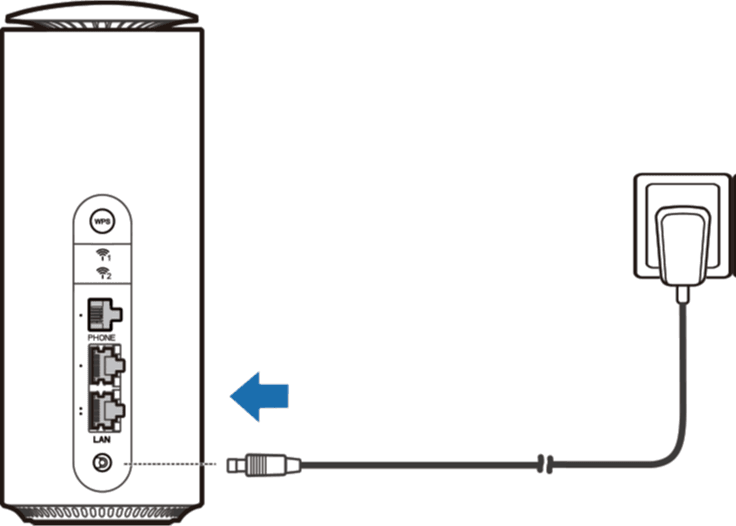
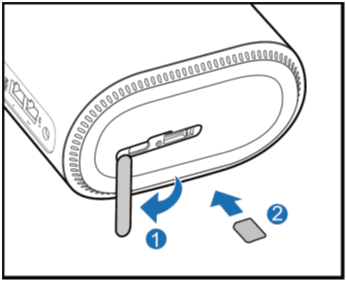 Connecting the power adapter to the ZTE MC801AInserting a nano-SIM card into the ZTE MC801A
 - Power on your router: Connect the power adapter. The router switches on and connects to the internet automatically.
- Connect your devices: For WiFi, connect to the WiFi name on the label using the default password. For a wired connection, plug a network cable into a LAN port and connect it to
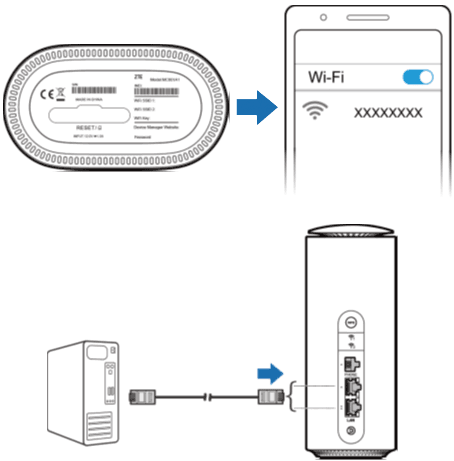 Connecting to the ZTE MC801A over WiFi or with a network cable your computer.
Connect to 5 GHz for faster speeds, or 2.4 GHz if you’re further away from the router.
Log In to Your Router
- Open the router page: In your web browser, type 192.168.0.1 into the address bar.
- Log in: Enter the router admin password from the label and click “Login”.
- Change your admin password: We recommend updating it the first time you log in.
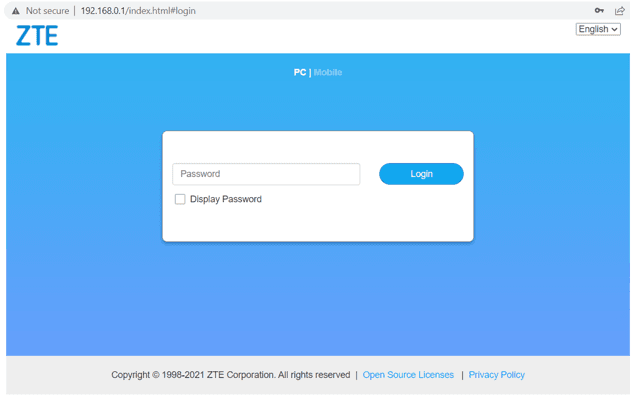
ZTE MC801A router login page Once you’re logged in, the landing page shows your connection status, network and signal strength.
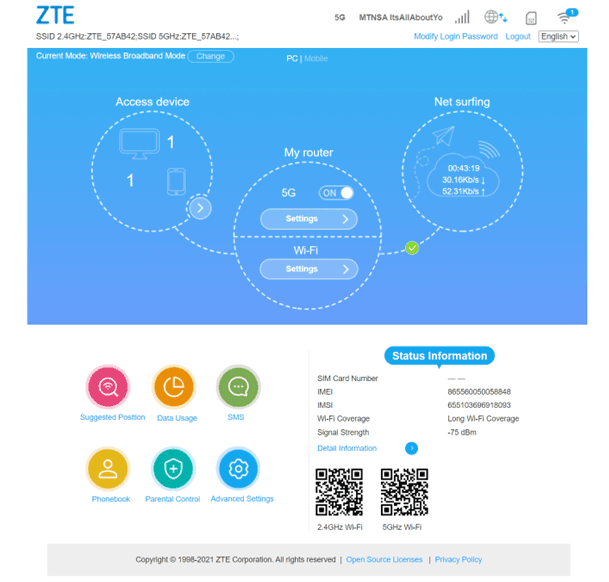
ZTE MC801A router landing page Change Your WiFi Name and Password
- Log in to your router: Follow the steps in “Log In to Your Router” above.
- Open your WiFi settings: Select “WiFi Settings”.
- Change your WiFi name: Update the “Network Name (SSID)”.
- Change your WiFi password: Update the “Password”.
- Save: Click “Apply”.
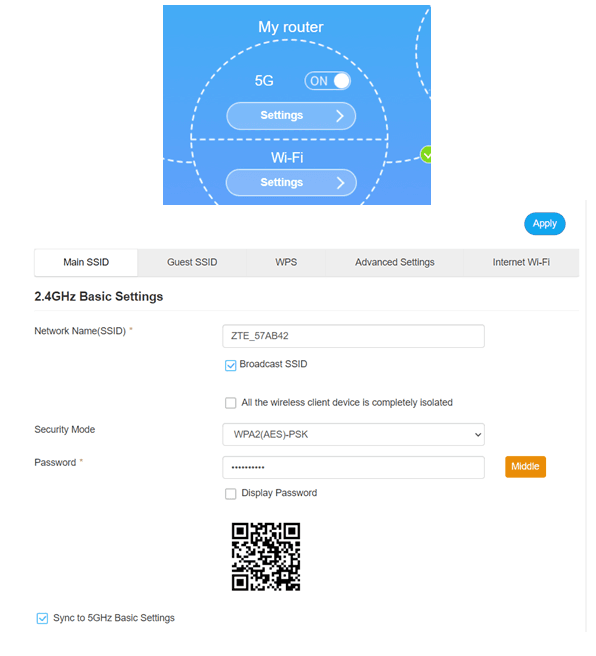
ZTE MC801A WiFi Settings page To update both WiFi networks, repeat these steps for the 2.4 GHz and 5 GHz settings.
Router Not Connecting?
Your router finds its APN settings automatically, so there’s nothing to set up. If it still won’t connect, log in to your router, select “My router settings” and check that:
- Connection Mode is set to “Automatic”
- Network Selection is set to “5G/4G/3G”
- APN is set to ws.is.fwa
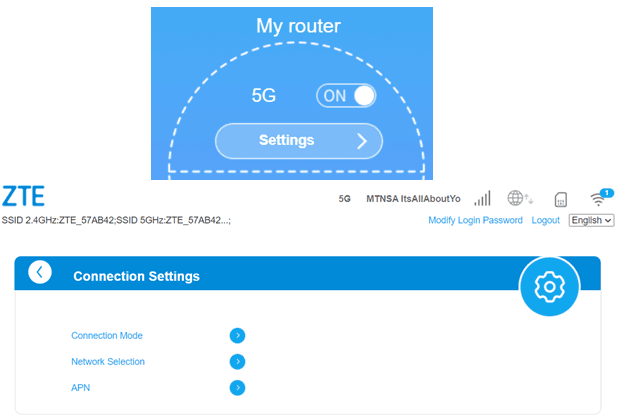
ZTE MC801A connection mode, network selection and APN settings Indicator Lights and Ports
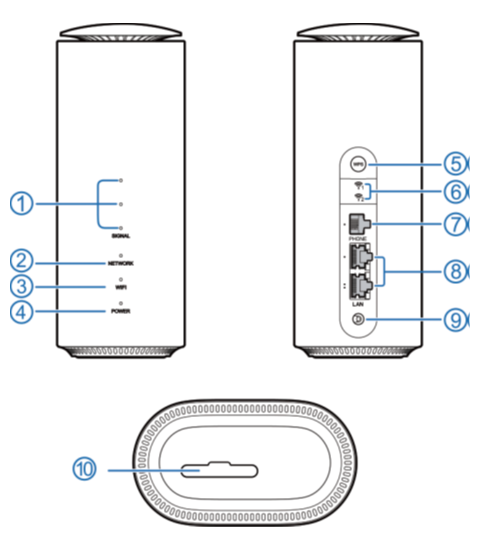
ZTE MC801A indicator lights and ports, numbered 1 to 10 - Signal light: Shows signal strength using three lights, and more lights means a better signal. Off means there’s no signal or no nano-SIM card inserted.
- Network light: Red means the router is on but not registered to the mobile network. Solid blue means it’s connected to the 3G or 4G network. Solid white means it’s connected to the 5G network.
- WiFi light: On means WiFi is working normally. Blinking means WPS is activating. Off means WiFi is off.
- Power light: On means the router is on. Off means it’s off.
- WPS key: Press to activate WPS.
- External antenna: Connects to external antennas. The connector type is TS-9, and the antenna frequency range is from 700 MHz to 4200 MHz.
- Phone port: Connects to a telephone (if supported).
- LAN ports: Connect to the WAN in Cable Broadband Mode, or connect to a PC.
- Power port: Connects to the power adapter.
- Nano-SIM card slot and reset: Insert your nano-SIM card here. To restore the factory settings, press and hold the reset hole for about 3 seconds.
Troubleshooting
No Internet Connection
- Check the network light. If it’s red, the router isn’t connected to the mobile network. Check that your SIM card is inserted correctly, then restart the router.
- Wait 2 minutes after switching the router on
- Restart the router
- Move the router closer to a window
Slow Speeds
5G speed depends on signal strength. If the network light is blue, you’re on 4G rather than 5G, so try moving the router closer to a window or higher up.
Can’t Connect to WiFi
- Check the WiFi password on the router label
- Restart the router
- Forget the WiFi network on your device and reconnect
Placement Tips
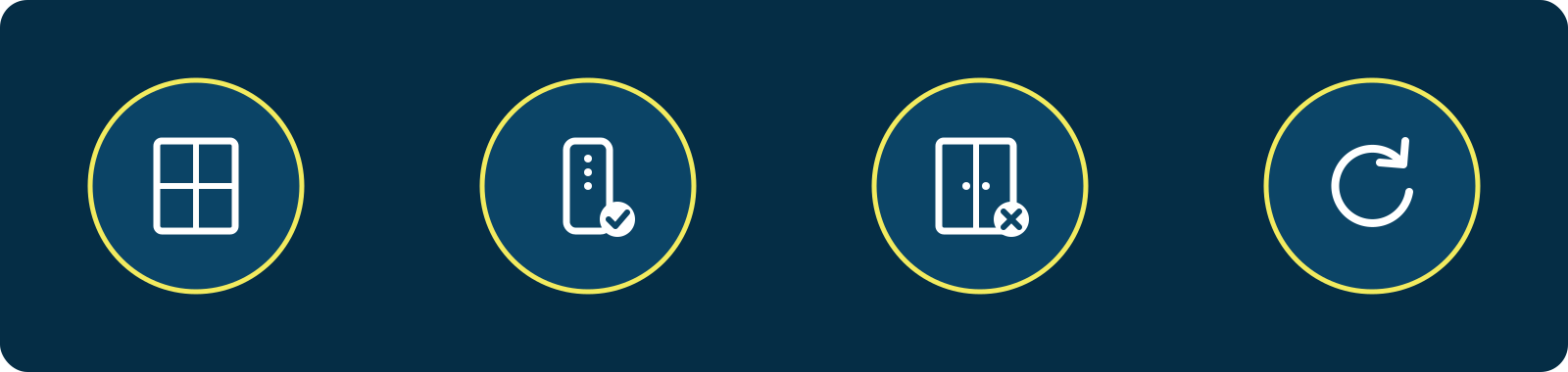
Router placement tips: near a window, upright, not in a cupboard, restart regularly - Place it near a window, in an open space
- Keep it upright
- Avoid cupboards and spots behind TVs
- Restart it every now and then
Need Help?
Our Support team is happy to help. Get in touch.
©Mweb (Pty) Ltd. All rights reserved.